Windows · 26.1

Write the page. Watch it change.

Write a page and watch it change beside the code. Build the markup from a library of every element, check it, then send the site to your own server without leaving the window. Install from the Microsoft Store or download the signed installer.

Version 26.1 · build 1Windows 10 (1809) or 11x64 (Intel/AMD) and ARM64One signed installer for x64 and ARM64free, no in-app purchases
Code and page togetherThe preview sits beside the code and keeps up as you type. Point at anything in the page and land on the line that drew it; change the words in the preview and the smallest possible edit goes back into the code.
Publish from the windowFTP, FTPS and SFTP, with your server next to your files and a badge on every item saying which side is newer. Send one file, a folder, or everything that changed.
Free, one installerNo runtime to add, no in-app purchases: one signed installer for x64 and ARM64, and Windows removes it like any other app.
Features

Choose a web task on Windows

Put up a portfolio, correct a page on a site that is already live, rebuild a template from scratch, or clean up markup somebody else wrote.

Write the codeColouring for HTML, CSS, JavaScript, PHP and Markdown, with the brackets you are inside lit up and the indent guides drawn. Type an opening tag and the closing one appears; type a letter and the tags, attributes and CSS properties that fit are offered — and both can be switched off. A breadcrumb above the code says exactly where the cursor is, from <html> down to the element you are in.
One key per jobComment a line out, move it up or down, duplicate it, change its case. Tidy up the indentation of a whole file or of what you selected. Several documents in tabs, several project windows, and the session you left open comes back when you return.
See the pageThe preview beside the code or under it, and either half can be hidden. Inspect jumps from the page to the line that drew it — a row of a table included. Edit Text changes the words in the preview and writes the smallest edit back. A phone, tablet or desktop width, a zoom, and a console that shows what the page itself is saying.
Build the markupA library of every HTML element, grouped and described, that writes the tag with its usual attributes. Snippets you keep and drop in. A table builder for the rows, the columns, the header and the caption. A CSS panel that lists the styles the page really uses, rule by rule.
Look at the documentA DOM tree, an inspector for the element under the cursor, and an outline of the file in the panel underneath. Pull every inline SVG out of a page into files of their own, all in one undo step.
Find and fixFind and replace in the file and across every file in the project, plainly or with a pattern — and Undo Replace in Files puts them all back in one step. Check the document against the rules of HTML or of XML and click through the list of problems.
PublishFTP, FTPS and SFTP side by side with your files, with a badge on every file and folder: the same on both sides, newer here, newer there, or only on one. Upload, download and pull whole folders, Publish All for everything that changed, drag between the two trees in either direction, resume an interrupted transfer, and a log that keeps every success and every failure with its reason.
An assistant, and your assistantAsk for markup, a style, a fix or an explanation, in the panel or in a palette. It reads the files you are working on, so “make this table responsive” means this table. Bring your own key, or use the channel that comes with the app and start straight away. And with external control switched on, an assistant such as Claude, Codex or VS Code can work in the project with you — through the same machinery the menus use, so everything it does undoes the same way.
A look at it

The workspace on Windows

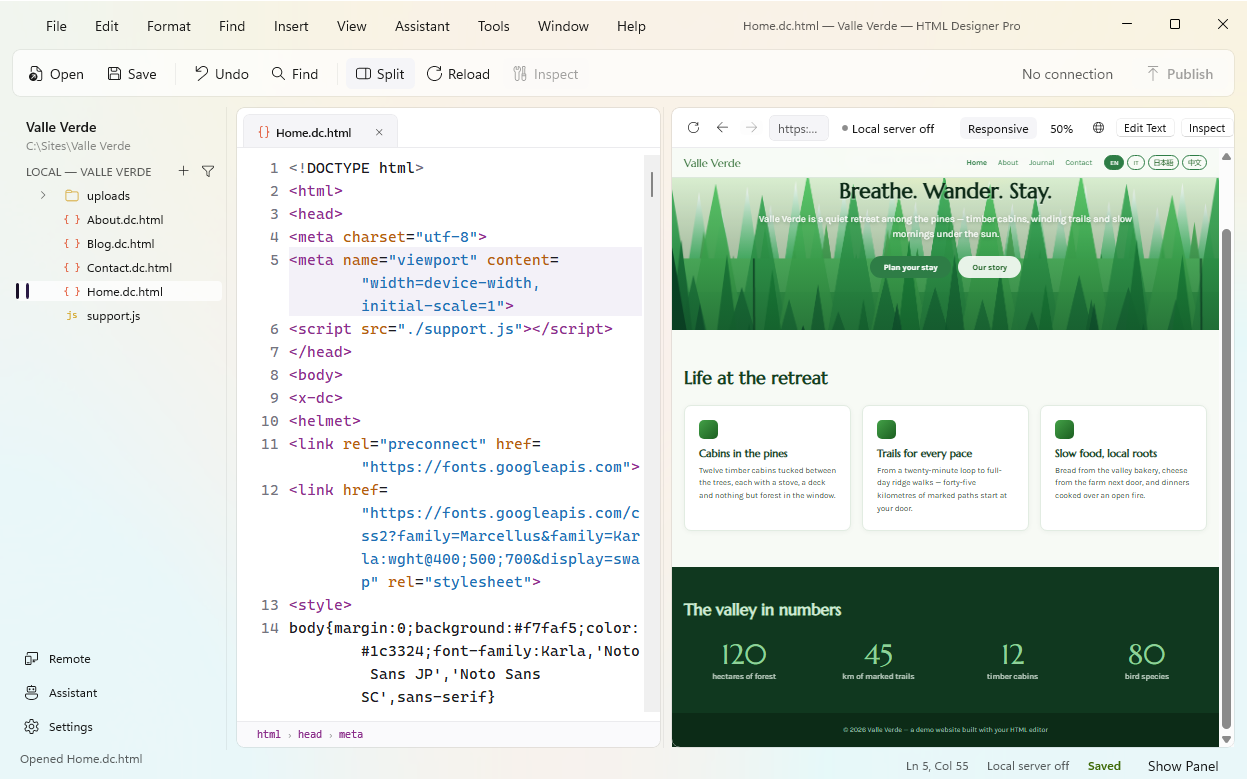
Your files on the left, the code in the middle, the page on the right — and ten floating palettes that stay where you put them.

HTML Designer Pro on Windows: the file tree, the code and the live preview side by side
The code and the page, side by side.
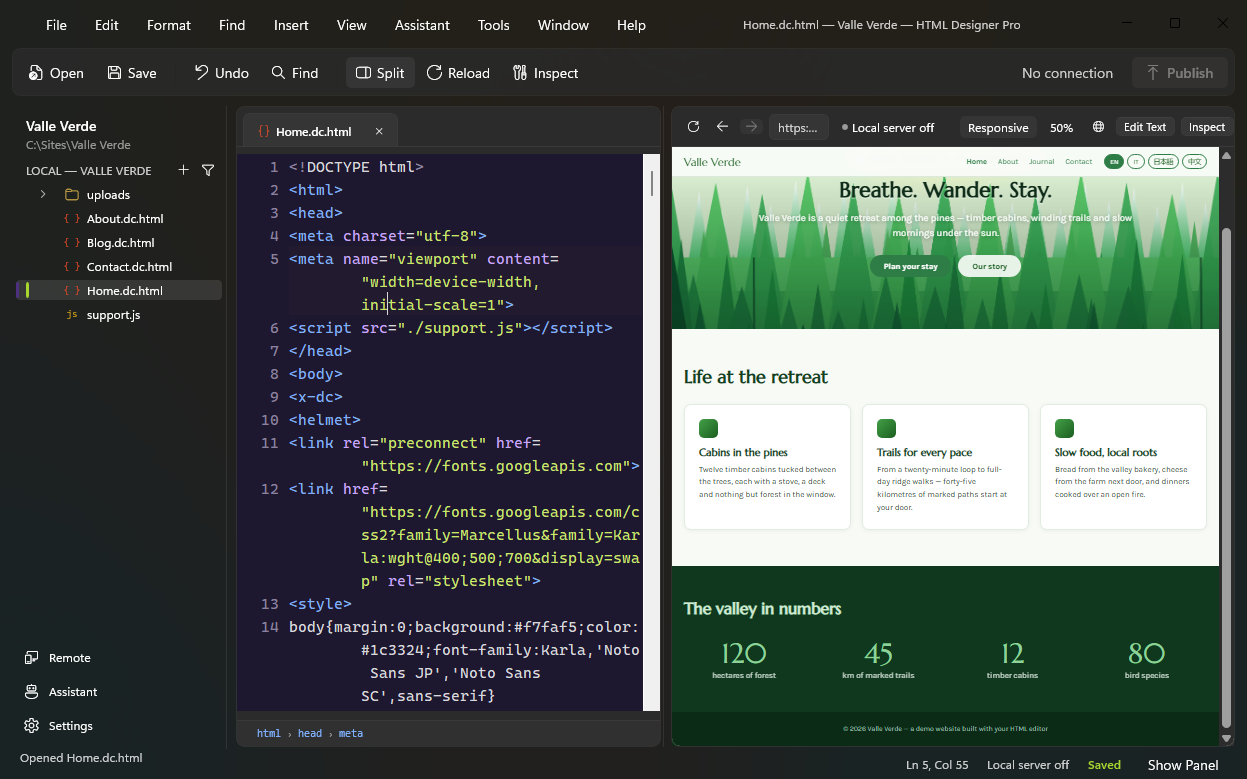
The same split view in the dark theme, following the Windows appearance
The same window, in the dark theme.
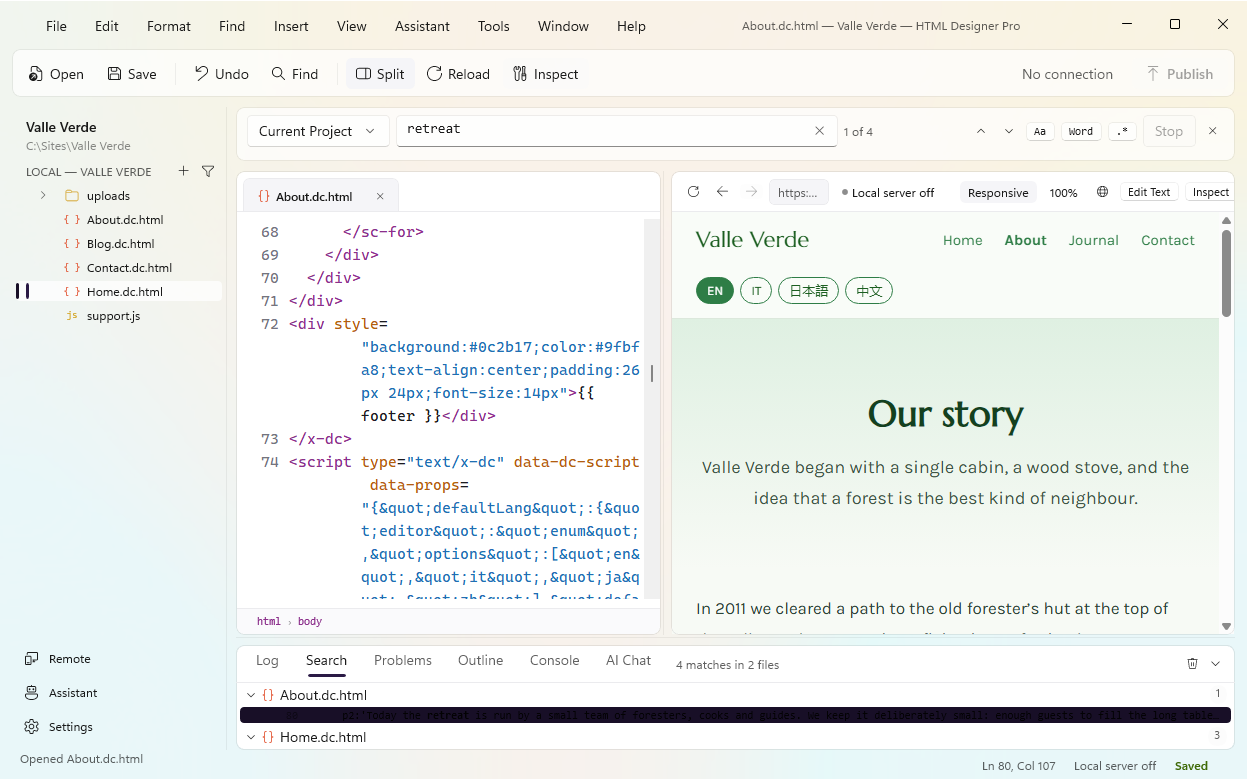
Find in Files showing four matches in two files, with the editor jumped to one of them
Find across every file in the project.
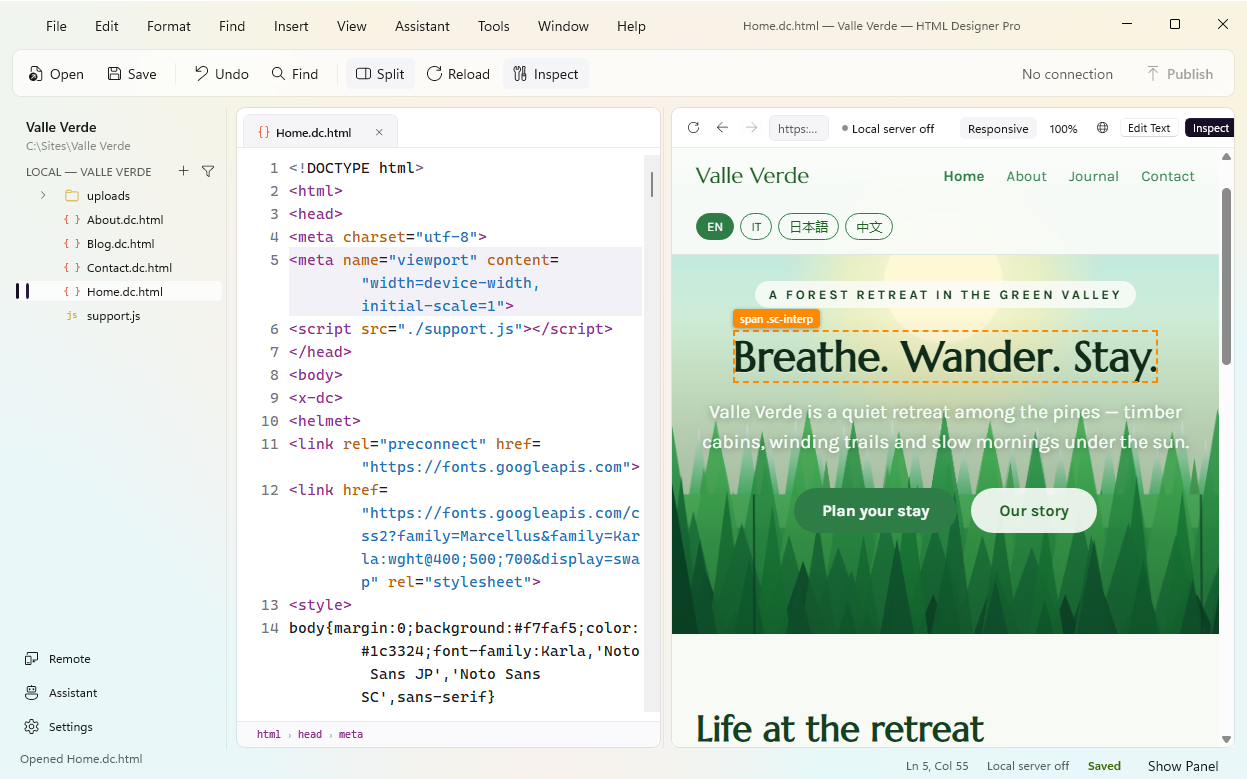
Inspect in the preview outlining an element and lighting up the matching line in the code
Click the page, land on the line that drew it.
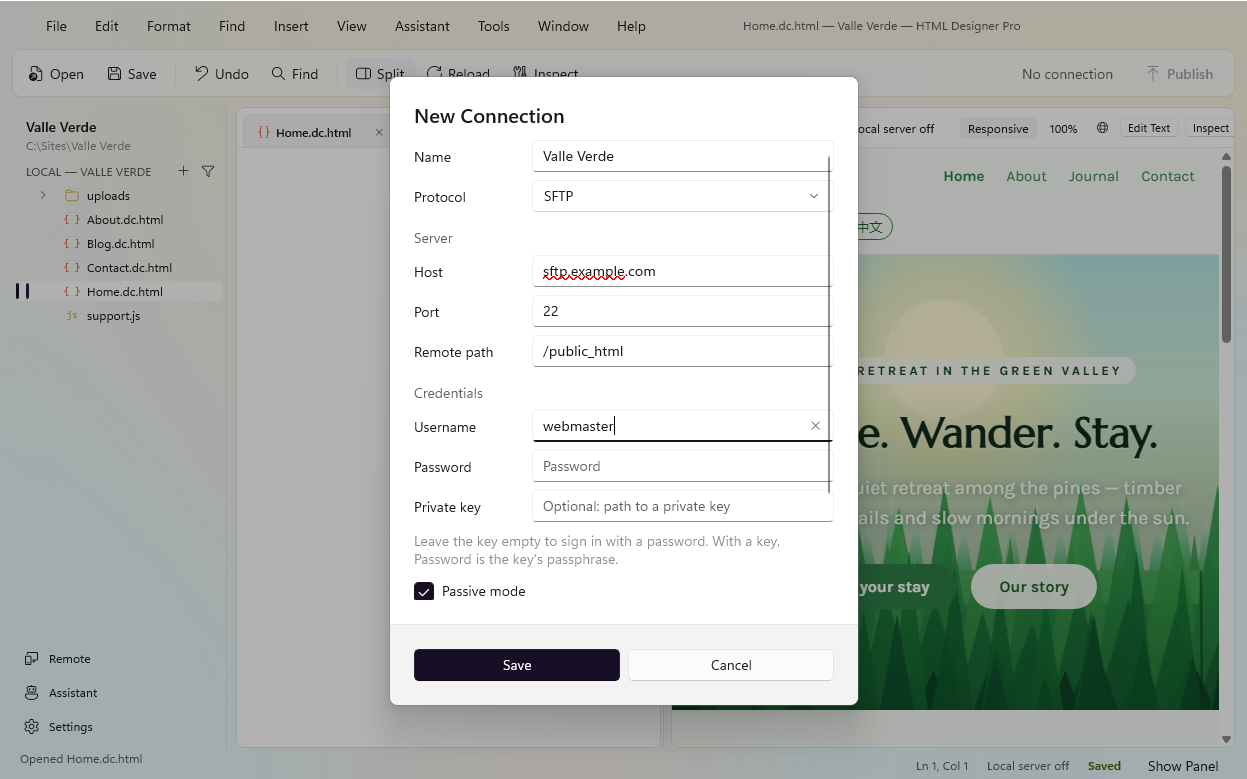
The New Connection sheet with SFTP, host, port and remote path
Your server, beside your files.
Good to know

Check the Windows workflow

Check the available tools for the job before starting. If a command is unavailable in this version, its tooltip explains the limit.

One server at a timeOne connection to one server per session. Two project windows show two remote trees but share the one connection, and closing the window that opened it closes the connection: a live session with no window to show it is a socket held open for nobody. The status is reported honestly per window rather than guessed.
PHP previewA PHP page is previewed by your server — the one you publish to — because that is the machine that runs it. The badge says which of the six states the preview is in rather than showing you a page that is not the real one.
Preview in a browserOpens the page in any browser installed on the PC, read from the system’s own list. If the tab has unsaved changes it says so instead of quietly showing the version on disk.
The local preview serverPages that need a server get one, on the loopback address, so links, fonts and scripts behave as they will online. It serves only what is inside the project folder: one function decides that, and every request goes through it.
PasswordsKept by Windows, in the same place it keeps the rest of your credentials — never written into a project file, and wiped from memory after use. The first time you meet an SSH server its key is remembered, and you are told if it ever changes.
Your own AI keyClaude and Gemini, with the key you bring. The list of models comes from the provider itself rather than from a list compiled into the app, so it shows what your key can actually reach — which can differ between two machines, and that is the truth a fixed list used to hide. “Most capable (automatic)” picks the strongest one for you. With no key at all the chat still works, through the channel that comes with the app.
When the assistant writes filesA copy of every file it replaces is put aside first, and Edit › Undo Replace in Files undoes the lot in one step. A file whose copy could not be written is left alone, and the chat says which one and why: an operation that promises an undo it does not have is worse than the same operation without the promise.
Images from the assistantAn SVG it writes is turned into a picture for you. The drawing covers a useful part of SVG but not text layout or filters; when it cannot, the SVG is written next to the file and the chat says so by name rather than handing you a wrong picture.
External controlOff until you switch it on. The listener answers on the loopback address only, with an exclusive-use socket, and refuses anything that does not come from this machine. The usual transport is htmldesigner.exe --mcp-stdio, which opens no port at all; the configuration to paste into your assistant is on that panel.
Find in ProjectThe scope All Projects searches your recent projects. With only one recent project it is greyed, because it would be Current Project under another name — and Replace All in Files refuses that scope outright.
Folders as projectsOpen a folder as a project from the File menu, or drop it on the window. A project is remembered by an identity that survives the folder being moved or renamed.
KeyboardCtrl, Alt and Shift throughout, with the whole set reachable without a mouse. The full list is inside the app, under Edit › Keyboard Shortcuts…, searchable.
FeedbackHelp › Send Feedback… or the Feedback palette. Attach a file with the paperclip inside the palette; if you are offline the message waits and goes out later. Pasting an image straight into it is not in this release.
Not in this release

Choose a task this version supports

Use the available editing, preview, markup and publishing tools for the file in front of you. Unavailable commands stay disabled, with the reason in the tooltip.

Live Document (W3C)In the menu and greyed. Validating the page as the browser has it, rather than as the file has it, needs a bridge this version does not have — and a command that pretends would be worse than one that says so.
Code foldingNot in this version. The breadcrumb, the outline in the panel and the DOM tree are how you move through a long file here.
Docking the palettesThe ten palettes float and remember where you put them; they do not snap into the edges of the window. Tab is not taken from the editor to hide them.
Editing from the InspectorThe Inspector shows you the element under the cursor and takes you to it; you change the attributes in the code. The CSS panel does change values — what it does not do is create a new selector for you.
Checking the linksThere is no broken-link report. Validation checks the document, not where its links lead.
Tab stops in snippetsA snippet is inserted whole. Walking from one placeholder to the next with Tab is not in this version.
Two transfer habitsThere is no .ftpignore, and saving a file does not upload it. What goes to the server goes because you sent it.
Reordering in the treeThe file tree shows, opens, renames, moves to a folder and deletes. It does not let you drag a file into a different position in a list: on disk there is no such position.

Everything in that list is a decision, not a gap being filled quietly. When one of them arrives it will be in a release note, and until then the command either is not there or is there and greyed with its reason.

Specifications

Windows version details

Version 26.1, build 1. Everything below is in the download.

RequirementsWindows 10 (version 1809) or Windows 11. The installer carries both builds, x64 for Intel and AMD PCs and ARM64 for Windows on ARM, and picks the right one.
DownloadOne signed installer for every PC: double-click the .msixbundle and Windows installs the right build, x64 or ARM64, without any SmartScreen warning, in the Start menu and registered for the file types below.
OpensRegistered for .html, .htm, .xhtml, .php, .phtml, .css, .scss, .less, .js, .mjs, .cjs, .jsx, .json, .xml, .svg, .md and .markdown — the files it writes as well as reads. Not .txt: taking the most general extension on Windows would be a liberty. A folder dropped on the window opens as a project.
Languages of the interfaceMenus, palettes, dialogs and the built-in help follow the language of your Windows, and you can change it any time in Settings › Language.
One system componentThe window is built on WinUI 3 and needs the Windows App Runtime 1.8, a small framework Microsoft keeps up to date through the Store. The preview uses the WebView2 runtime, which recent Windows installs already carry. On Windows 10 the window is opaque instead of translucent; everything else is the same. Nothing else: no other frameworks, no redistributables.
SigningSigned by Rainbowfactory Ltd with an Azure Trusted Signing certificate and timestamped, so Windows opens it without a SmartScreen warning.
The editorText is held and measured in UTF-8 from end to end, so an accented character, an emoji or a Chinese page counts the same way everywhere — in the editor, in find and replace, in the outline and in what the assistant reads.
ValidationTwo checks, both ours: the rules of HTML, and the rules of XML. The results arrive as a list in the panel, each line taking you to its place in the file.
TransfersFTP, FTPS (explicit and implicit), active mode, and SFTP with password or public key — including Ed25519 keys, for the host key as well as yours. Resume, real progress and a real cancel. Remote chmod. The server’s key is remembered the first time and checked after that.
PalettesTen: CSS Designer, Elements, Snippets, DOM, Inspector, Projects, Transfer, Log, Chat and Feedback. Each remembers where you left it. Under the code, a panel with four views: Log, Search, Problems and Outline.
ThemeA dark interface that follows the system setting, over the material Windows 11 uses, with the three working areas as cards. Eight syntax inks, and a command bar of eight actions that are the same commands as the menu items behind them.
AIClaude and Gemini with your own key, or the channel that comes with the app when you have none — in both the Store copy and the direct download. The model list comes from the provider, with “Most capable (automatic)” as the default. The chat lives in the panel (Ctrl+1) and in a palette (Ctrl+8).
External controlRun htmldesigner.exe --mcp-stdio, or switch on external control in Settings › MCP for the loopback transport. Fifty-three commands, so an assistant can open documents, search and replace, insert elements, read and edit the tree, connect to your server and publish. Off until you turn it on.
FeedbackHelp › Send Feedback… or the Feedback palette (Ctrl+Alt+F): text and screenshots go to our tracker, queued on disk when you are offline.
UpdatesThe direct download keeps itself up to date: it checks in the background, downloads the signed package, verifies the signature and installs it when you press the button. Help › Check for Updates… checks right away. Nothing unsigned is ever installed. The Store copy is updated by the Store, and has no updater of its own.
PrivacyFree, with no in-app purchases and no account. Your files are never uploaded anywhere except to the server you publish to. Nothing else leaves the PC unless you send it: feedback you write, a crash report you agree to send, or a message you write to the assistant. There is no usage analytics of any kind in this version. The whole story, read from the code, is on the privacy page.
ShortcutsCtrl, Alt and Shift throughout. The full list, menu by menu, is inside the app under Edit › Keyboard Shortcuts…, and it is searchable.

Microsoft Store

Get it from the Microsoft Store

Install HTML Designer Pro from the Microsoft Store and let the Store handle installation and updates. Prefer a direct download? The signed installer below works on both x64 and ARM64. News lands on Discord.

Download

Download

HTML Designer Pro 26.1 for Windows (x64 and ARM64). One signed installer for both: double-click it and Windows picks the right build. Installed copies update themselves from Help › Check for Updates. No runtime to add, no in-app purchases.

Windows 10 (1809) or 11x64 (Intel/AMD) and ARM64One signed installer for x64 and ARM64

SHA-256 6DF4C396AC76B519E8FCF20CA28CC0FD265C94A2D86CD5E8065B102931F412EE
Size 9.69 MB (10,159,572 bytes) · one installer, x64 and ARM64

Signed by Rainbowfactory Ltd (Azure Trusted Signing), so Windows opens it without the SmartScreen warning. Full specifications, what is good to know on Windows, and the privacy policy.