

Set readable headings
Adjust the supported font, size and text styling controls.
Change a heading font, give buttons your brand colour or add room around a section. Adjust CSS controls and check the result on the page.
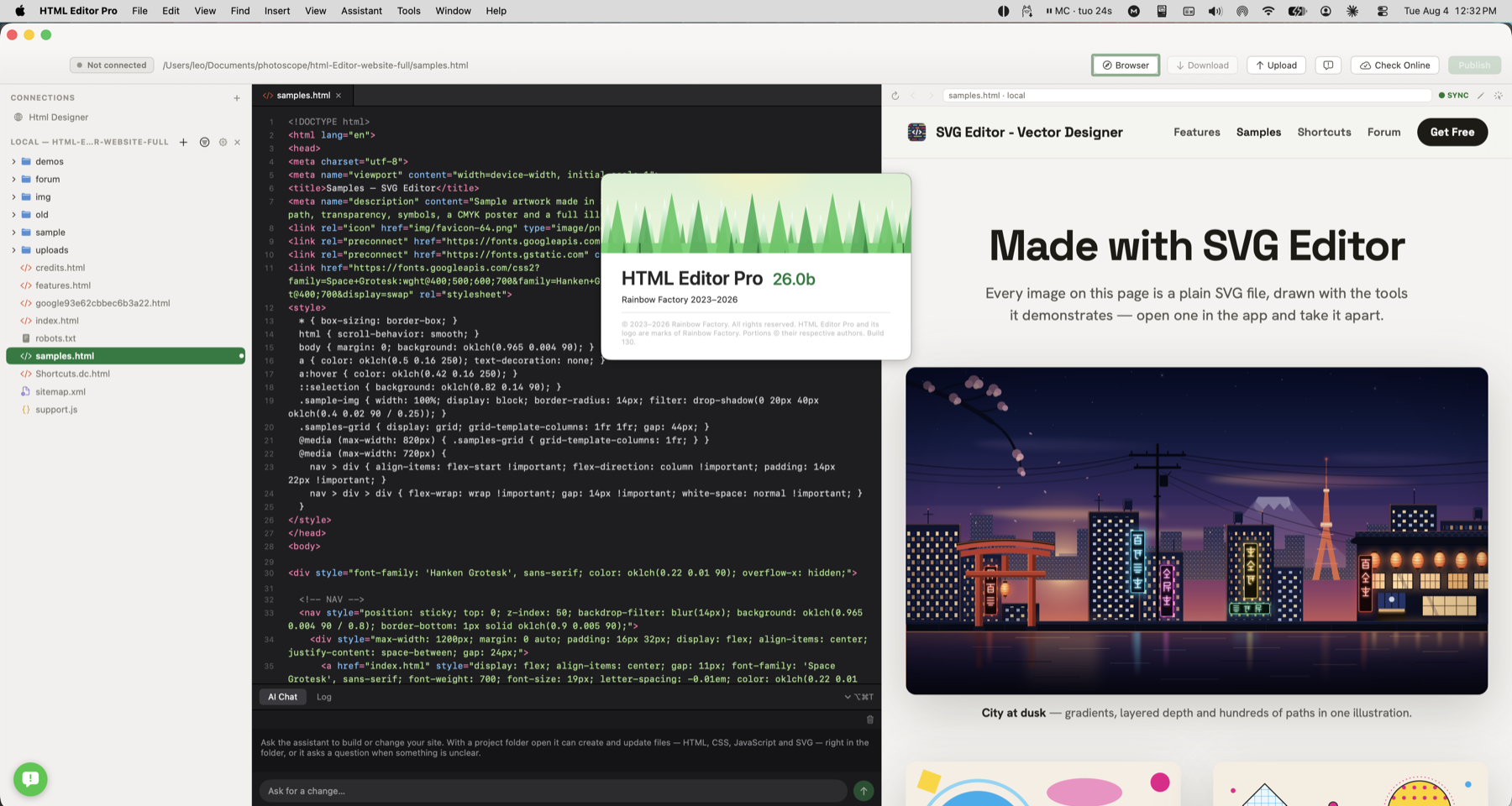
A new services page needs the same headings, buttons and spacing as your homepage. Select the relevant style rules and adjust the shared design details.
Set a heading font, use your brand colour on buttons or adjust the spacing around a section.
Adjust the supported font, size and text styling controls.
Change text and background colours in the appropriate CSS rules.
Refine margins, padding and supported layout settings while reviewing the preview.
A new services page needs the same headings, buttons and spacing as your homepage. Select the relevant style rules and adjust the shared design details.
Check how this works with your project and hosting.
No. Changes are written to the CSS in your project, and you can continue editing it directly.
No. Some expressions, variables and newer colour syntax need the raw value field or source editor. A rule can also affect several matching elements, so review the relevant pages.