

Your project files
Open the page, stylesheet and images for the update.
Change opening hours, add a portfolio project, fix a page’s spacing or publish a new section. Choose a task and keep the source and preview together while you work.
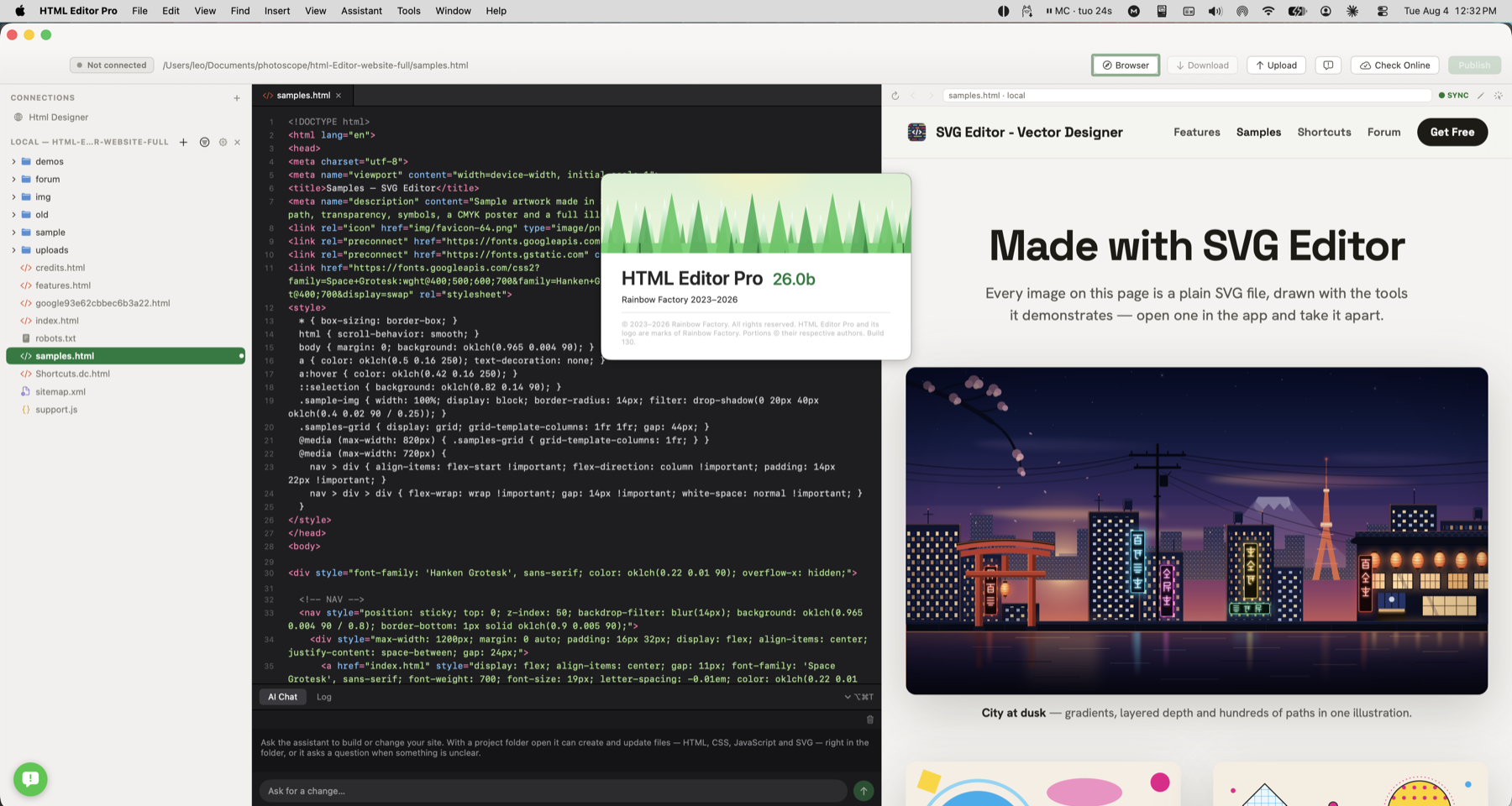
Keep your portfolio, a client’s site and a small business website ready to work on. Open their folders, find the page to change and return to saved hosting connections.
Open the page, stylesheet and images for the update.
Return to the client’s saved hosting connection.
Find an asset in Finder or check the page in a browser.
Keep a portfolio and client site in separate project windows.
Open the saved site and find the contact page that needs changing. Manage your websites →
Change a homepage heading, replace an image or adjust a section and see the page as you work. Keep the preview beside the code while checking the result.
Keep the page visible while editing its source.
Place the code and result side by side when adjusting a section.
Preview a static portfolio page before uploading it.
Check the new wording as the preview refreshes.
Preview a PHP page on your own hosting.
Follow the contact or booking link to check its destination.
Use local preview for static pages; PHP preview uploads files to a temporary area on your configured server. Check changes as you edit → Preview PHP pages →
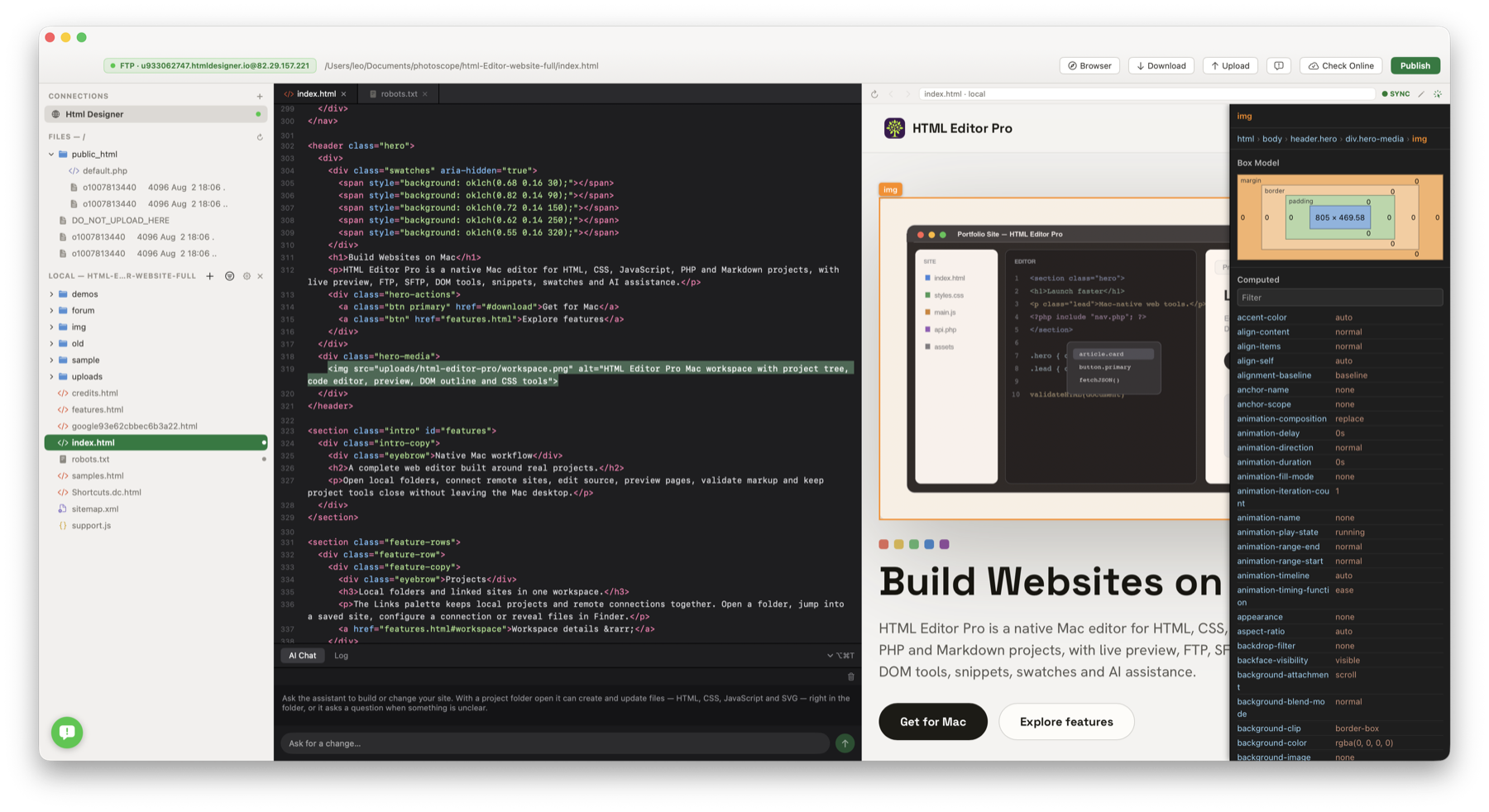
Select a button, heading or image in the preview to inspect its spacing and styles. Find the matching HTML and make a focused correction in the source.
Select the misplaced button in the preview.
Inspect which section contains the element.
Look at margins and padding to understand an unexpected gap.
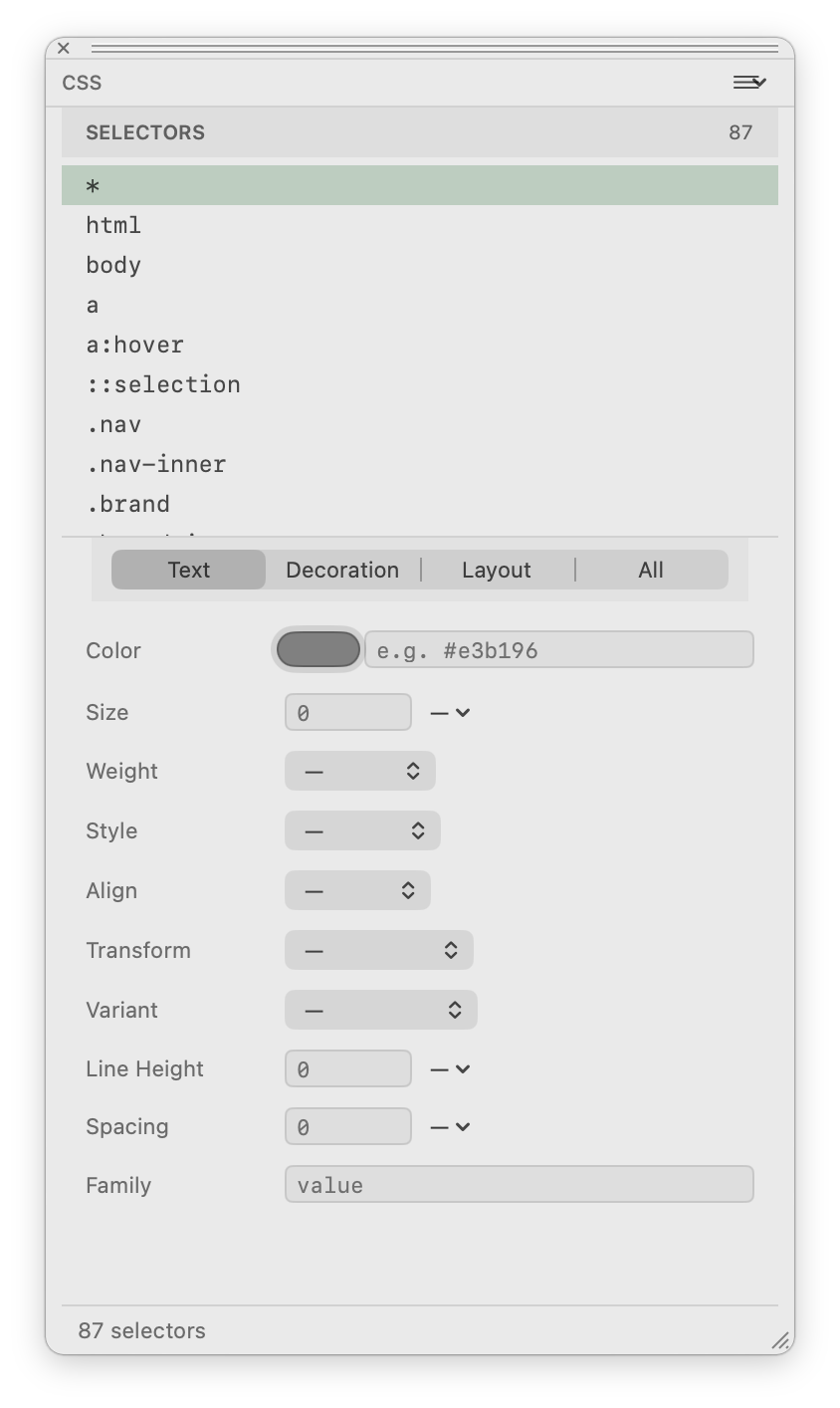
Filter for the font, colour or spacing property you need.
Reach the matching HTML to make the correction.
Use the Mac web inspector for a deeper look when needed.
Correct an eligible plain-text heading directly in the preview.
Undo the visual text edit if the new wording does not fit.
Use source editing for nested markup or script-generated content that cannot be edited as plain text. Find what controls a page → Change text on the page →
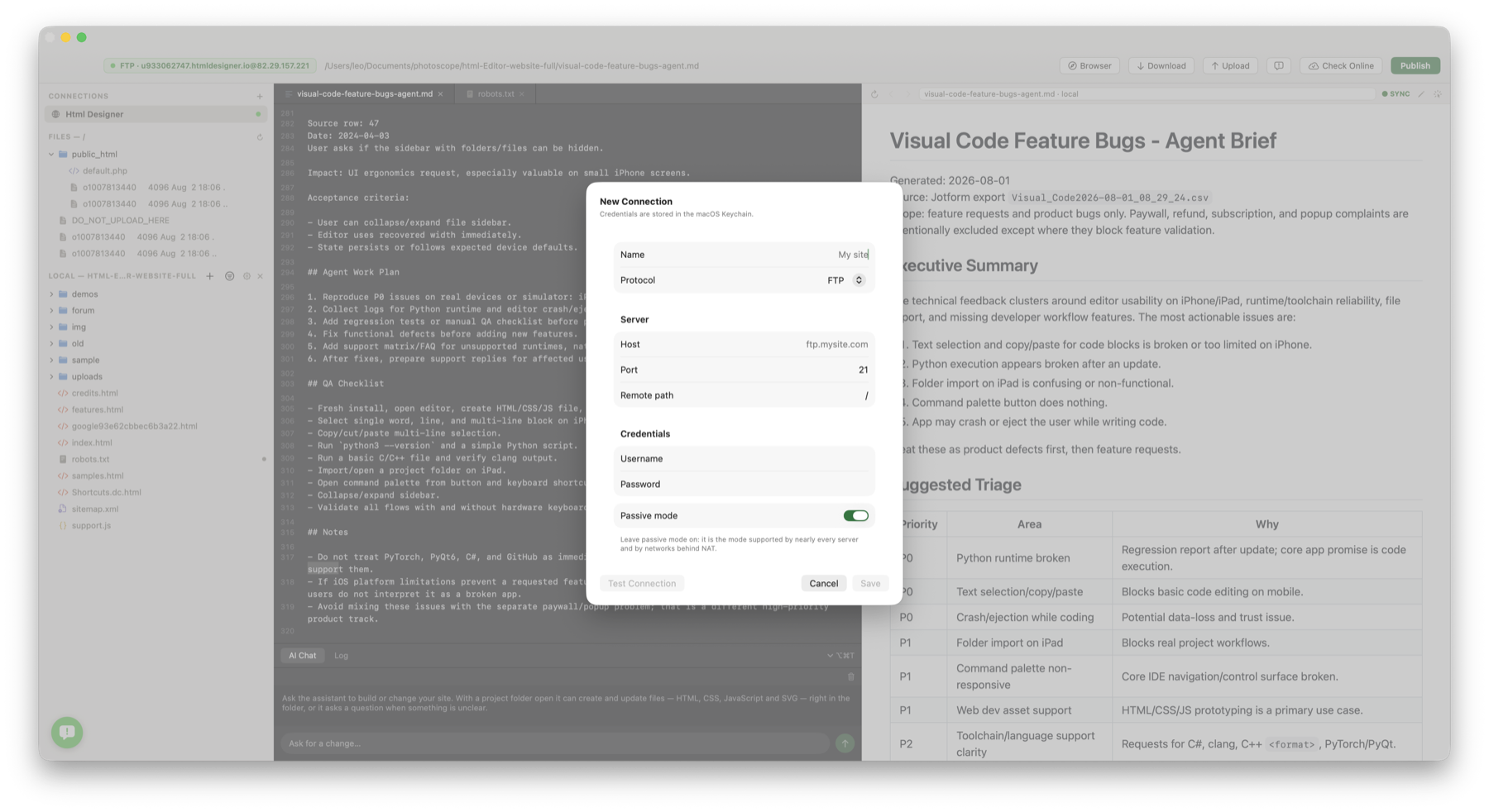
Update a contact page, replace a menu or publish a new portfolio project. Connect to your hosting, transfer the changed files and check the live page in a browser.
Save the hosting connection for the next update.
Use FTP or FTPS when your hosting provides it.
Use SFTP when your host offers it.
Find the live contact page or asset you want to update.
Confirm the destination: saving an open remote file uploads it to that server location. Publish website changes →
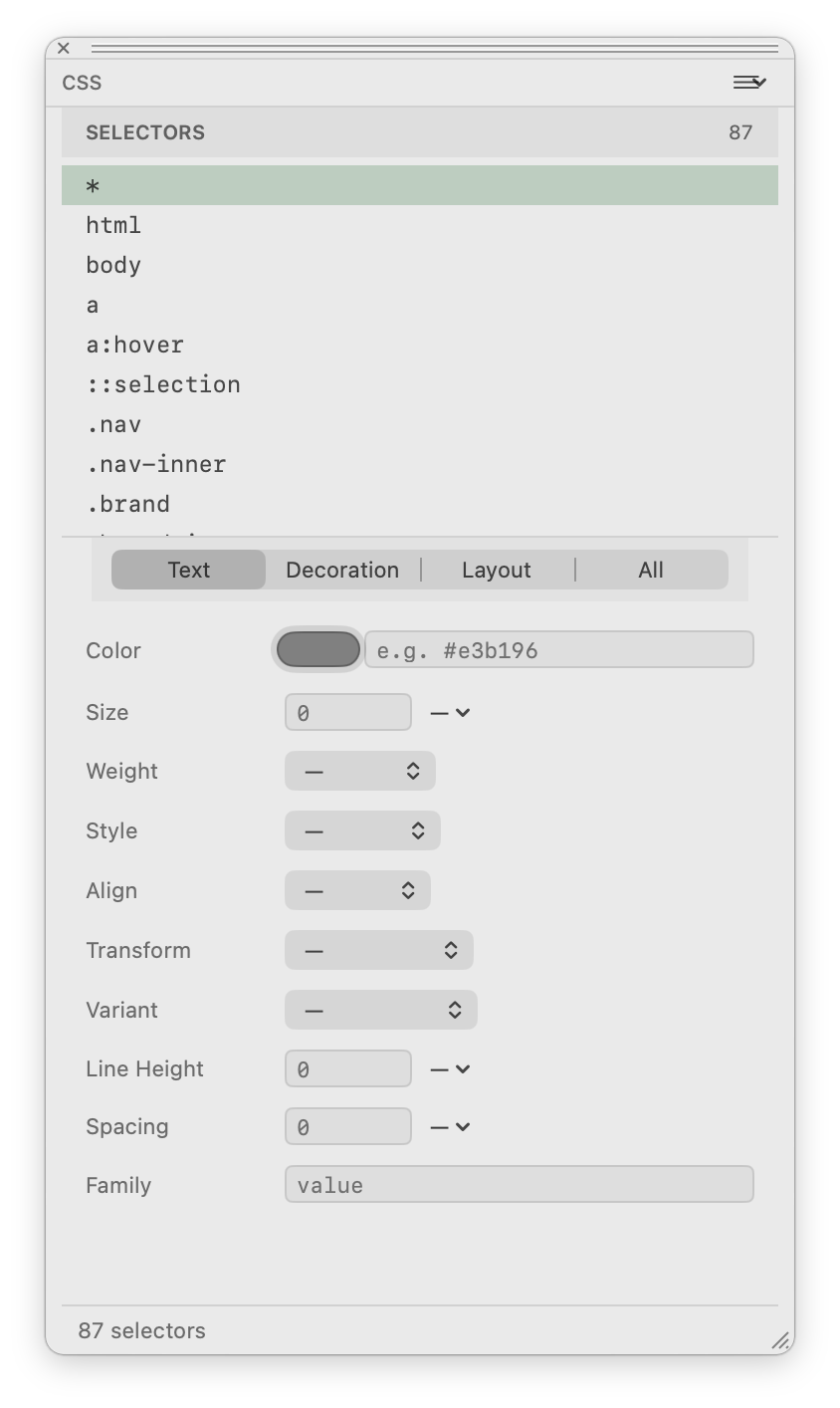
Change a heading font, give buttons your brand colour or add room around a section. Adjust CSS controls and check the result on the page.
Find a section through the page outline.
Set the fonts, colours and spacing in the relevant style rule.
Insert a saved contact block and adapt it to the page.
Keep brand colours and common page elements available.
Reuse the same starting patterns while keeping each page’s source editable. Style your website → Reuse page sections →
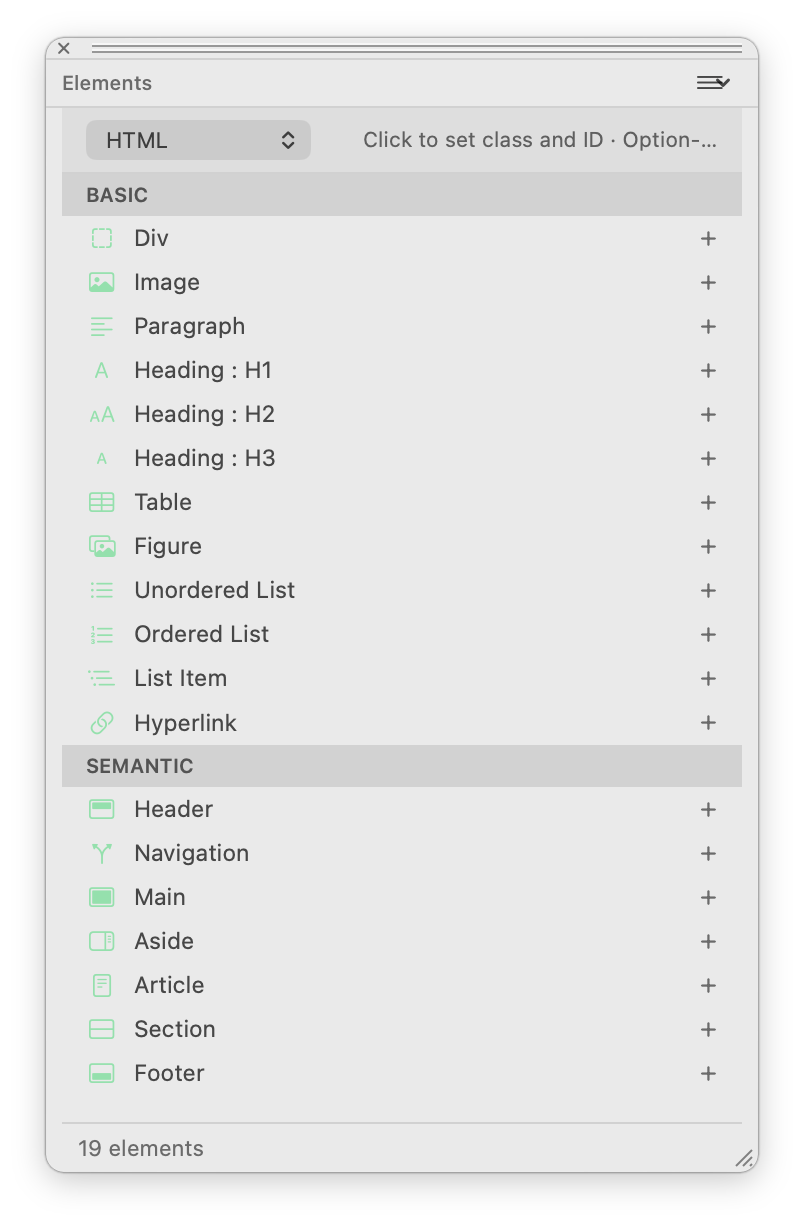
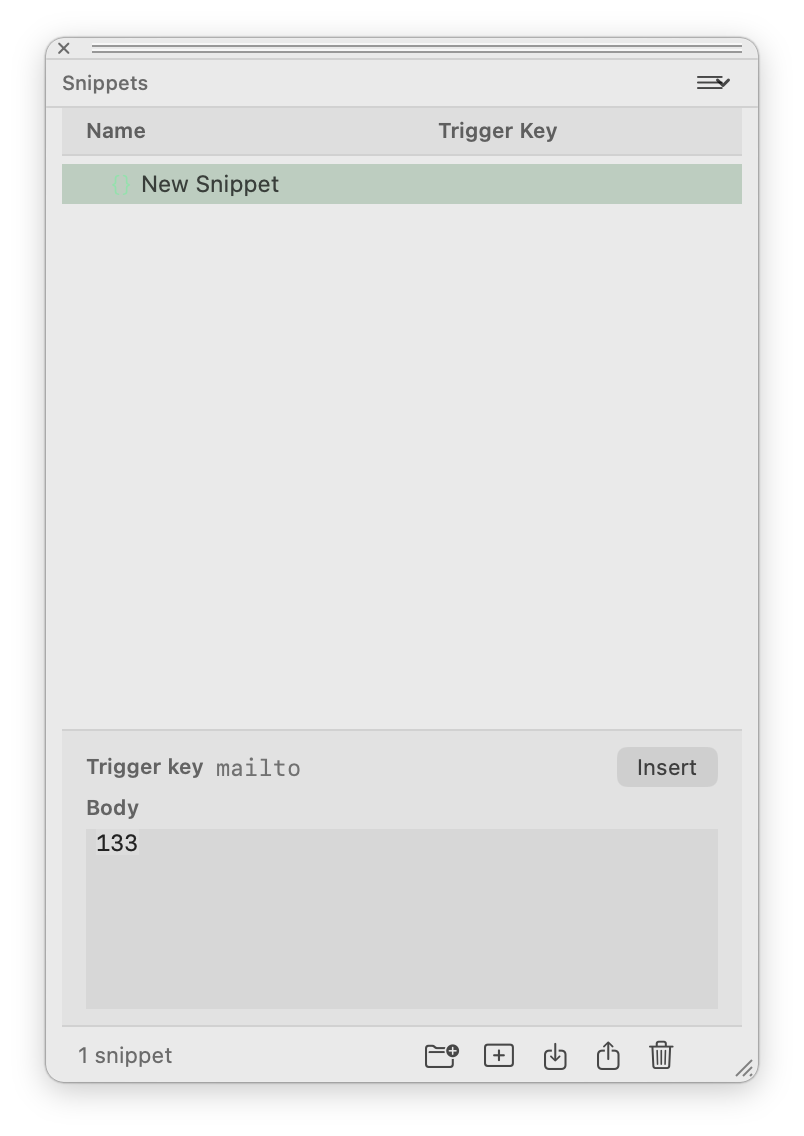
Write a service page, add a booking link or change a product section in HTML. Keep the source, related files and preview together while you work.
Navigate to the section that needs changing.
Select a whole HTML element when moving or editing the section.
Change repeated matches within the current document.
Check which local image a path refers to before replacing it.
Write source text without smart quotes altering the code.
Adjust indentation to keep nested elements readable.
| Area | Formats and tools | Workflow |
|---|---|---|
| Markup | html, htm, xhtml | Edit source, inspect DOM structure and preview rendered output. |
| Styles and scripts | css, js | Maintain page styling and behaviour next to the HTML project. |
| Server and data files | php, json | Open supporting files and preview PHP through a configured server workflow. |
| Writing and notes | md, txt | Edit Markdown and plain text inside the same project workspace. |
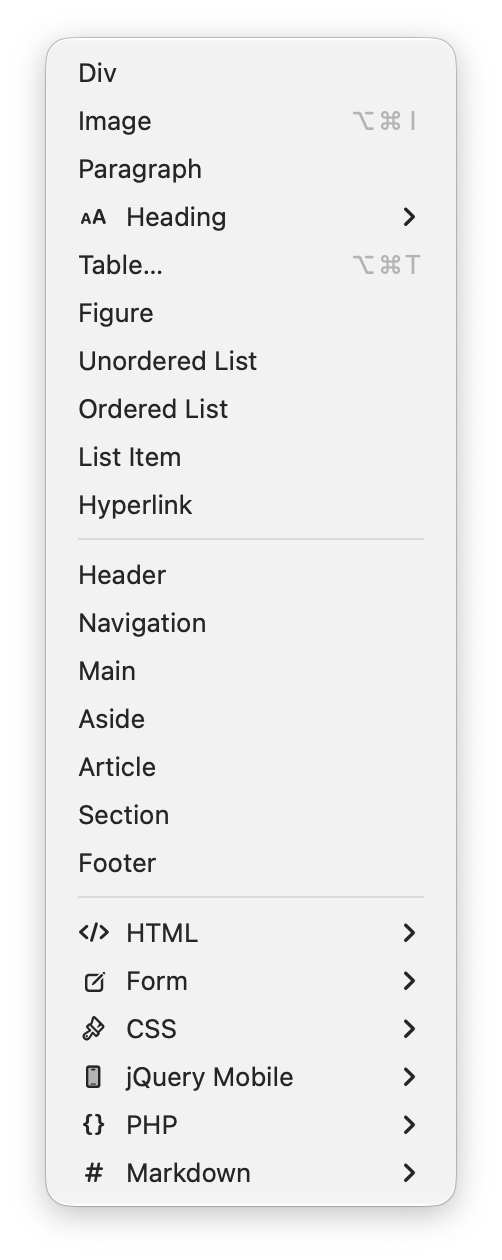
Insert a familiar HTML or form pattern and adapt it to the page. Edit pages & source →
Ask the assistant to draft a services section, explain an unfamiliar script or suggest a fix to a page. Review the project changes in the editor and preview before publishing.
Use Claude or Gemini with your own API key, or Apple Intelligence on an eligible Mac.
Review the files the assistant creates or updates, replace placeholder content and check the preview. Build a section with AI →
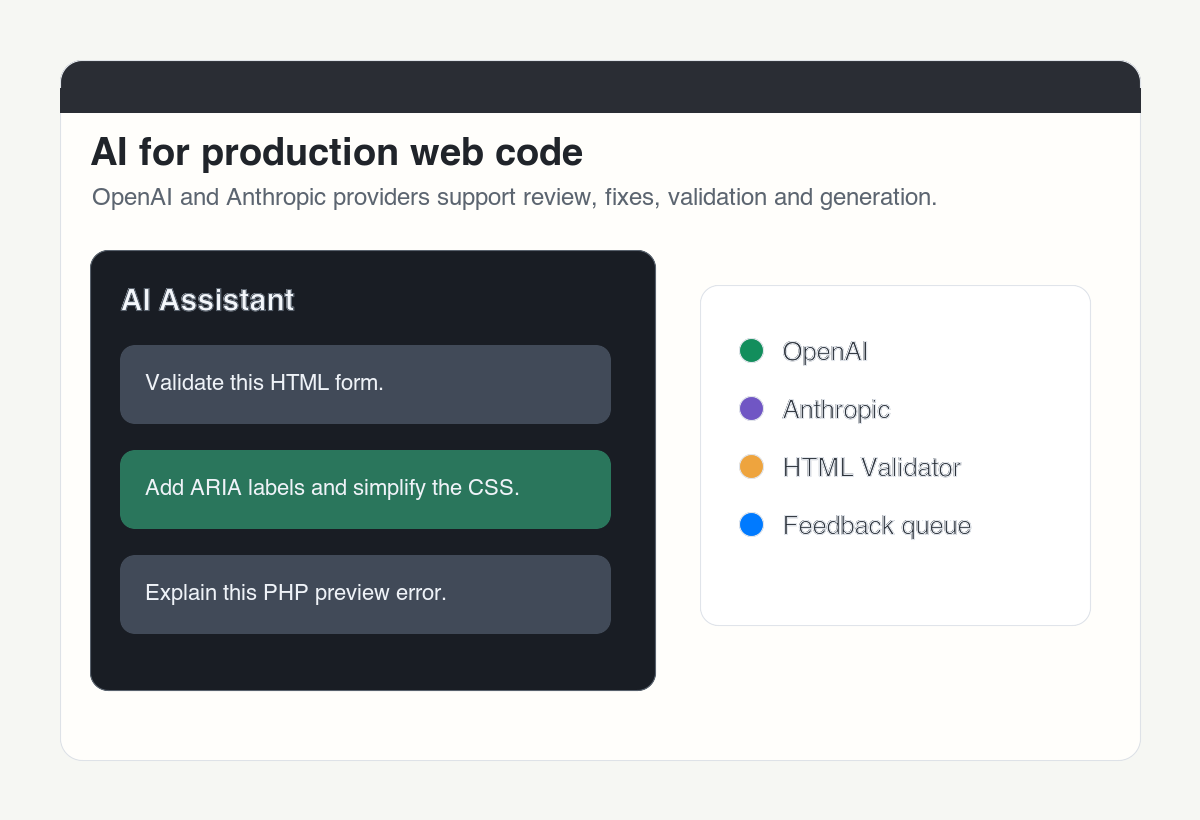
Ask what an unfamiliar function or style rule does.
Draft the HTML and CSS for a services or contact section.
Ask for a focused review, then inspect the proposed corrections.
Connect a compatible external assistant to inspect your project or prepare an edit you review in the app. Connect your AI assistant →
Run the relevant check, review the messages and correct the source before publishing.
Send the active HTML to the online W3C validator.
Read the issue and decide which source change is needed.
Return to the reported area of the document to correct it.
Check XML locally for a well-formed document. Check page markup →
Find an old phone number, address or product name across project files. Review the matches and apply repeated replacements without opening every page by hand.
Search the project for the exact old address or phone number.
Review matches before applying a repeated replacement.
Narrow the search when a phrase appears in unrelated files.
Preview the affected pages after a site-wide wording change. Update text across a site →
Open a project, make a focused update and check the result with the Mac tools you use.
Use familiar shortcuts when editing a page.
Keep the website’s source files in ordinary folders.
Install the version for the device you use.
Use the manual when you need the exact controls for a task.