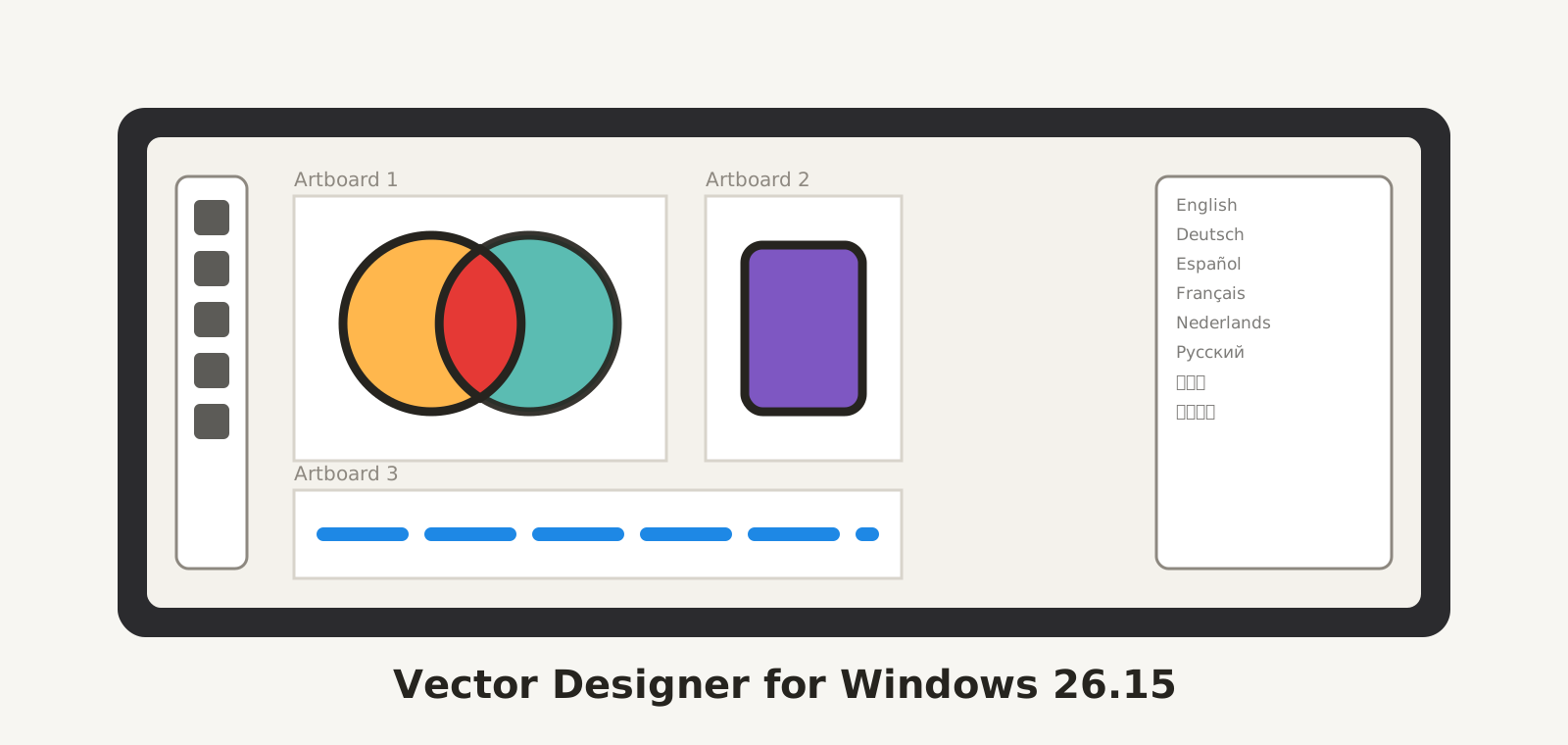
Vector Designer 26.15 for Windows is on the Windows page today, for x64 and for Windows on ARM, and it reaches existing copies through Help › Check for Updates. The same build is in certification at the Microsoft Store. It is the biggest release since the Windows version began, so this post is longer than usual.
Eight languages
Menus, palettes and dialogs now follow the language of your Windows: English, German, Spanish, French, Dutch, Russian, Japanese and Simplified Chinese. You can pick another one at any time in Options › General › Language, and the interface switches at once, no restart needed. A few Windows-only dialogs still speak English; they are on the list.
Multiple artboards
A document can hold several pages, each with its own size. The Artboard tool (Shift+O) draws a new page on the empty workspace and resizes an existing one by its edges; hold Alt while dragging a page to duplicate it. The Artboards palette (Window › Artboards) lists the pages and lets you rename, reorder and jump to them. Document Setup chooses which pages it applies to, and Export PDF, PNG and TIFF ask which pages to write. Paste lands on the current page. The file stays a plain SVG that any browser opens.
Shape Builder
Select overlapping shapes, pick the Shape Builder (Shift+M) and drag across the pieces you want: they merge into one shape with the current fill, in a single undo step. Hold Alt to delete a piece instead. It is the quick way to draw a logo out of circles and rectangles without opening the Pathfinder every time.
Feather, gradients and the toolbox
Feather (Filter › Stylize › Feather) gives a shape a soft edge that you can adjust later, with a live preview on the canvas; Drop Shadow gets the same preview. Gradient stops are now points you drag directly on the canvas. The Spray paints one editable path instead of hundreds of dots. Shift+click with the Eyedropper samples only the colour under the cursor, into the fill or the stroke, whichever is active.
The toolbox and the Tools and Window menus are reordered: the Eyedropper sits next to the shapes, the Artboard and Shape Builder have their own cells, and the tools that share a cell show a small triangle that opens the list. Options are grouped into General, AI and MCP Server, with a short explanation under each control. Help › Send Feedback opens the Feedback palette, and the AI console allows longer conversations.
From your reports
A colour, a stroke or an opacity reaches the object when you pick it with the white arrow or while a text is open for editing. The style chosen in the Character palette applies to the next text you type. A horizontal or vertical segment stays straight after saving. Live corners are saved with the drawing and stay editable when you reopen it. The Eraser leaves clean islands. Guides are visible and selectable again after the engine update.
Most of these came in through Help › Send Feedback. Keep them coming: every report is read, and the ones we fix are listed in the next post.