

Check a shared PHP header
Preview the rendered page after updating a supported PHP include in your project.
Preview a page generated by PHP through a temporary area on your configured server. Check the output while you work on the project’s source files.
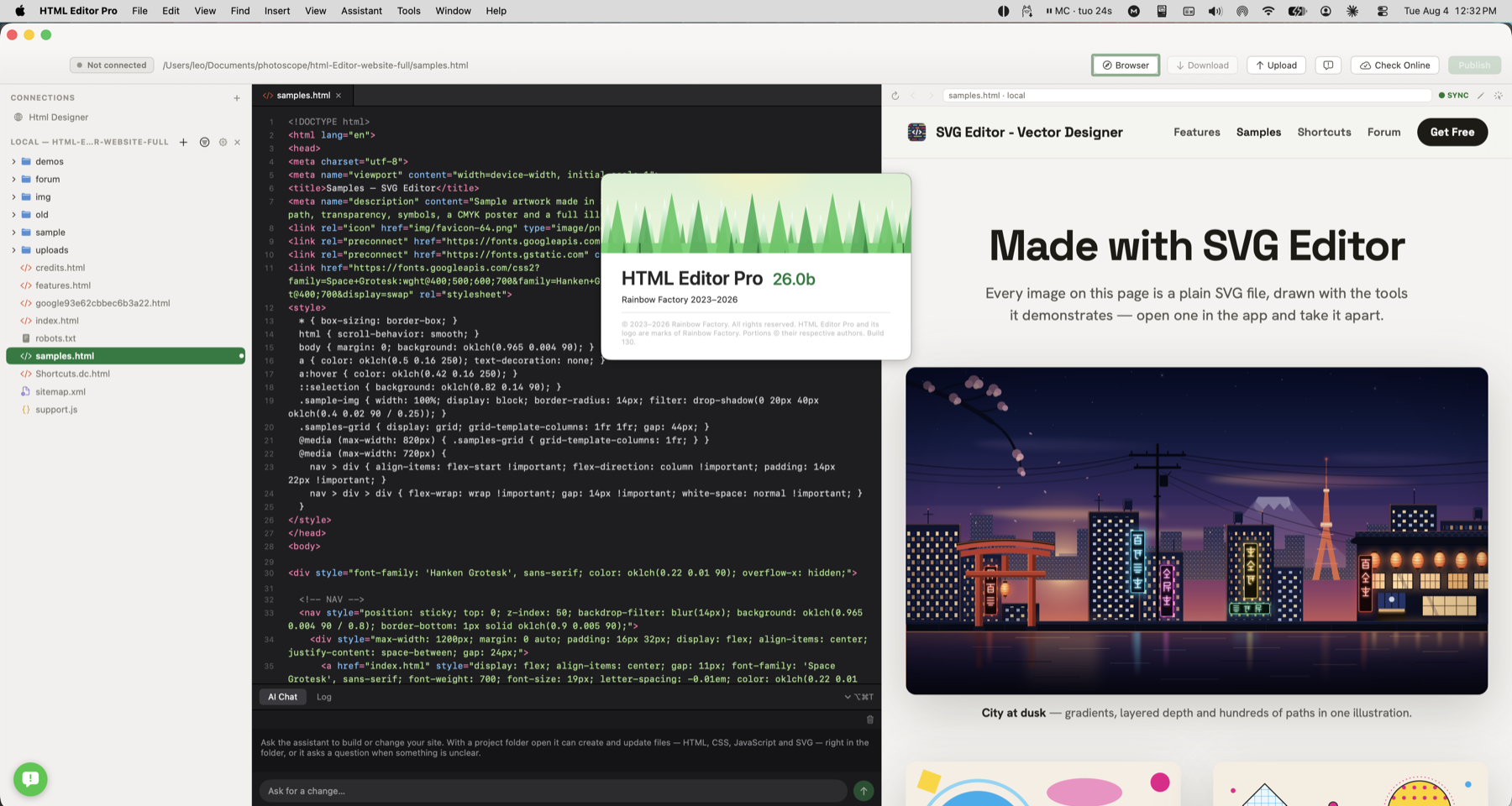
A page uses PHP includes for its header or content. Use the configured remote preview to see the generated page rather than just its source.
Preview a server-rendered PHP page, including its shared header, on your configured hosting.
Preview the rendered page after updating a supported PHP include in your project.
Inspect the page output with the required server environment in place.
Use the temporary preview area on your configured hosting and check which files are uploaded.
A page uses PHP includes for its header or content. Use the configured remote preview to see the generated page rather than just its source.
Check how this works with your project and hosting.
No. This workflow needs a connected server with PHP support. The local preview does not run PHP.
It is separate from published page paths, but can be reachable through a public URL. It is not an access-controlled private environment. Server rules, dependencies and database configuration can also affect how the preview behaves.