

Maintain a business website
Keep the home, services and contact pages together in their existing project folder.
Keep your portfolio, a client’s site and a small business website ready to work on. Open their folders, find the page to change and return to saved hosting connections.
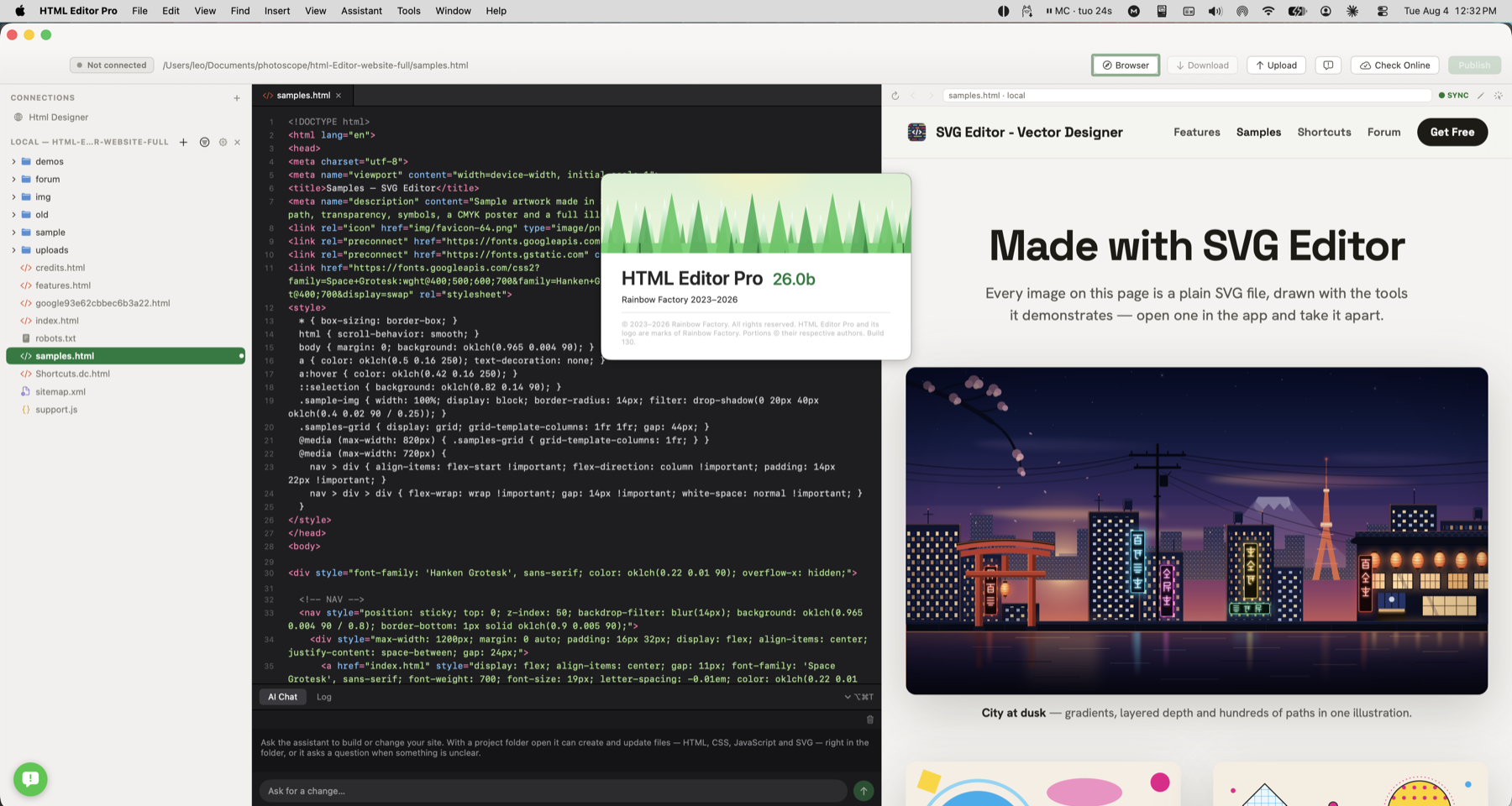
A client needs a new opening time on the contact page. Open the saved project, find its HTML and keep the styles and images nearby.
Return to a portfolio or client website and find the page, styles and images for the next update.
Keep the home, services and contact pages together in their existing project folder.
Save project shortcuts and hosting connections so you can return to the right site.
Browse the styles, scripts and images beside the HTML you are editing.
A client needs a new opening time on the contact page. Open the saved project, find its HTML and keep the styles and images nearby.
Check how this works with your project and hosting.
No. Local projects use ordinary files in folders. HTML Designer works with the HTML, CSS, JavaScript and supporting files already in your project.
No. Local edits stay in your project until you transfer them. Remote files have a separate workflow: saving a remote file uploads it to the connected server.