Page layout for Mac
Create your next publication.
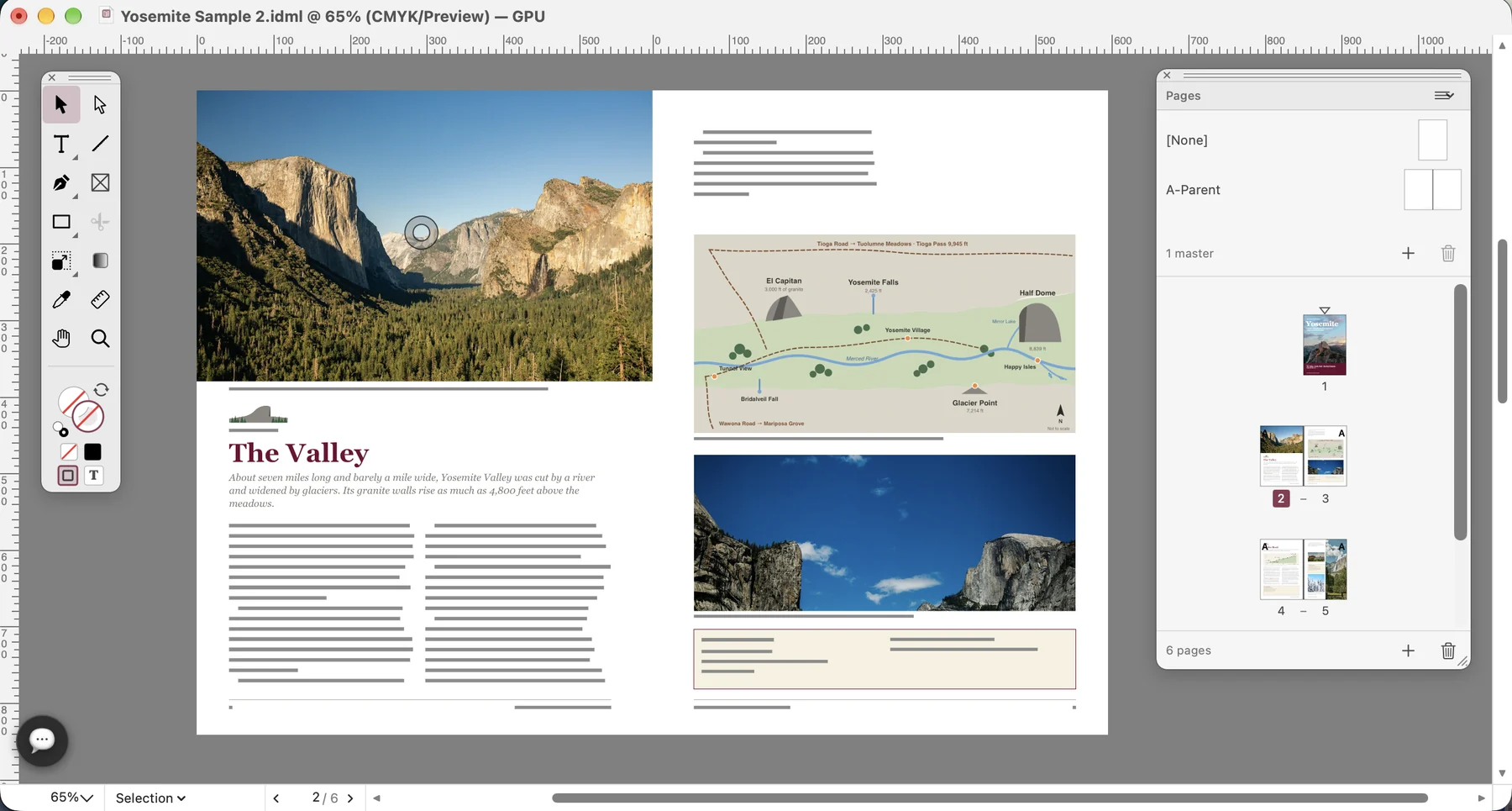
Create a business brochure, a club newsletter or a product catalogue. Arrange the pages, flow the text around your content and export a PDF to review, share or print.
Create a business brochure, a club newsletter or a product catalogue. Arrange the pages, flow the text around your content and export a PDF to review, share or print.
Bring your text, photographs and artwork into one layout. Set the page size, margins and columns, then arrange the content into a document people can read from beginning to end.
Put a long article into linked text frames, add photographs and apply consistent heading styles. Check where the story continues and whether all the copy fits.
Continue text across pages →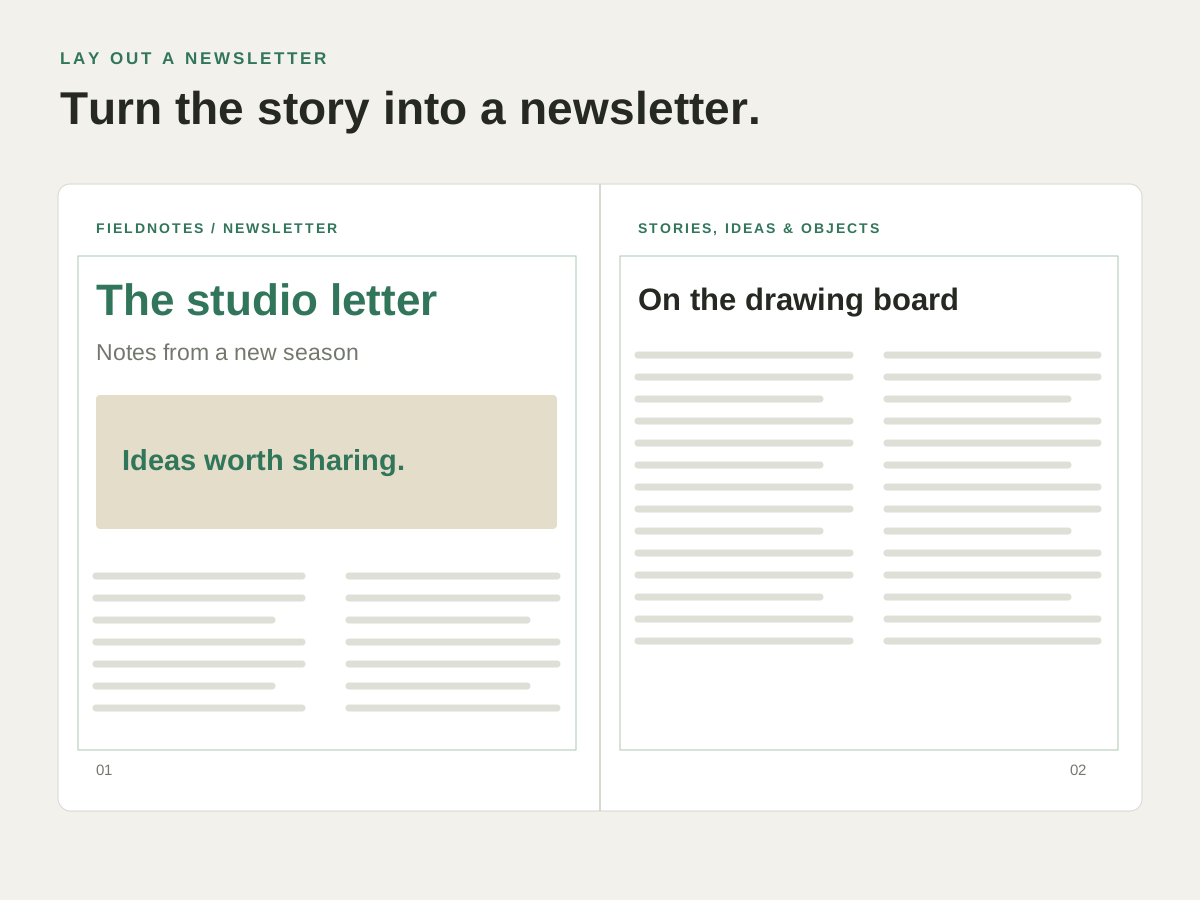
Choose the page size, the margins, the bleed and whether the pages face each other. Work in CMYK for a print job, or in RGB for a publication read on screen.
Prepare the PDF →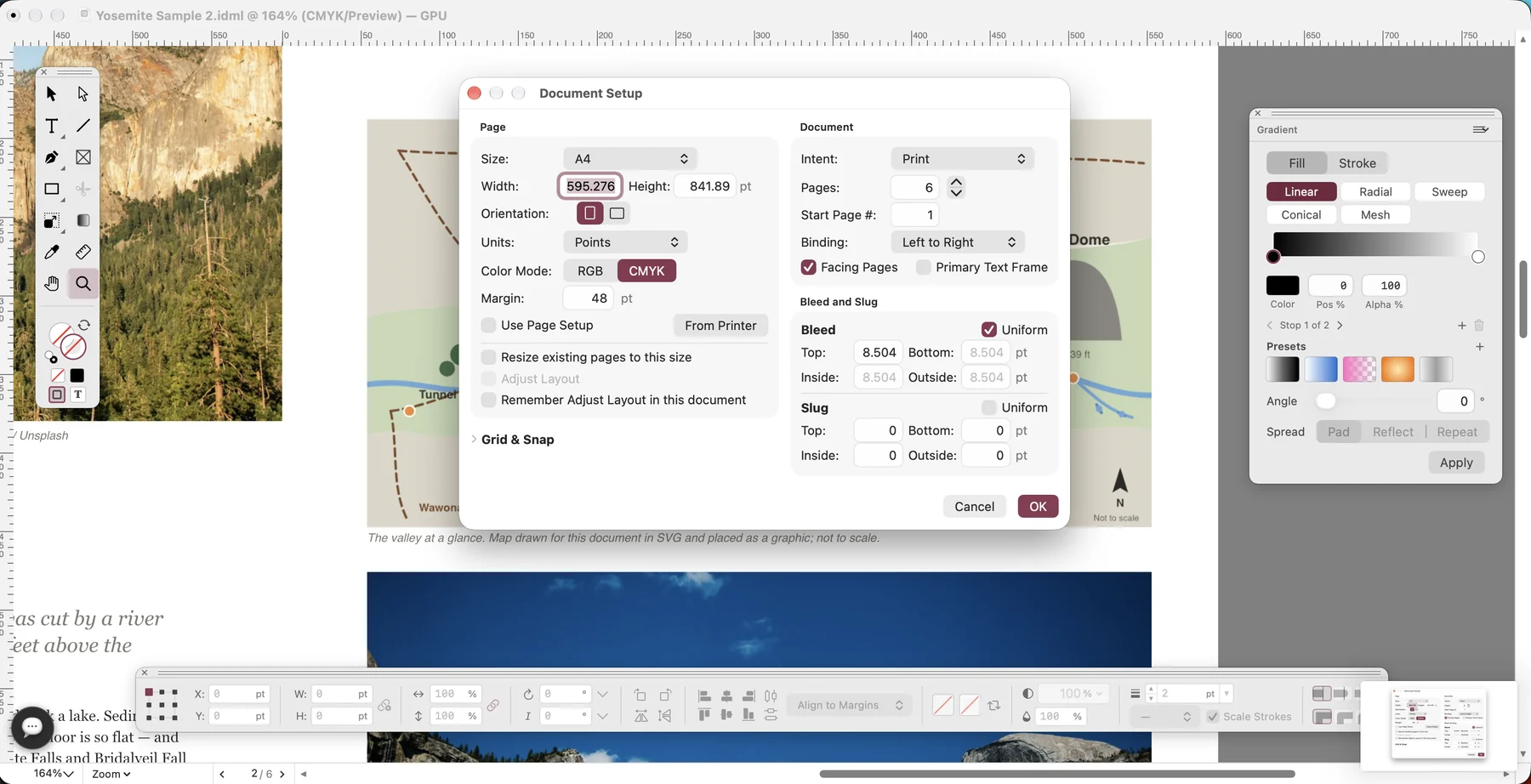
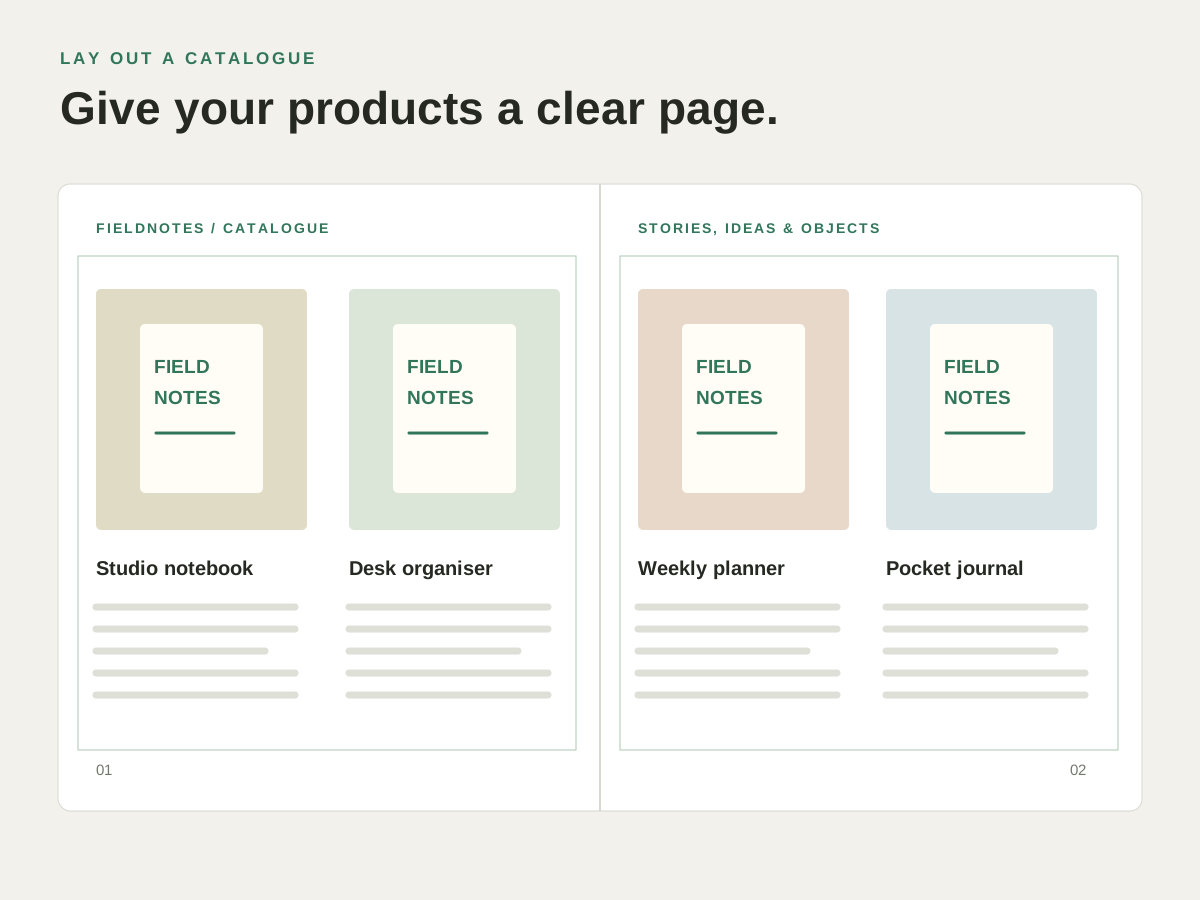
Give each product a photograph, a name and a description. Align the frames and captions, repeat the page furniture and keep track of the linked artwork.
Arrange product pages →Start a brochure, refine the text flow or prepare the finished PDF.
Turn your copy and images into a brochure, a club newsletter or a short report. Arrange pages and facing spreads, set margins and columns, and build a document with a clear reading order.
See the project →Lay out a newsletter article or a report that runs beyond one text frame. Link the frames so the story continues through the columns and pages you choose.
See the project →Give a report or newsletter a consistent frame: recurring headings, page furniture and shared layout elements. Set them on a master page and apply it to the document pages that need it.
See the project →Place product photographs, logos and captions into a consistent page layout. Fit images inside frames, arrange the accompanying text and keep track of the artwork used in the document.
See the project →Set consistent headings, captions and body text for a report, newsletter or catalogue. Use paragraph and character styles so repeated text roles share the same treatment.
See the project →Prepare a brochure for review, a newsletter for email or a report for print. Keep the editable IDML, choose the PDF output you need and inspect the exported pages.
See the project →Open a palette from the Window menu and place it where you work.
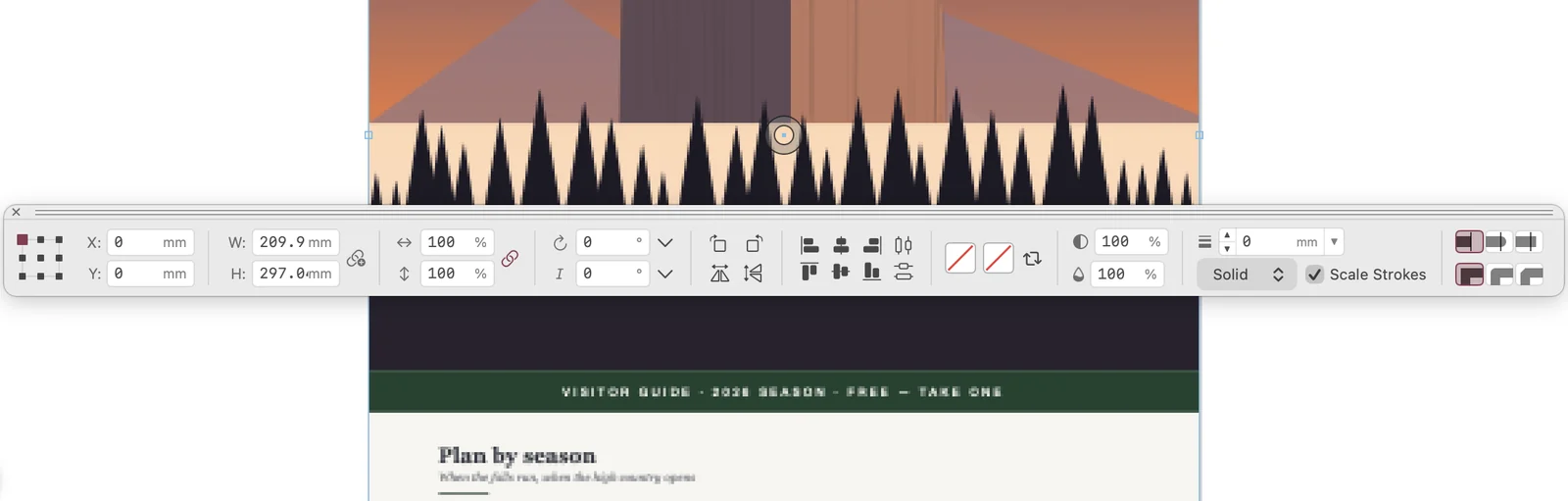
Type an exact position, size, scale or rotation for the selected frame. Align frames and set fill and stroke from the same strip.
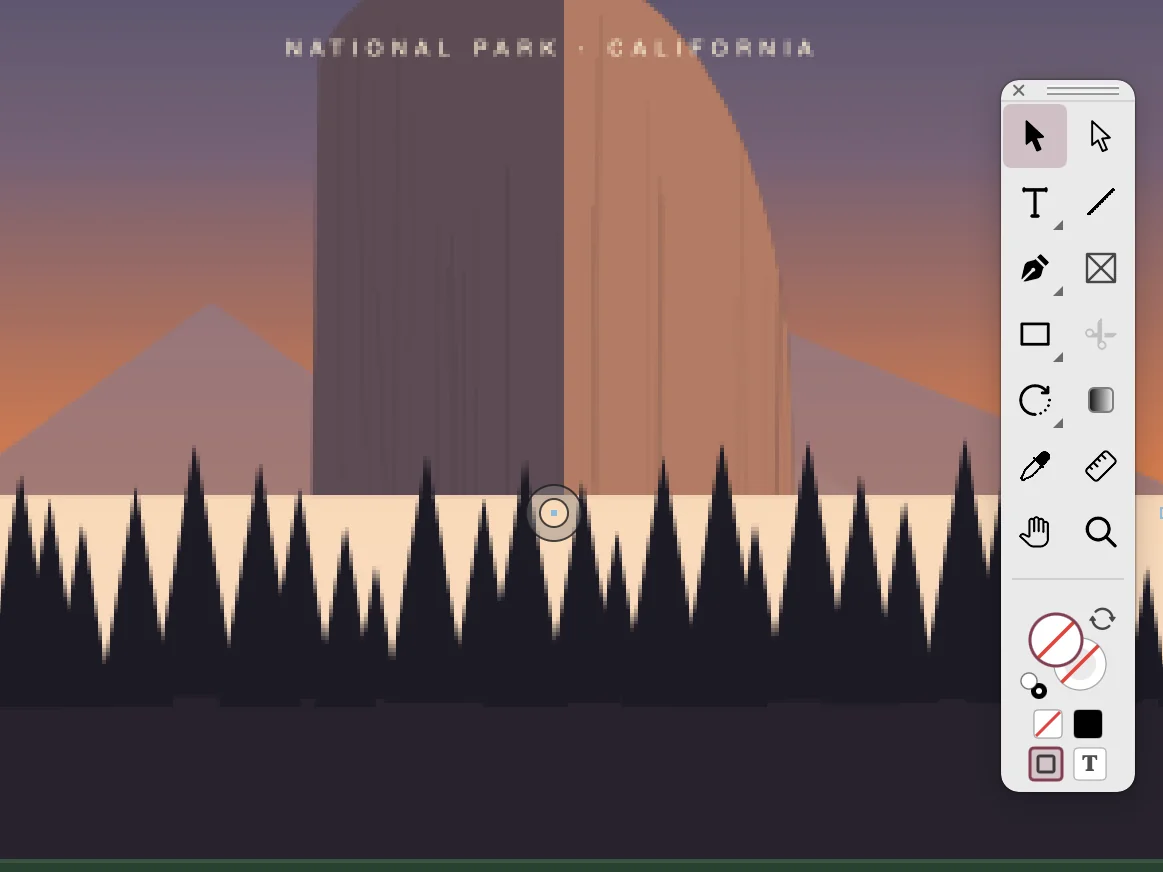
Pick the tool for the next step: selection, type, pen, frames, shapes, eyedropper or zoom.
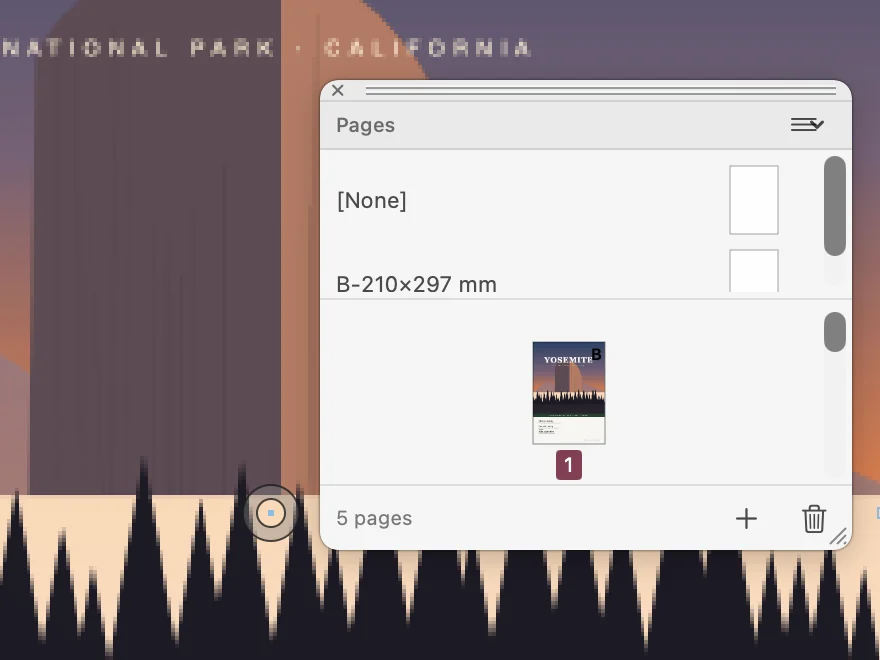
See the pages of the publication and its master pages. Add a page or go to the one you need.
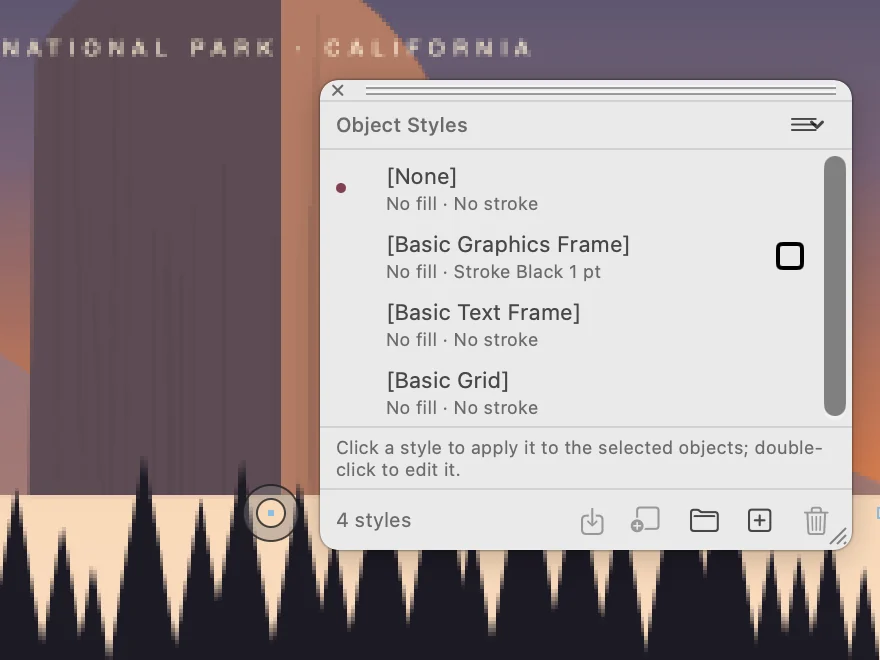
Apply the same fill and stroke to several frames with one click, starting from the basic graphics and text frame styles.
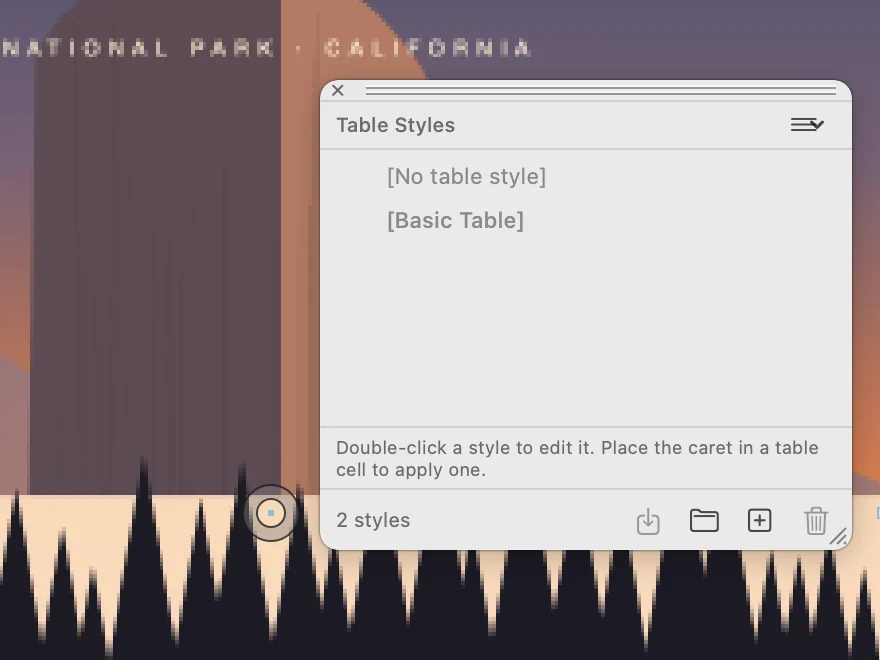
Give the tables of a publication the same look.
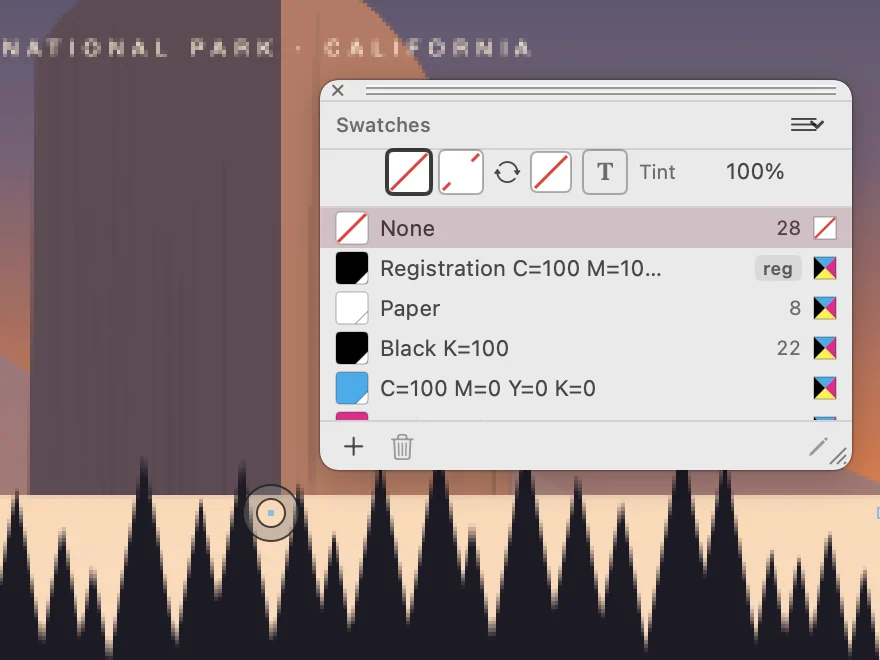
Keep the colours of the publication in one list, paper and registration included, and see how many times each is used.
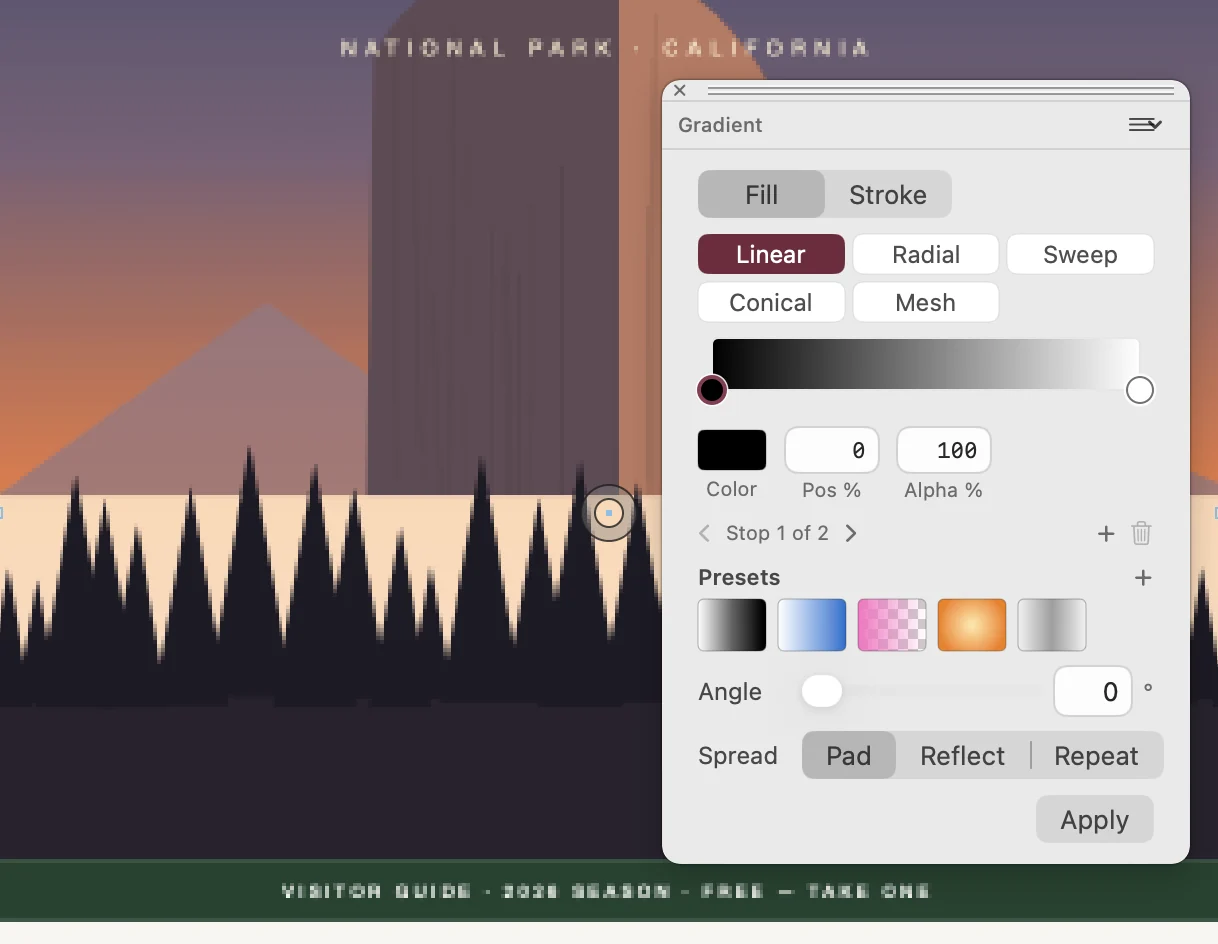
Choose a linear, radial, sweep, conical or mesh gradient. Set the colour and position of each stop, then the angle and the spread.
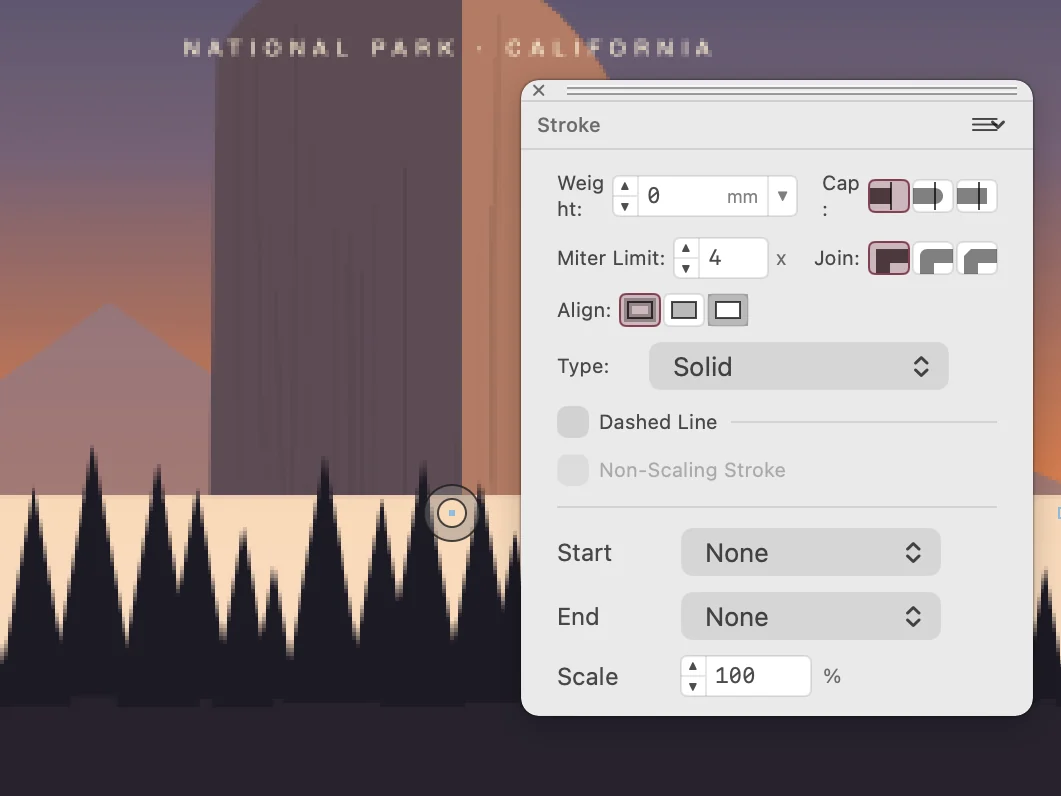
Set the weight and the type of an outline, its caps and joins, and add a start and an end marker.
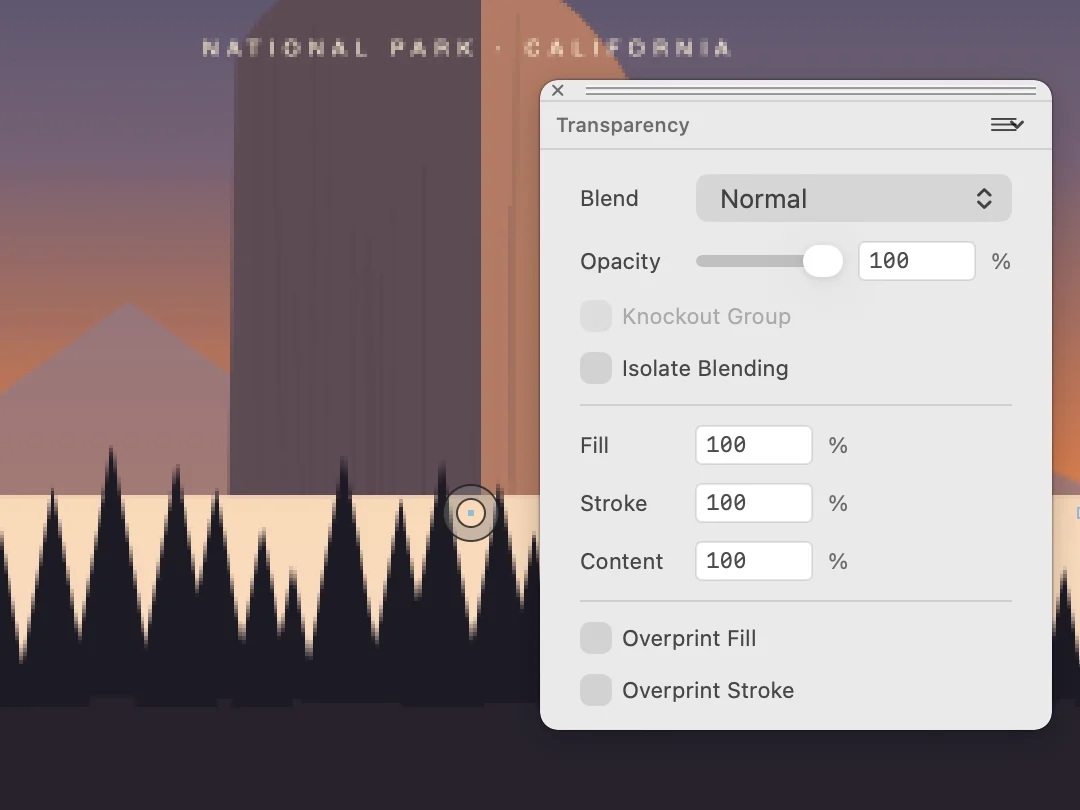
Set the blend mode and the opacity of a frame, of its fill, of its stroke or of its content. Turn overprint on for fill or stroke.
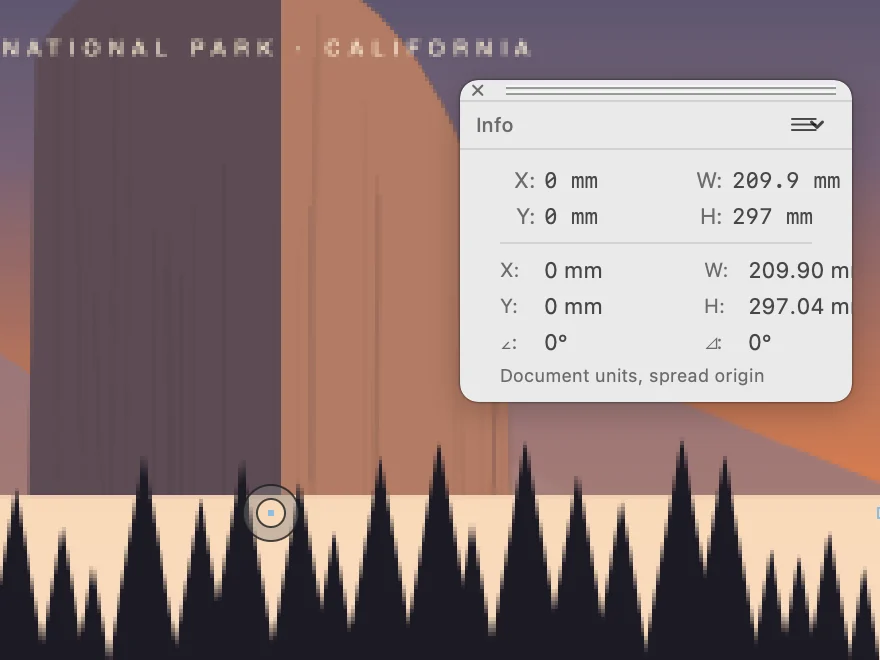
Read the position and the size of the selection in the units of the document.
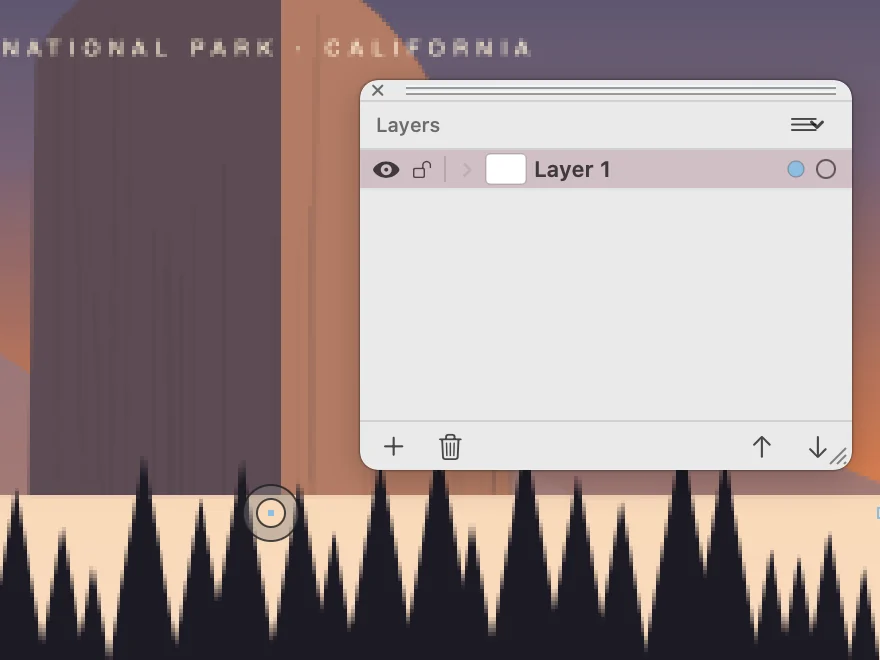
Show, hide or lock a layer and change the order of the layers.
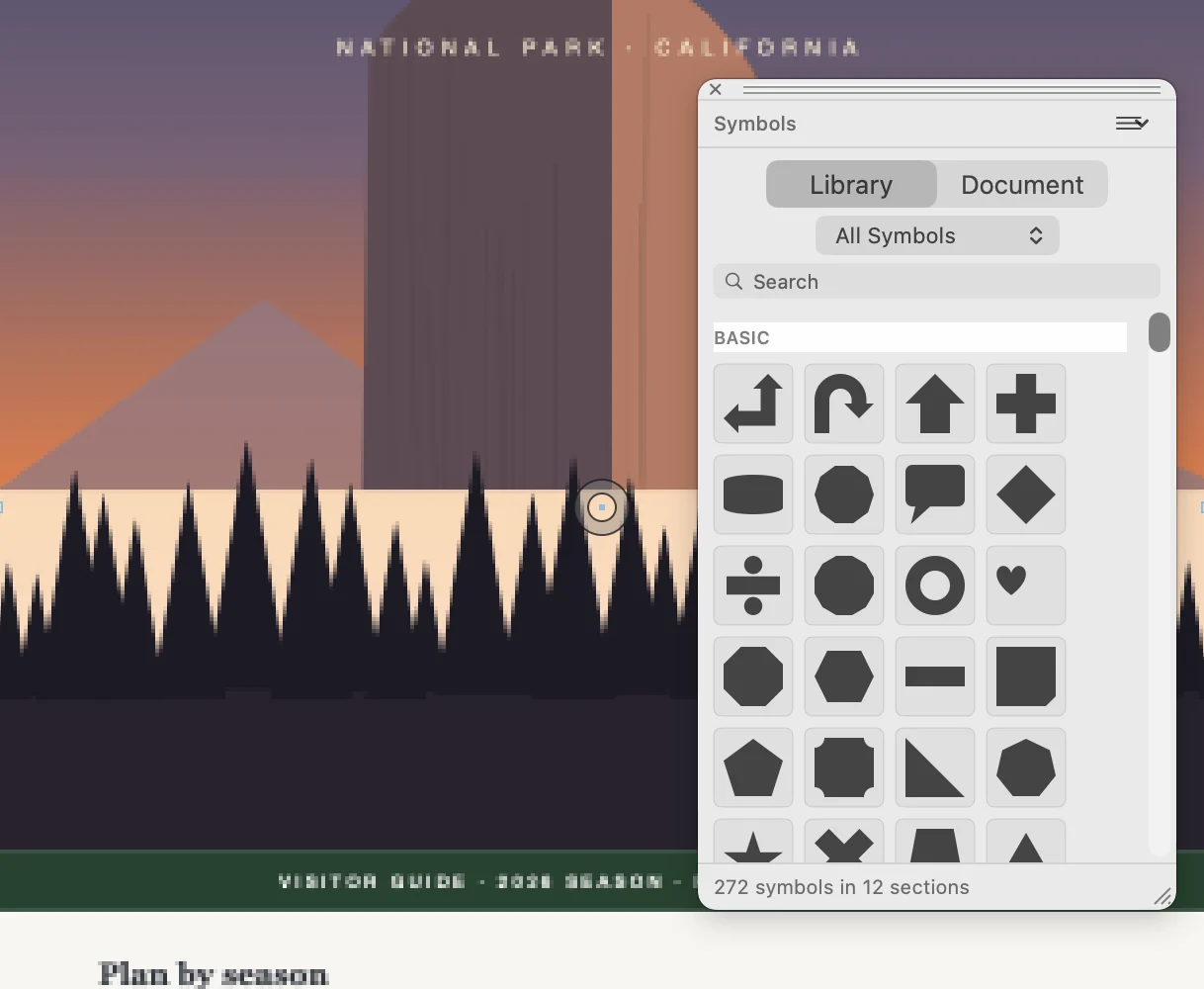
Search the library of ready-made symbols and place one on the page.
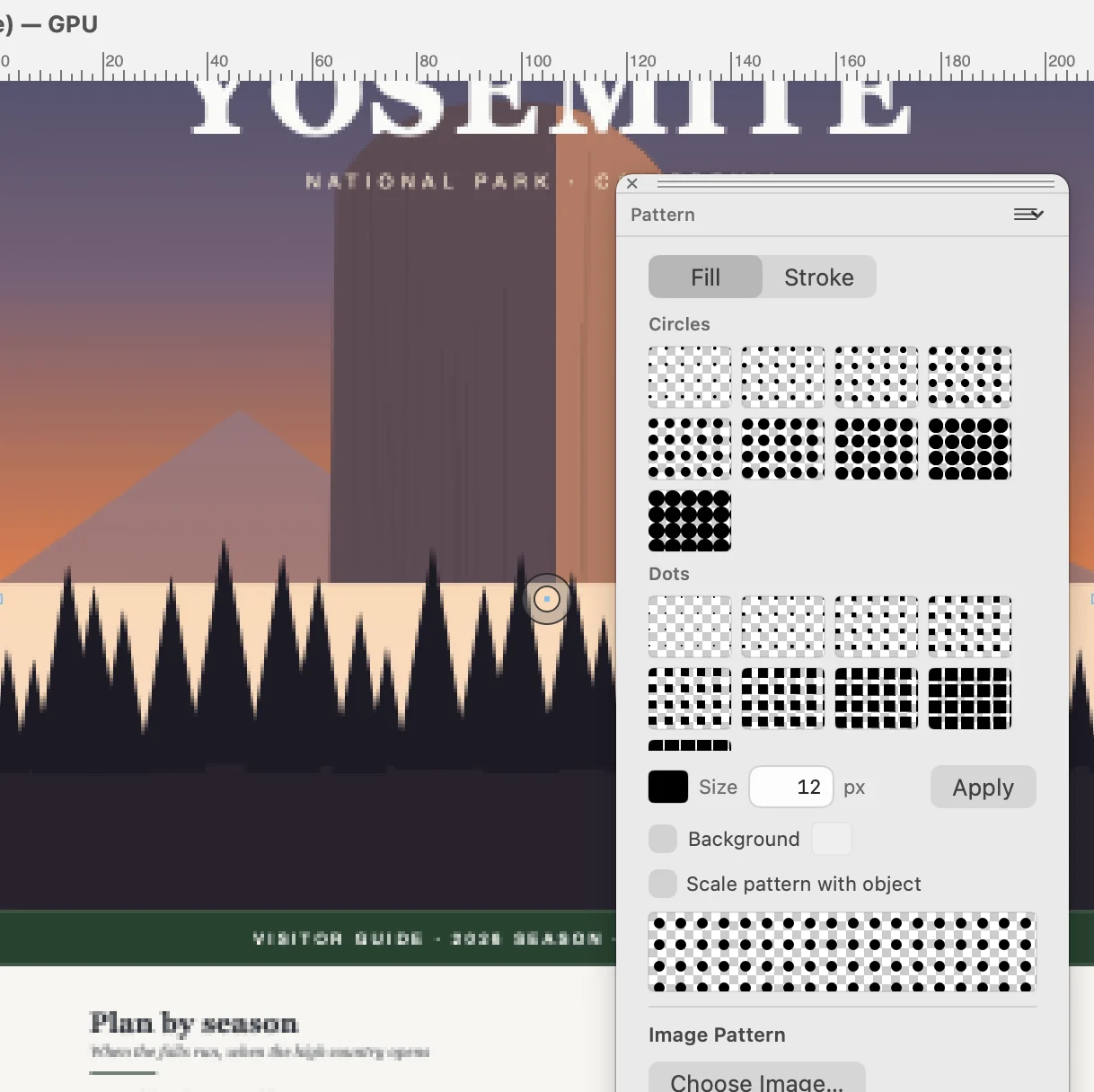
Fill a frame or a stroke with circles, dots or an image.
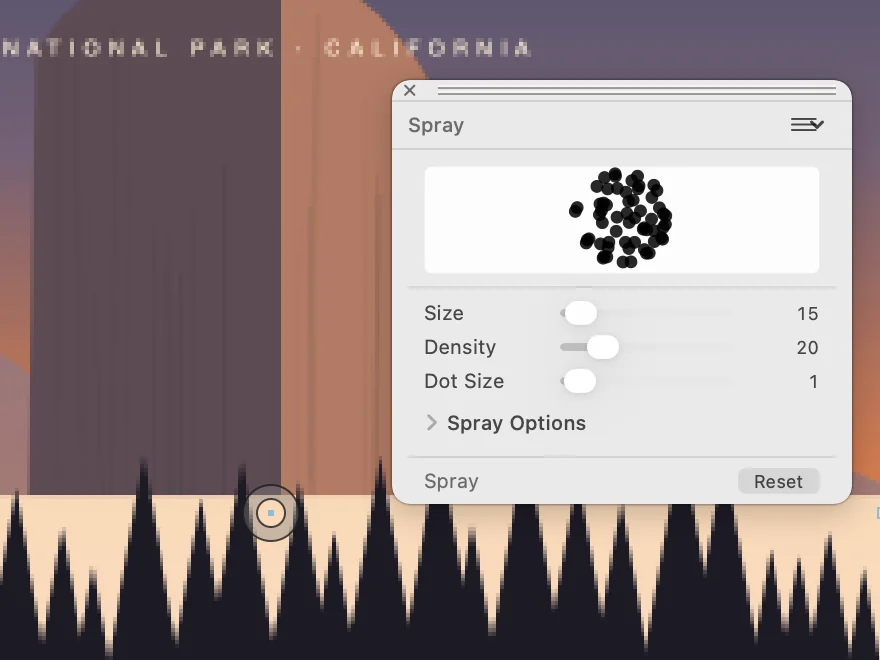
Scatter copies of a shape as you drag. Set the size, the density and the dot size of the spray.
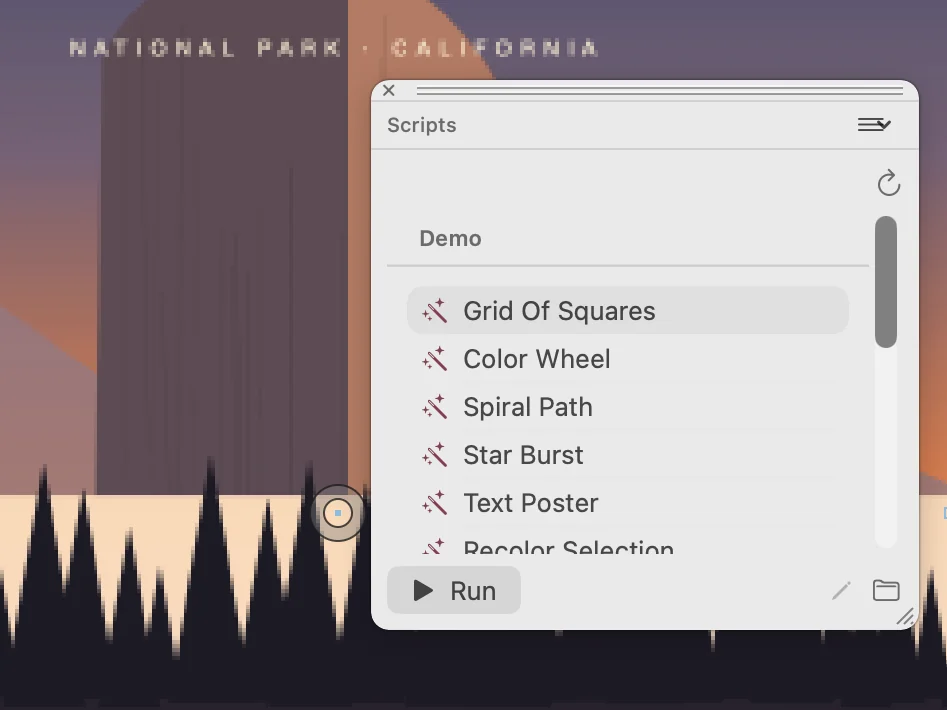
Run a script on the publication, starting from the examples in the list.
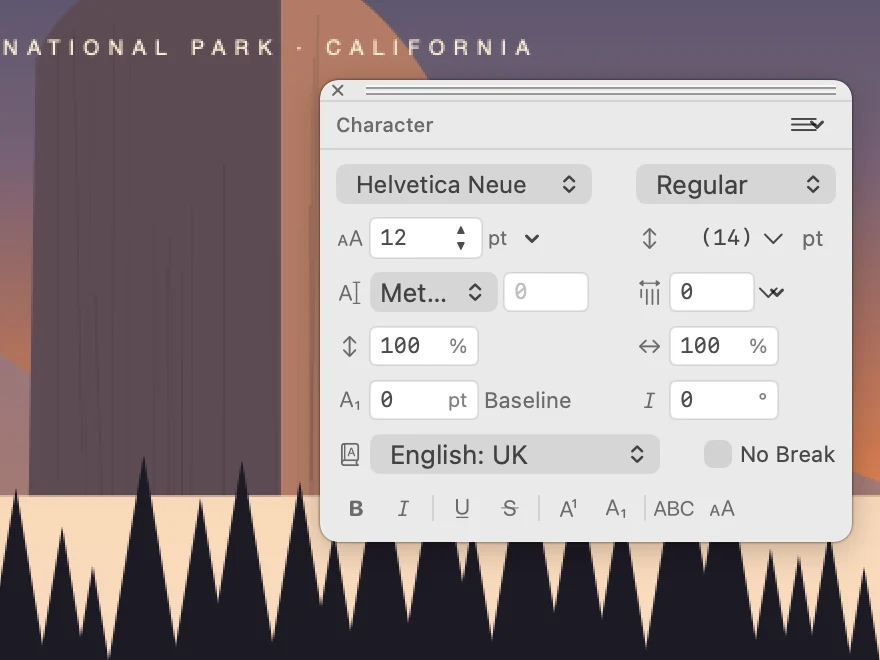
Choose the font and style of the selected text. Set size, leading, tracking, scaling and the language.
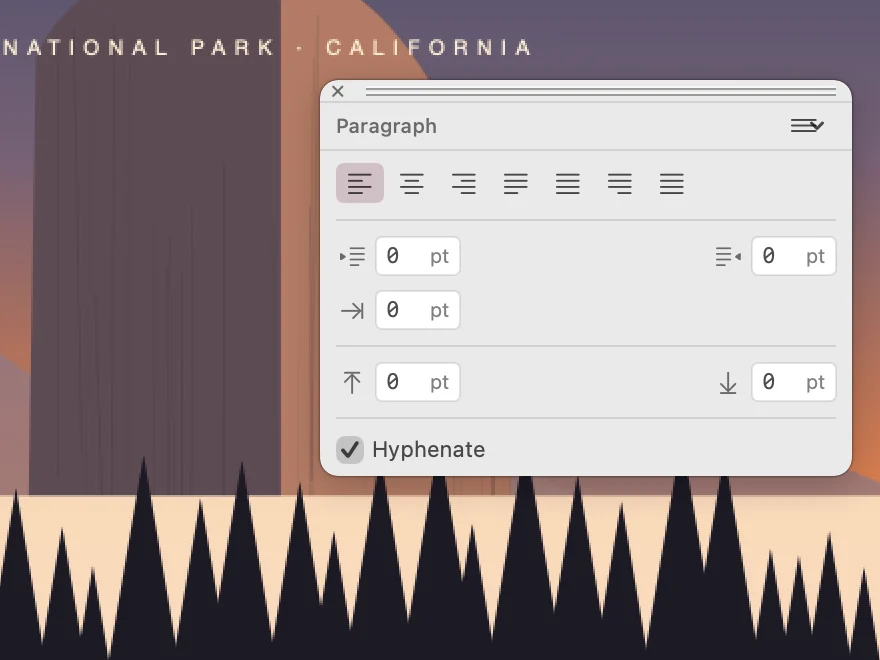
Align the paragraph, set indents and the space before and after it, and turn hyphenation on or off.
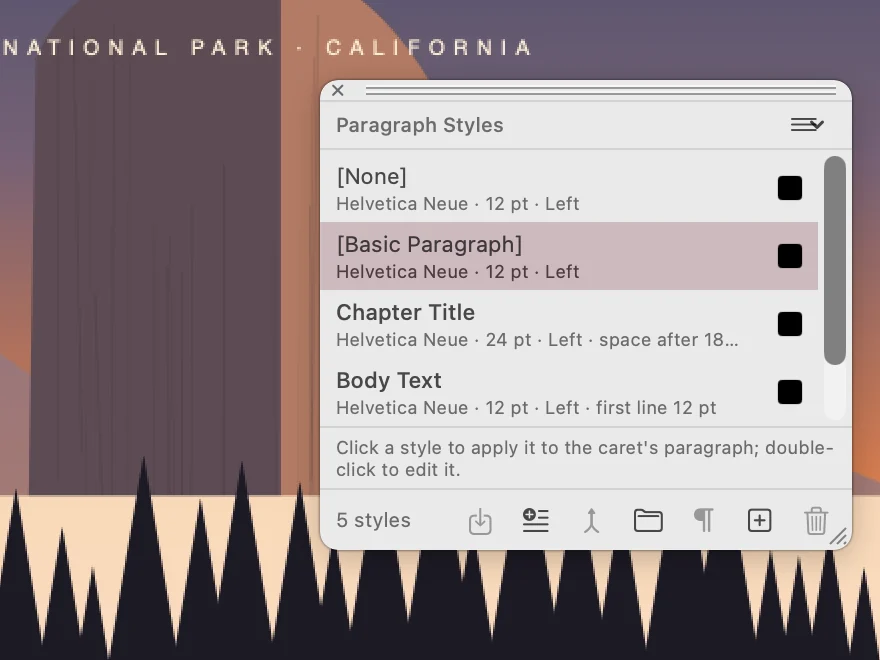
Apply Chapter Title or Body Text to a paragraph, so headings and body text stay the same on every page.
Save the publication as IDML so you can revise it later. Export a PDF for review or delivery, then use Pdf Editor to collect comments or check the final document.
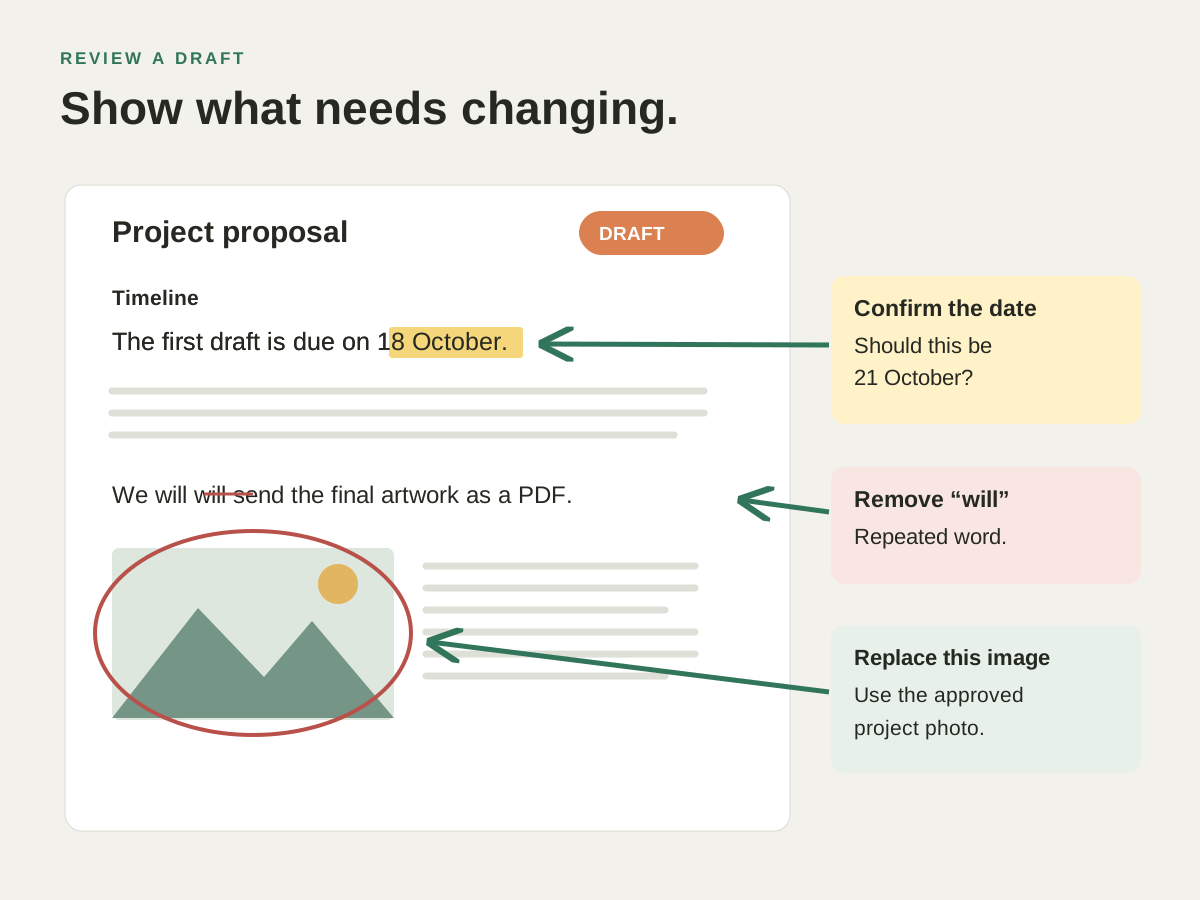
Review the exported draft →