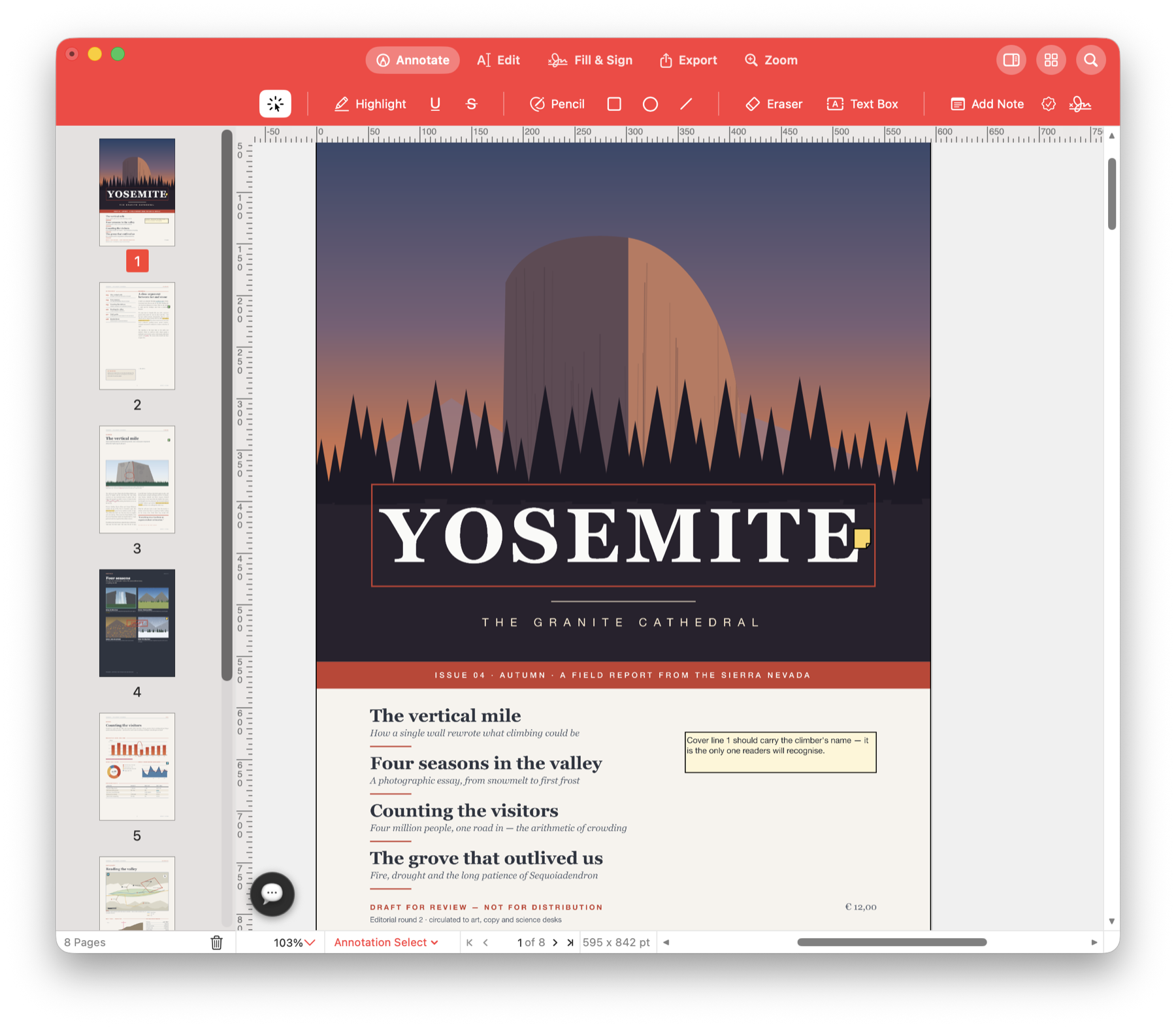
Ask AI to find and mark a passage.
Ask the assistant to find a phrase in a report, highlight it or add a review note to a page. Describe one concrete change, then inspect the result in your open PDF.
Give the assistant a specific review task.
Try “Find the phrase payment terms and highlight it” or “Add a note on page 2 saying: please confirm this date.” Check the affected page before saving the result.
Use it for your next document.
Find a passage for review
Ask the assistant to locate a particular phrase in your document and highlight the passages you need to revisit.
Add the note you want a colleague to see
Tell the assistant the page and exact wording of a comment, then check that it appears where you intended.
Make a focused correction
Ask for a supported text change, such as correcting a name. Inspect the replacement and its spacing on the page; use undo if it needs another attempt.
Try it with your own PDF.
- Open the PDF and AI Console
Choose your AI service in Settings and open the console beside the document. - Describe one change
Name the page or passage and say exactly what should happen. - Review the result
Inspect the affected pages and save only after checking the changes.
Questions about this task.
Do I need my own API key?
The built-in service does not require your own key and has a daily allowance. Supported external providers require your own key and may have their own usage charges.
Does AI processing stay on my Mac?
AI Console uses online services. Requests and the document context needed for the task are sent to the selected service. External assistants use their own configuration; review results before saving or sharing.
Try one task on your next PDF.
Ask for a specific change and check the result before saving.

Choose the direct Mac download with automatic updates, or install through the Mac App Store.