The external disk was half empty in spring and now refuses the next backup. It is rarely the photos you remember taking. More often it is the clips of a shoot, a folder of exports made twice, or a RAW burst nobody went back to and nobody deleted. Lighthouse shows which, before you open a single file.
The folder as a map
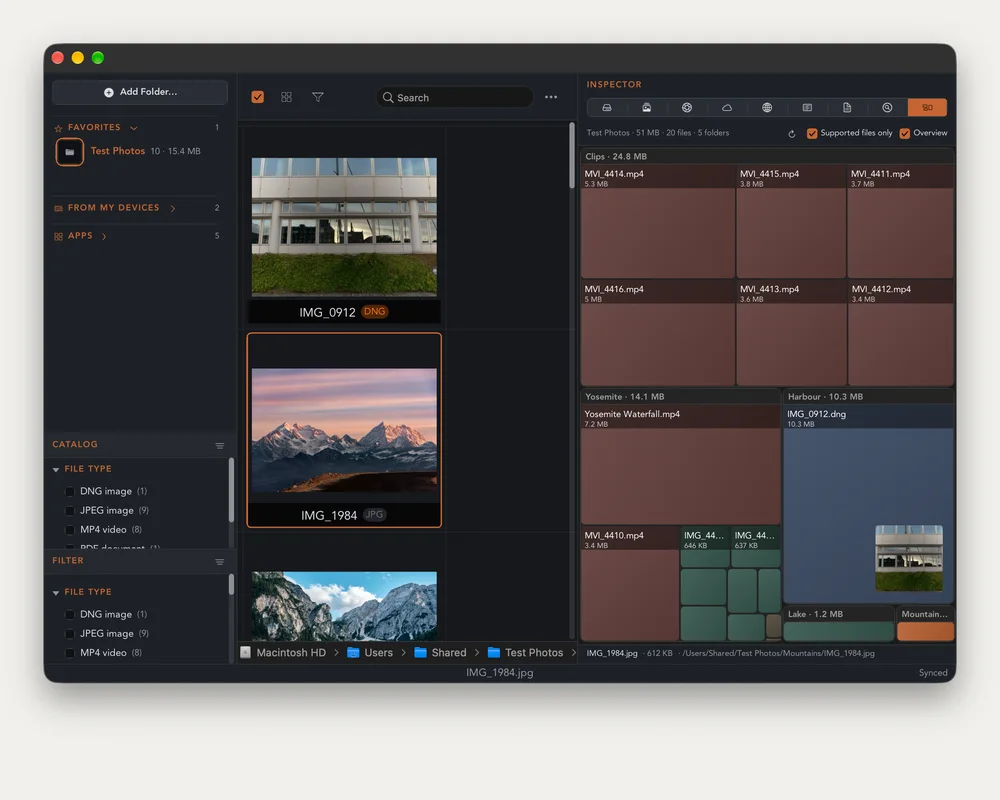
Select a favourite, or any folder below it, and choose the Space Map tab of the inspector, which sits beside the EXIF, XMP Data, Search Index, Thumbnails and Cache tabs. The folder appears as a treemap: every file is a tile sized by its bytes, and the tiles are grouped by subfolder. The clips, the exports and the bursts show up as the largest blocks, so the eye goes to them first.
Read a tile
Select a tile to see the file’s name, size and path. Photos draw their thumbnail inside the tile when there is room, so a big block can be recognised without opening it. The header above the map counts the size, the files and the folders of what is on it, which is also the size of a whole project when you need to quote it.
Narrow it down
Supported files only hides archives, sidecars and the other files the grid does not list, when the question is about pictures and clips. Overview keeps the whole favourite on screen and highlights the folder you are in, so you can walk down through the subfolders without losing sight of the rest of the disk.
Clean up, then look again
Before a backup, the map is a list of what to move off, largest first. Move the clips or the exports to another disk, then rescan, and the map shows where the space went. Before moving a clip, the grid plays it: MP4, MOV and M4V clips show a frame, their length and a player. Lighthouse works on the folders you already have, without importing them, so nothing has to be catalogued before the map can be drawn.
The steps are on See what fills a disk; to browse the favourites of a disk that is not plugged in, see Work with a disk unplugged.