Build a site. Keep it up to date.HTML Designer for Mac
Create a portfolio, update your opening hours or add a new service page. Edit the files, check the page in preview and publish the changes to your own hosting.
Create a portfolio, update your opening hours or add a new service page. Edit the files, check the page in preview and publish the changes to your own hosting.
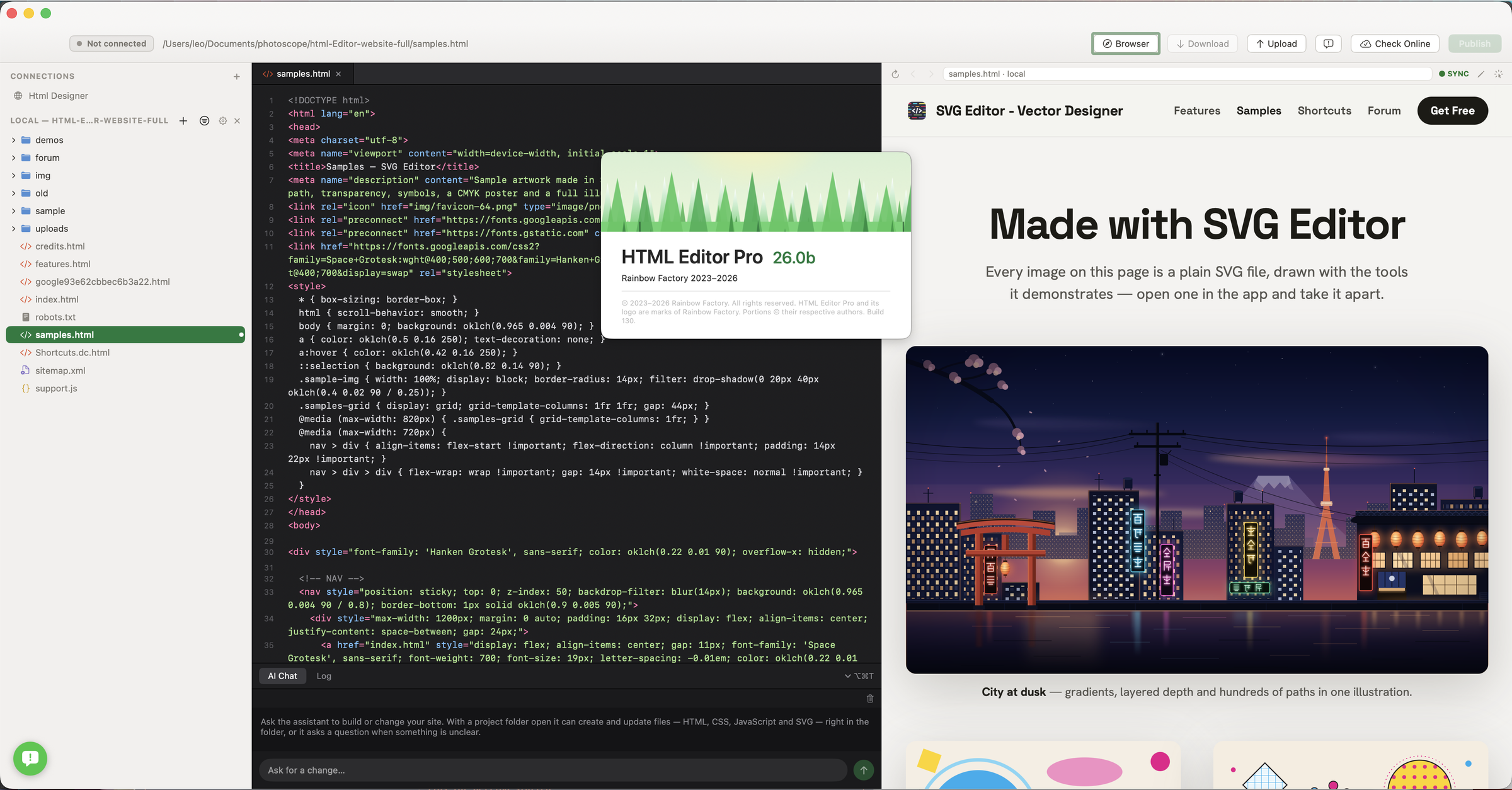

Open your existing site or a new project folder. Write the page, see how it looks and upload it when the wording, images and links are ready.
Return to a portfolio or client website and find the page, styles and images for the next update.
Manage your websites →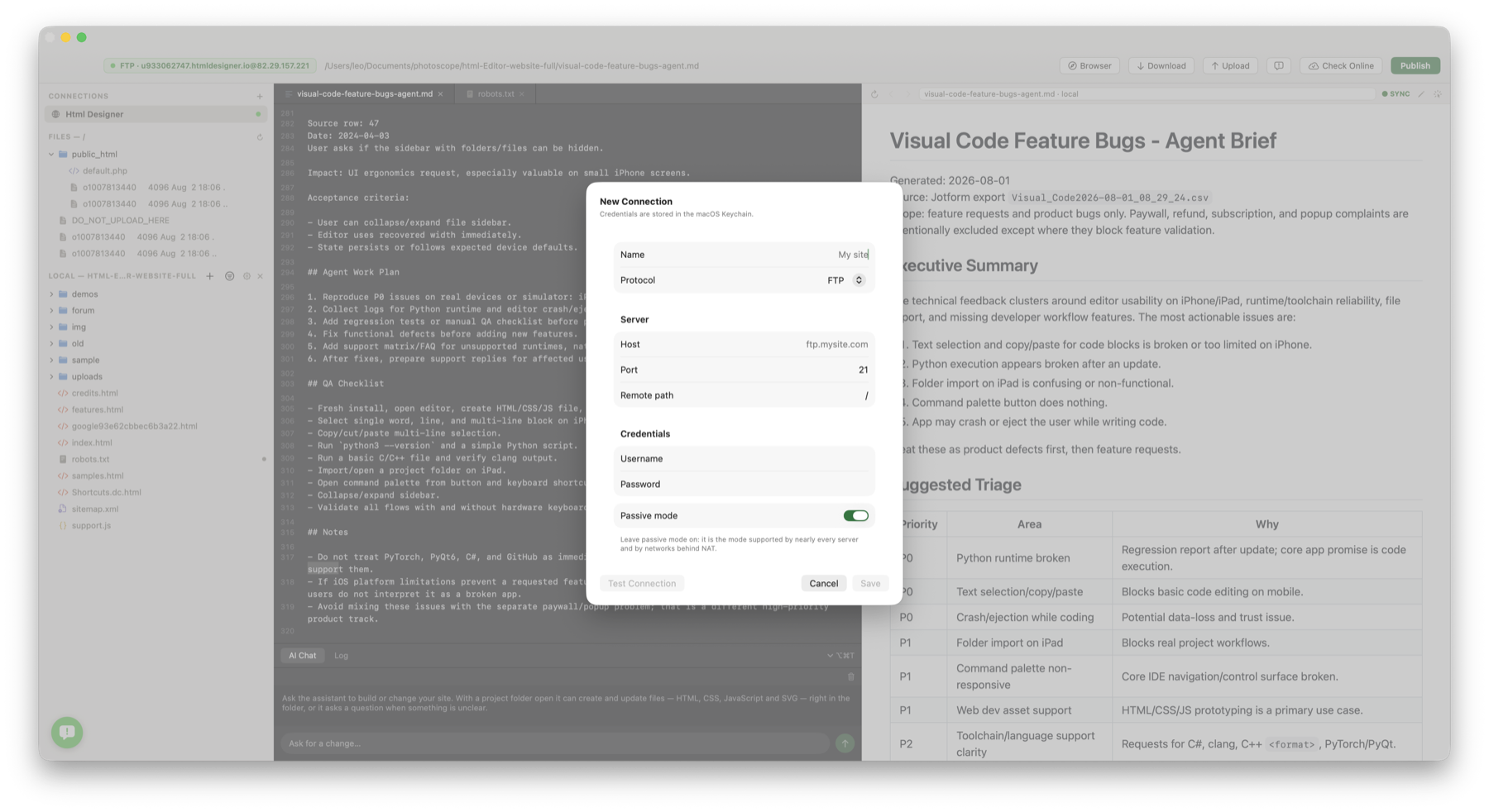
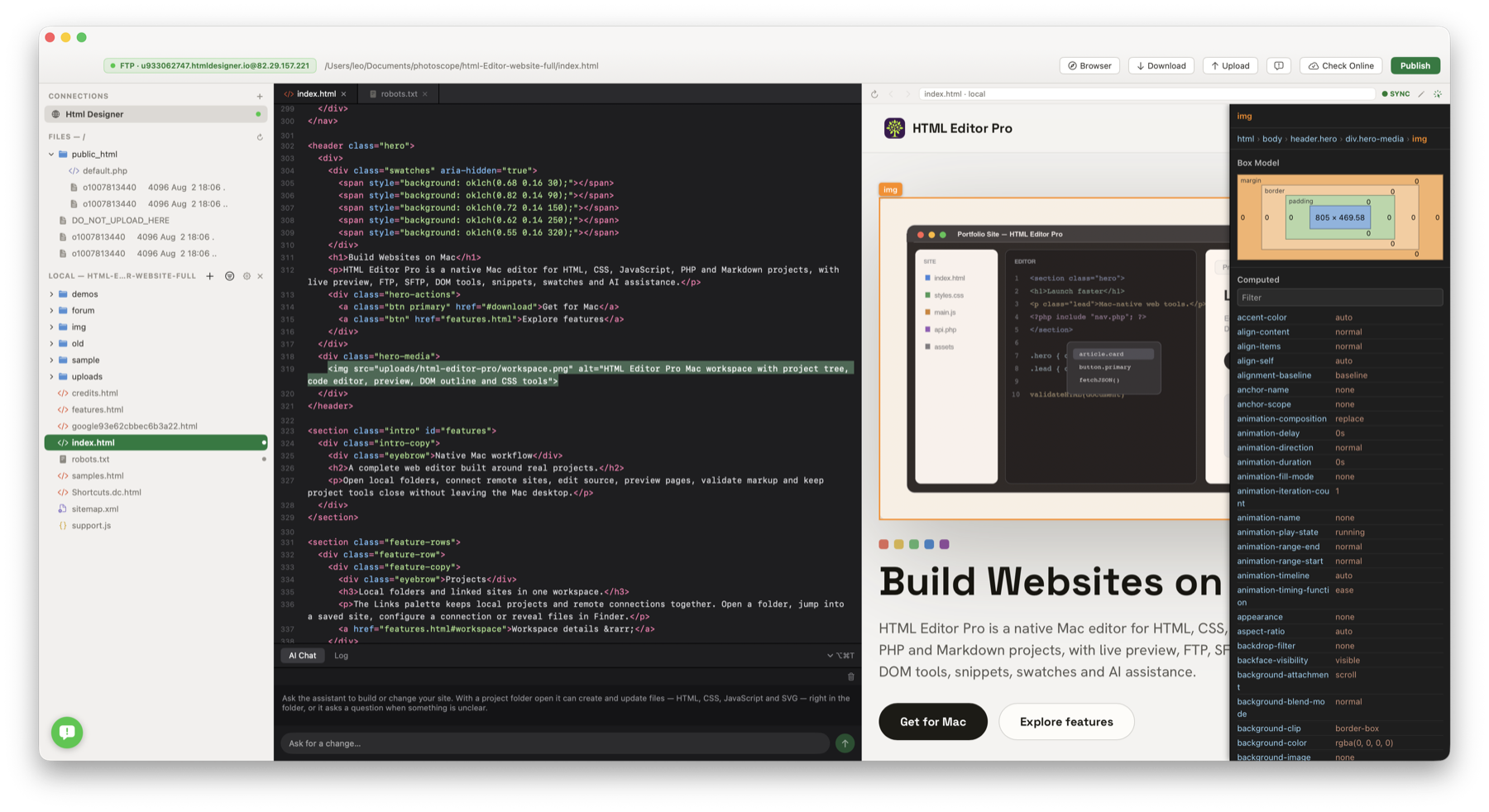
Find why a button is out of place, inspect its spacing and reach the matching HTML. For an eligible plain-text heading, correct the wording directly in the preview.
Find what controls a page →Check a new headline, image or section in the page preview before publishing the update.
Check changes as you edit →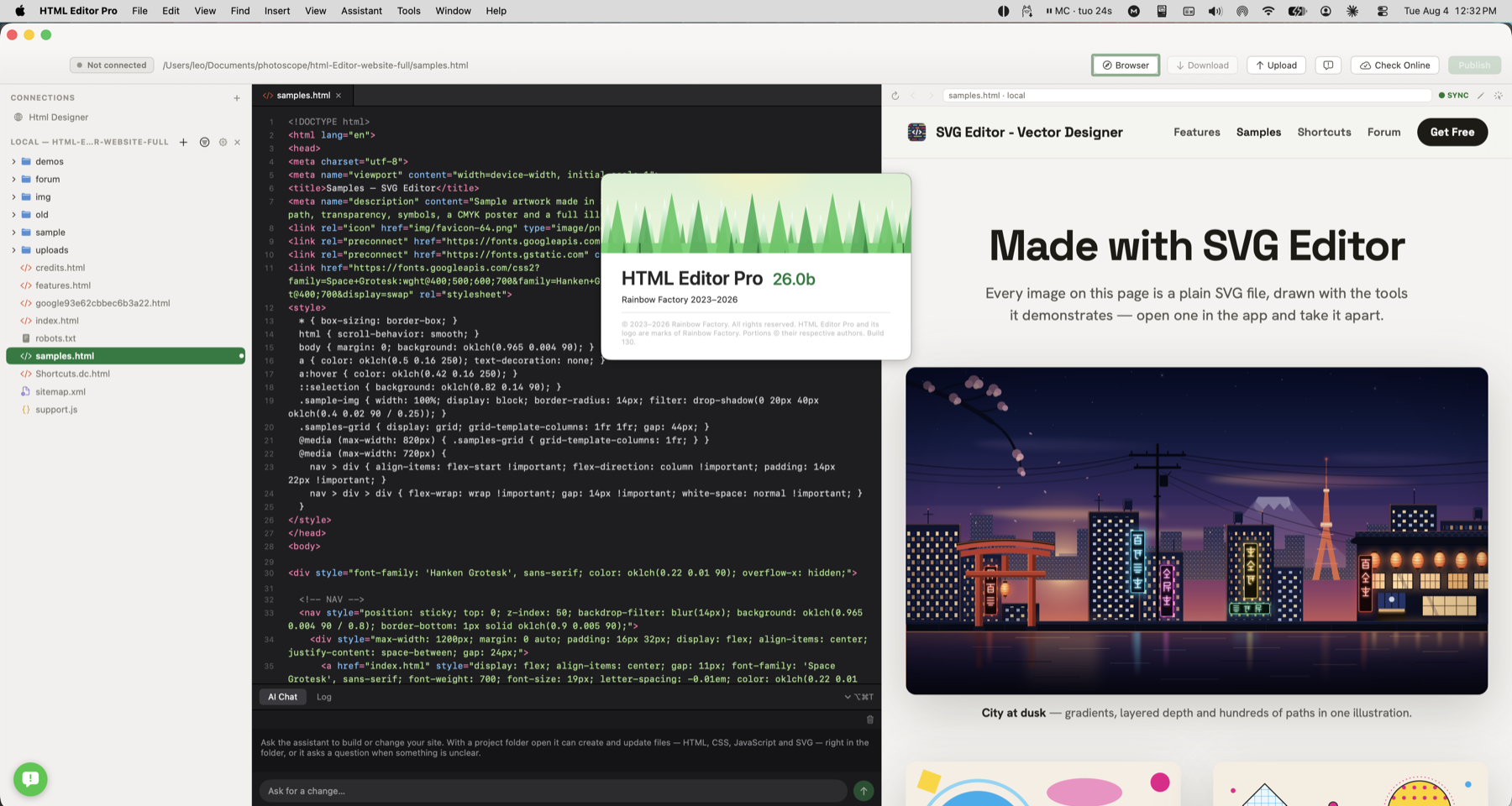
Match a new page to your site’s fonts and colours. Reuse a contact block or button snippet, then adapt it to the new content.
Style your website →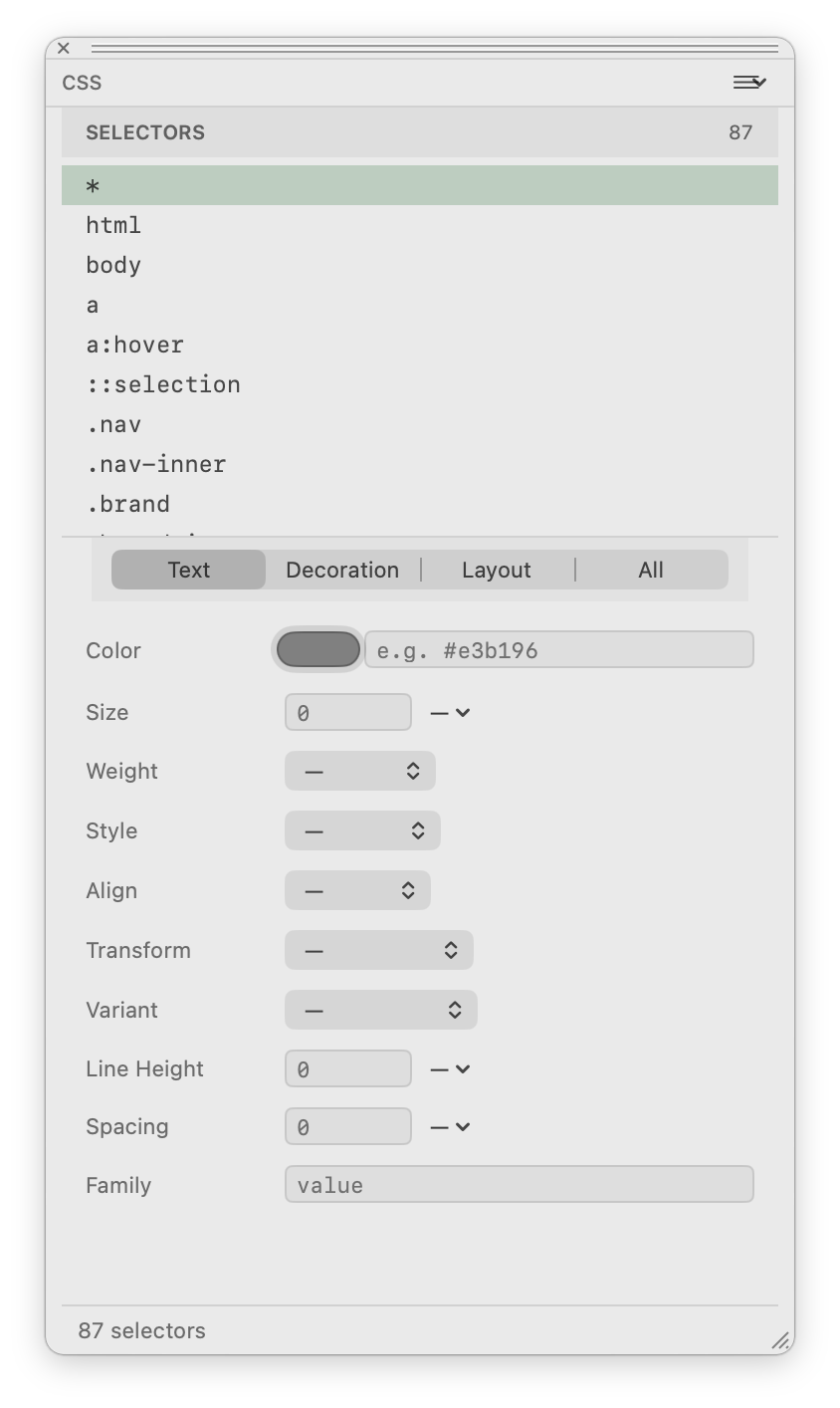
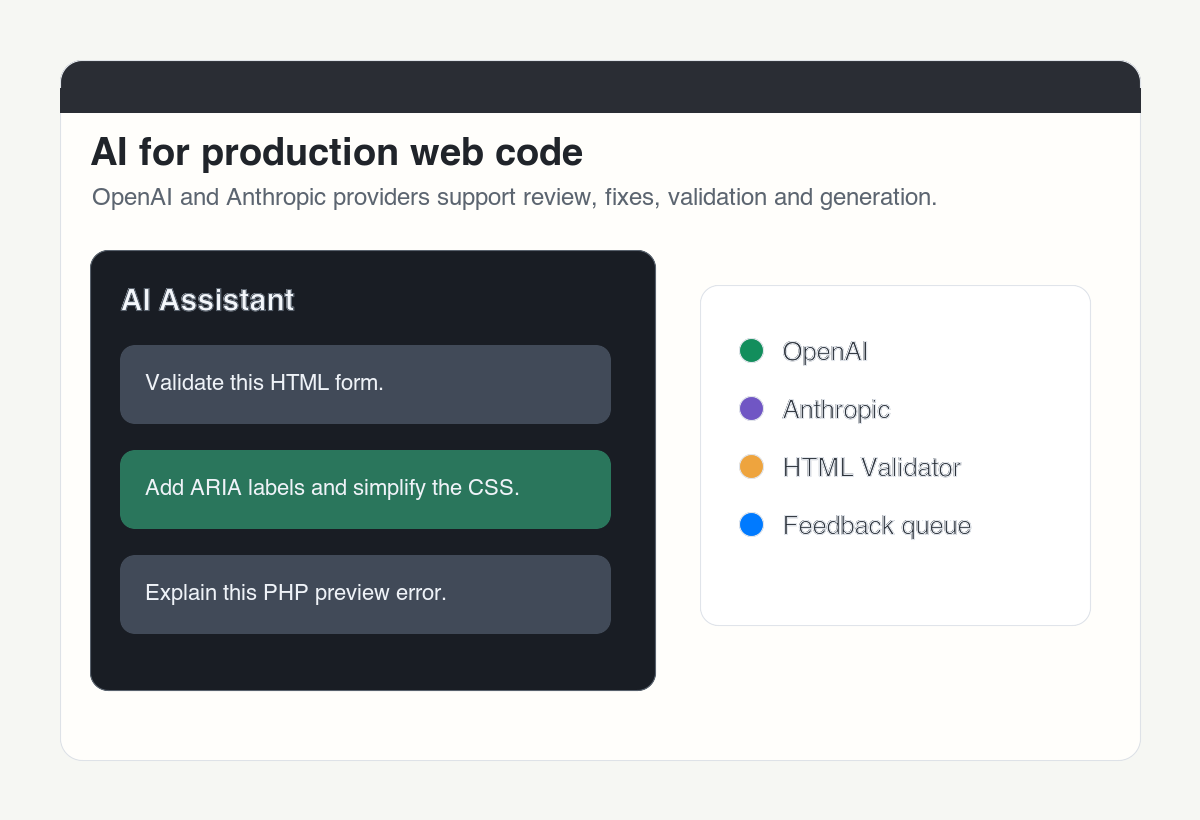
Ask for a services section with three headings and a contact link. Review the code, replace placeholder content and check the page before publishing.
Build a section with AI → Connect your assistant →See where to inspect a misplaced element, check the preview, connect to hosting and adjust page styles.
Visual Inspector
Live Preview
Hosting connections
CSS Styling
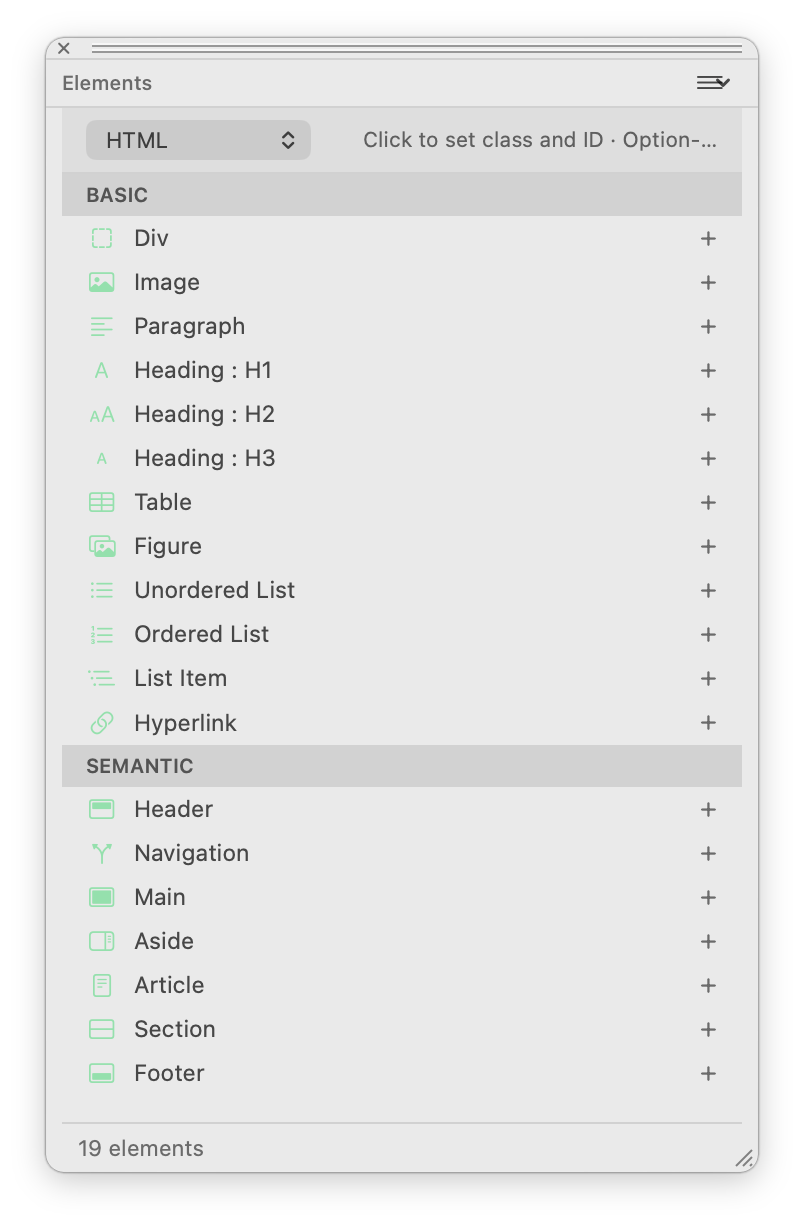
Page elements
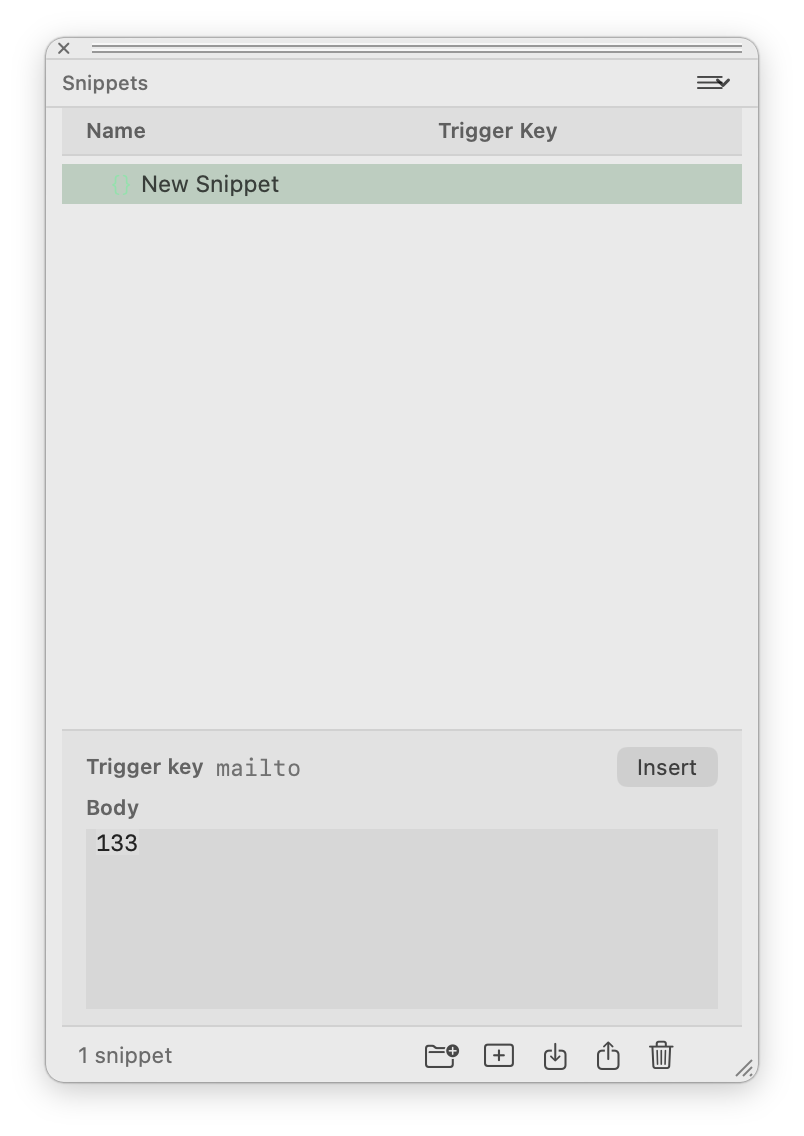
Reusable Snippets
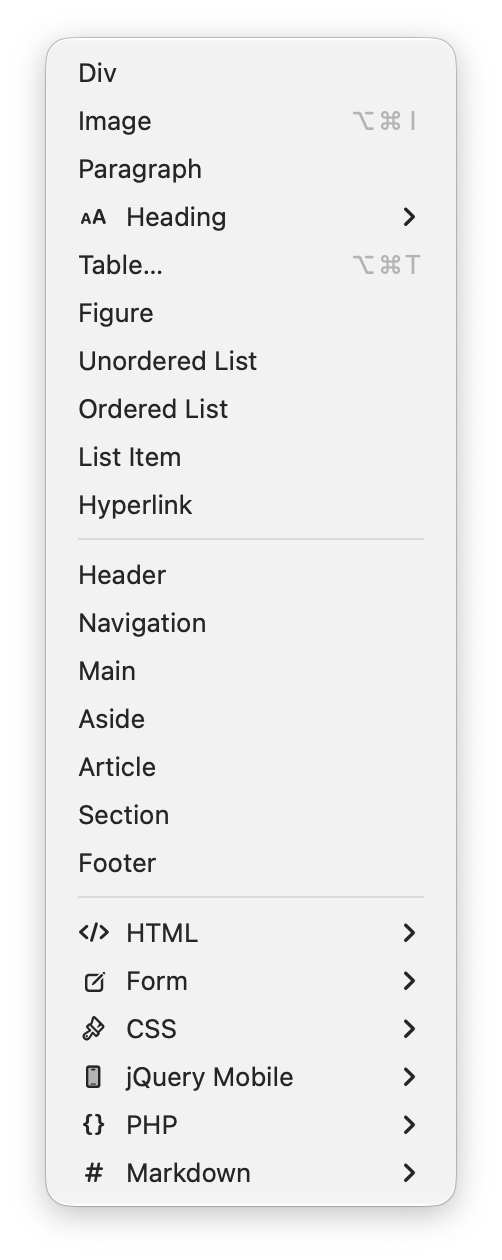
Quick insertion
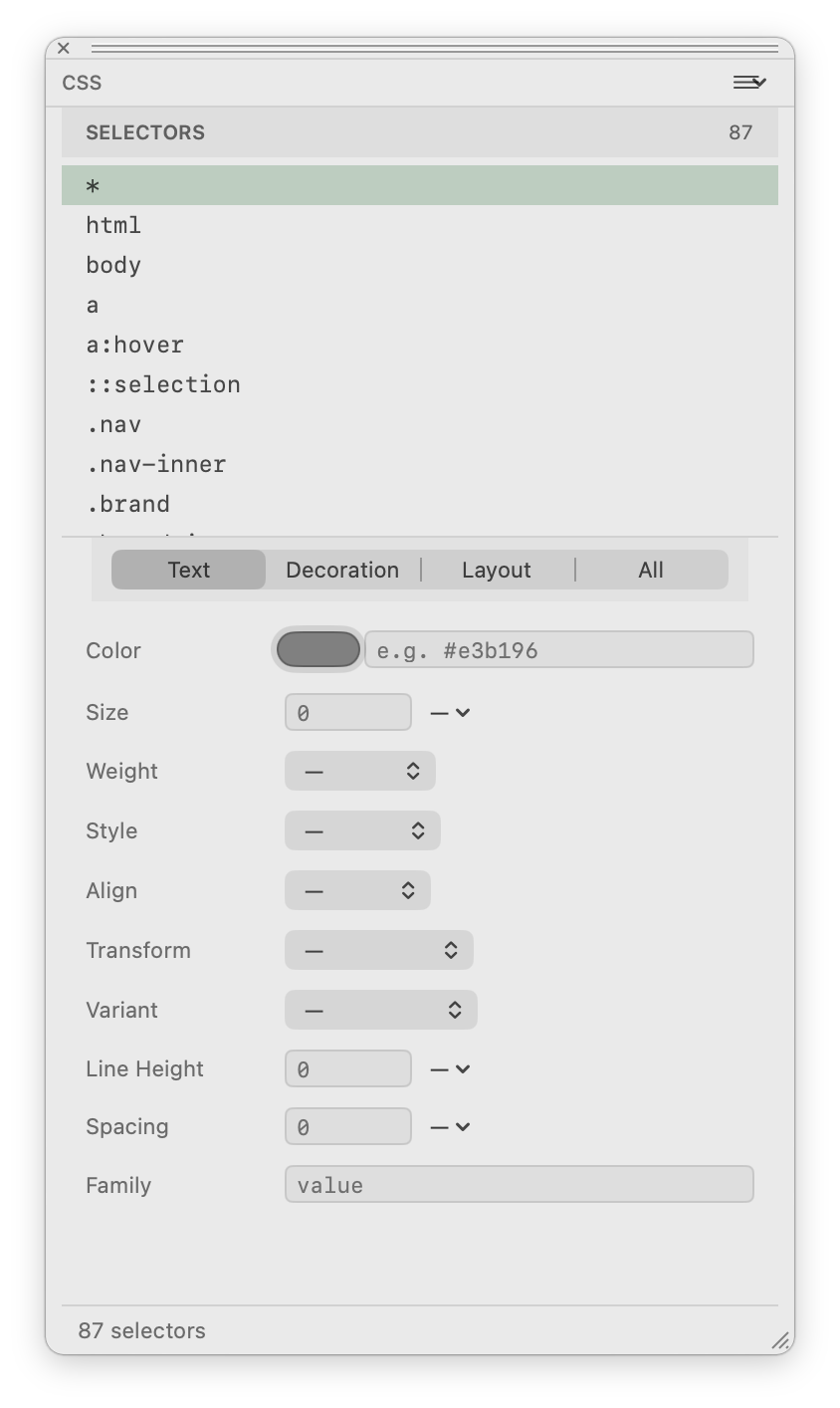
Style controls
Update a contact page, replace a menu or publish a new portfolio project. Connect to your hosting, transfer the changed files and check the live page in a browser.
Publish website changes →
Choose the update you need to make: fix a heading, change contact details, add a section or publish the new page.
Return to a portfolio or client website and find the page, styles and images for the next update.
See how →Upload new opening hours, a revised menu or a portfolio page to your own website hosting.
See how →Check a new headline, image or section in the page preview before publishing the update.
See how →Inspect a misplaced button or oversized heading and find the HTML or style that controls it.
See how →Fix a heading typo or change a short caption directly in the preview, with the HTML updated too.
See how →Preview a server-rendered PHP page, including its shared header, on your configured hosting.
See how →Set a heading font, use your brand colour on buttons or adjust the spacing around a section.
See how →Write a service page, add a booking link or edit a product section with its preview nearby.
See how →Find an old address, phone number or product name across your website and update the matches.
See how →Ask AI to draft a services section, explain a script or suggest a focused page fix.
See how →Connect a compatible assistant to inspect your project or prepare an edit you can review in the app.
See how →Open a palette from the Window menu and place it where you work.
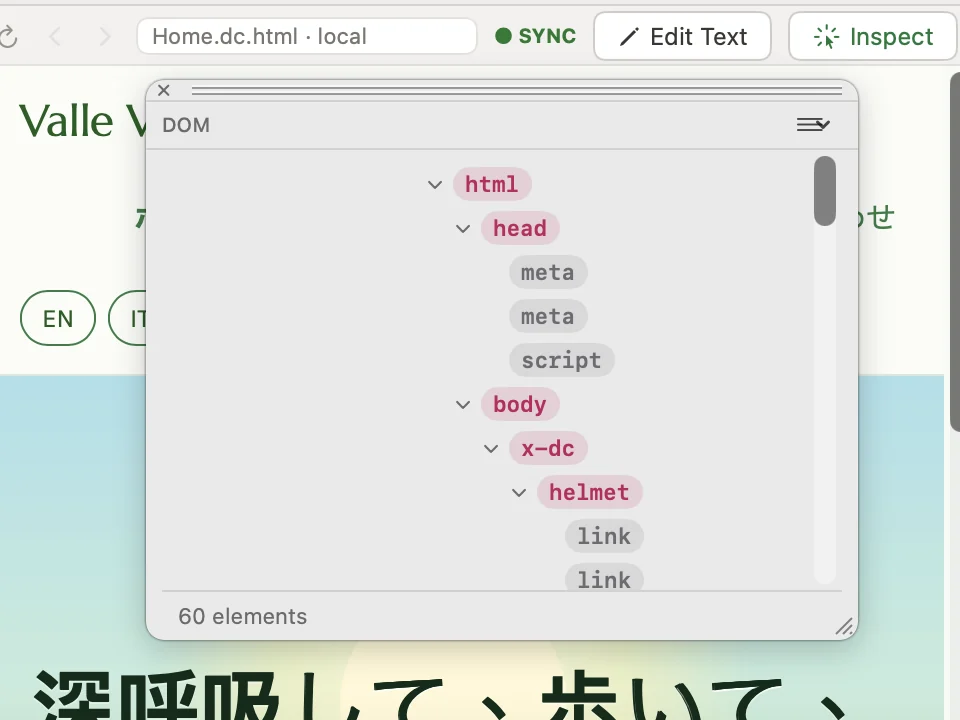
See the structure of the page as a tree, from html down to each link, and find the element you want to change.
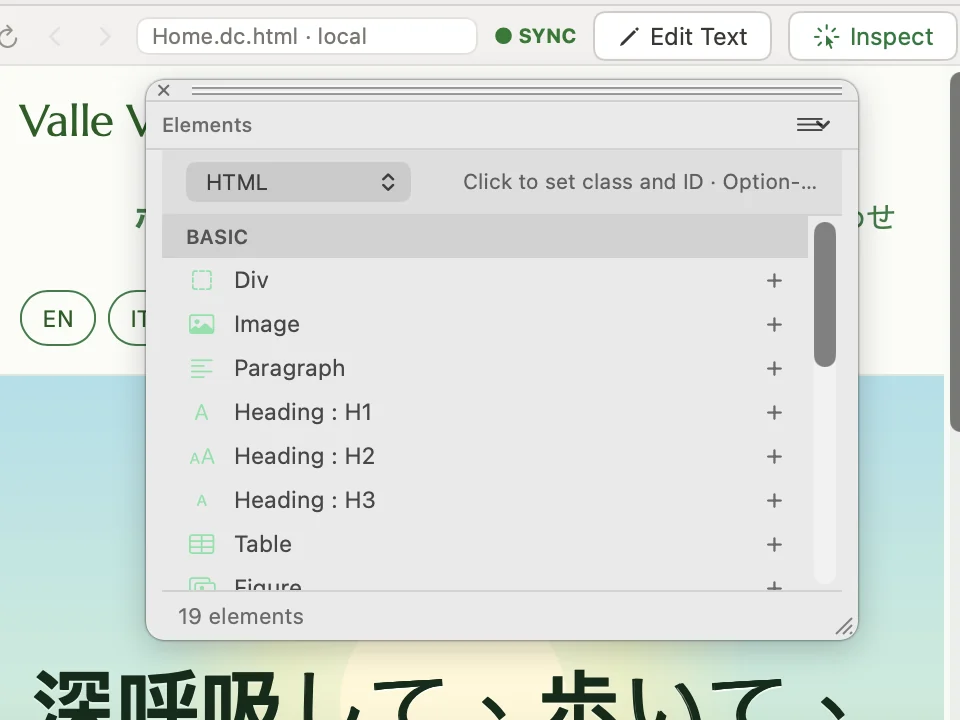
Add a div, an image, a paragraph, a heading or a table to the page with one click.
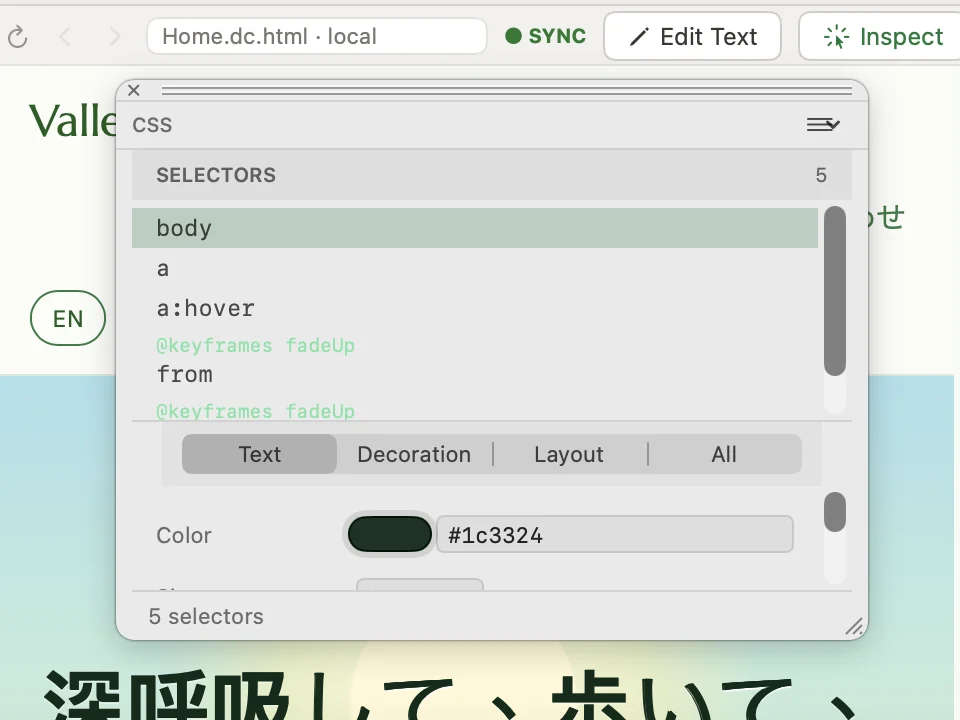
Pick a selector and change its text, decoration and layout properties, colour included.
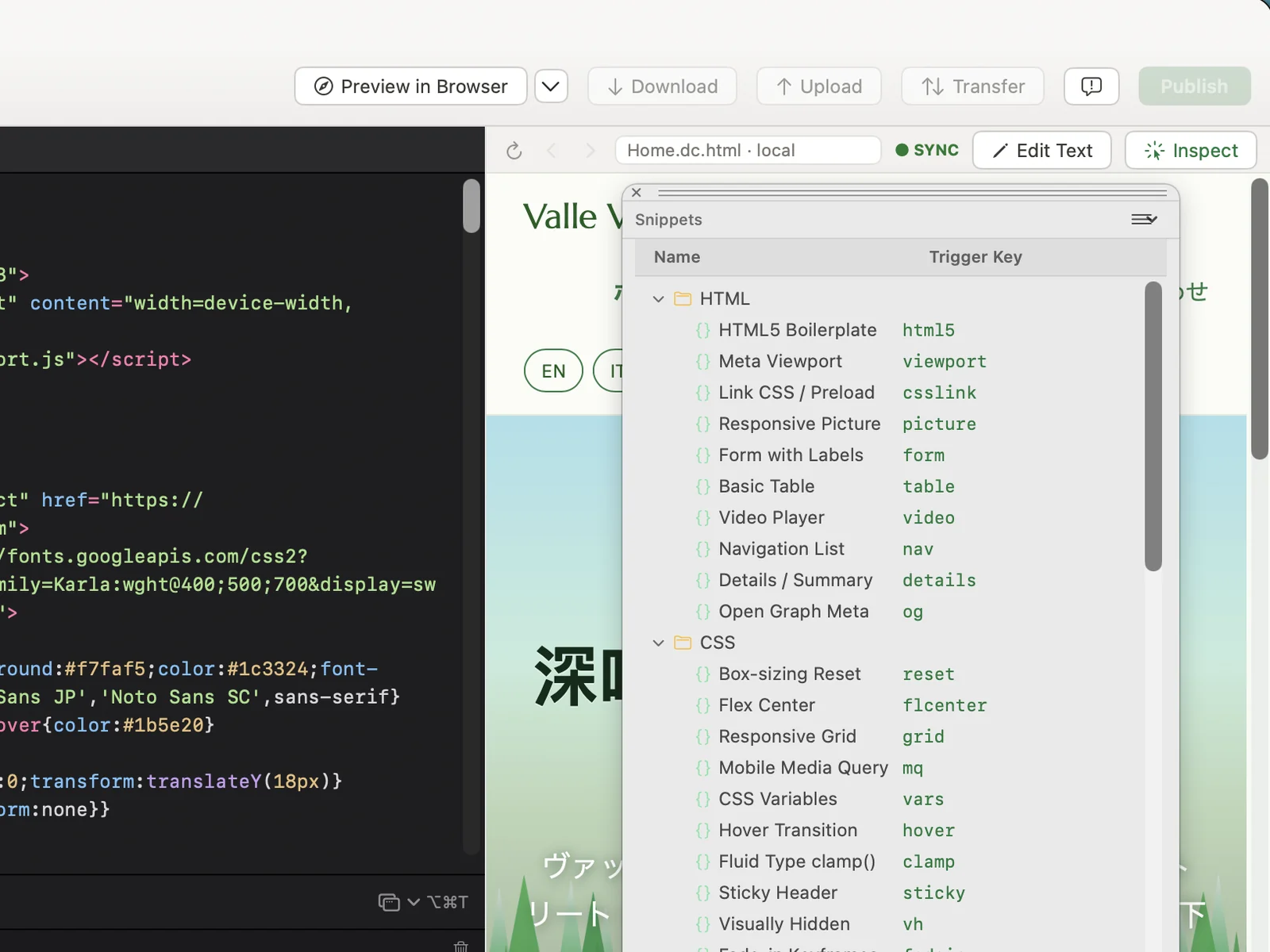
Insert a ready-made block of HTML or CSS, such as a navigation list, a responsive grid or a sticky header, from its trigger key.
Build a portfolio or business website, check each update and publish it to your hosting.
Explore all featuresThe direct download updates itself from inside the app.