Find what fills the disk.
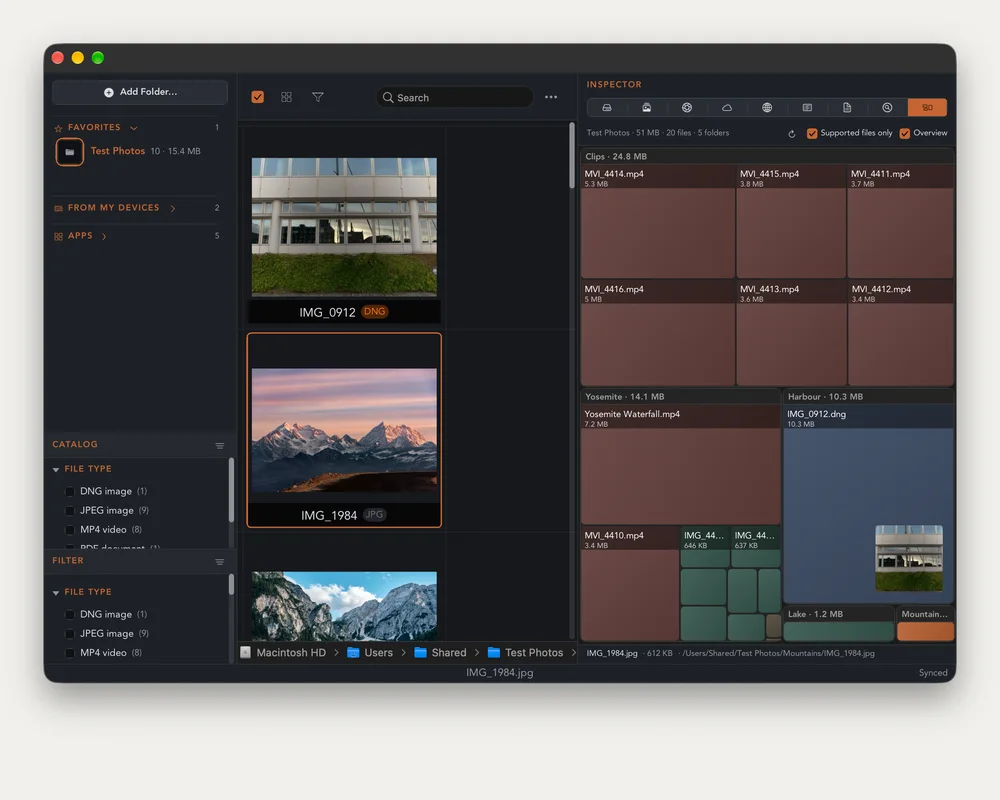
Open Space Map in the inspector and the folder appears as a treemap, every file a tile sized by its bytes and grouped by subfolder.
See what fills a disk
The heavy files stand out.
The clips of a shoot, a folder of exports or a RAW burst show up as the largest blocks before you open anything. Selecting a tile shows its name, size and path; photos draw their thumbnail inside the tile when there is room.
Supported files only hides archives, sidecars and other files the grid does not list; Overview keeps the whole favourite on screen and highlights the folder you are in.
Step by step
Try it on your own folder.
- Open the folder
Select a favourite or any folder below it. - Open Space Map
Choose the Space Map tab of the inspector. - Follow the big tiles
Select one to see its path, or rescan after you clean up.
What you get
See where the space went.
Room before a backup
Find the clips and exports to move off before a disk fills up.
The size of a project
The header counts the size, files and folders of what is on the map.