Keep every version of an edit.
Save snapshots while you develop, revert a photo to one of them or start a new version of it beside the original.
Go back to an earlier edit
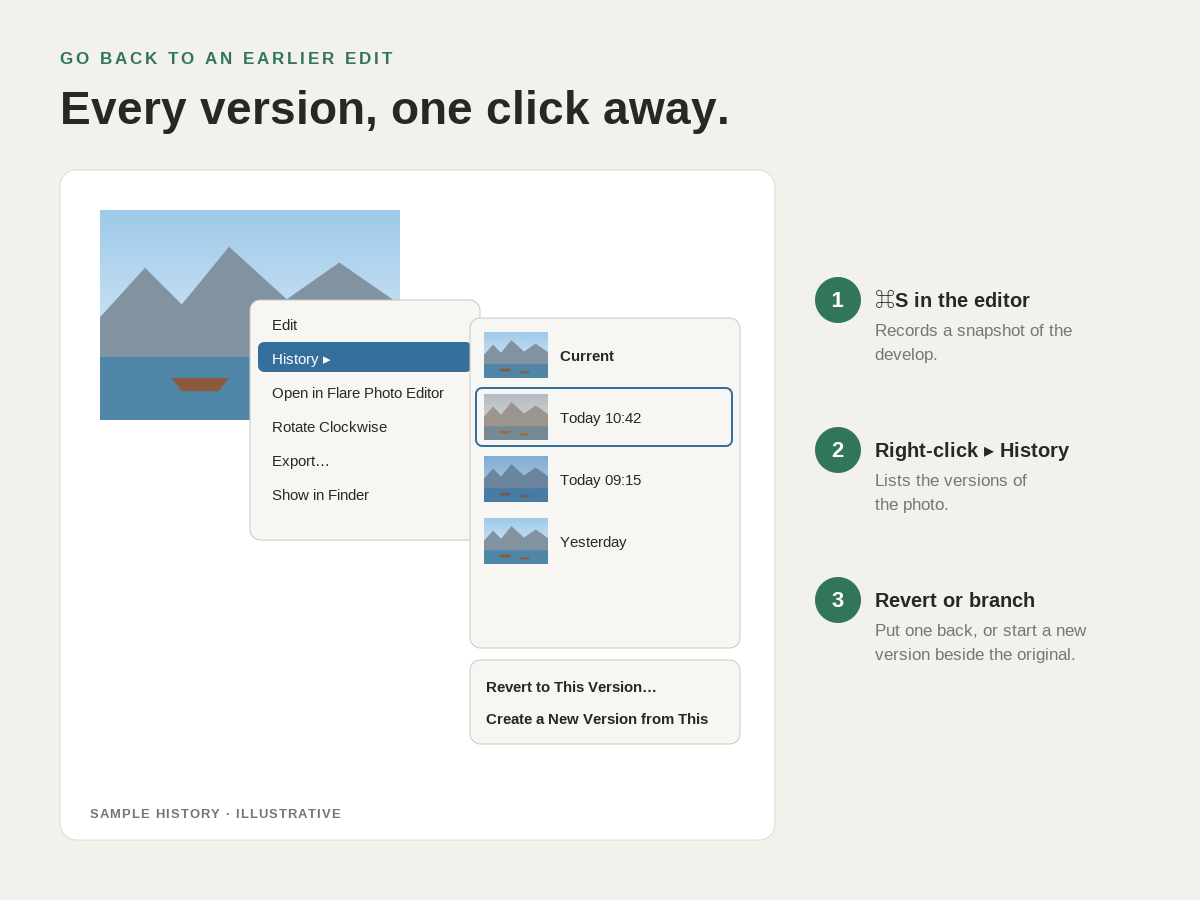
History in the context menu.
⌘S in the editor records a snapshot. Right-click a photo ▸ History lists its versions: Revert to This Version… puts it back, saving the current state first, and Create a New Version from This makes a second copy with that develop.
Photo ▸ Duplicate (Alias) (⌘D) makes a second copy of the photo with a sidecar of its own, so a colour and a black-and-white version of the same RAW sit side by side without duplicating the file.
Step by step
Try it on your own folder.
- Snapshot as you go
⌘S in the editor before trying something different. - Look back
Right-click the photo ▸ History to see the versions. - Revert or branch
Revert to This Version… or Create a New Version from This.
What you get
Try a different edit without losing this one.
Room to experiment
An earlier version is always one click away.
A clean start
Photo ▸ Reset XMP Metadata (⇧⌘X) clears the sidecar; ⌘Z brings it back.