Starting out
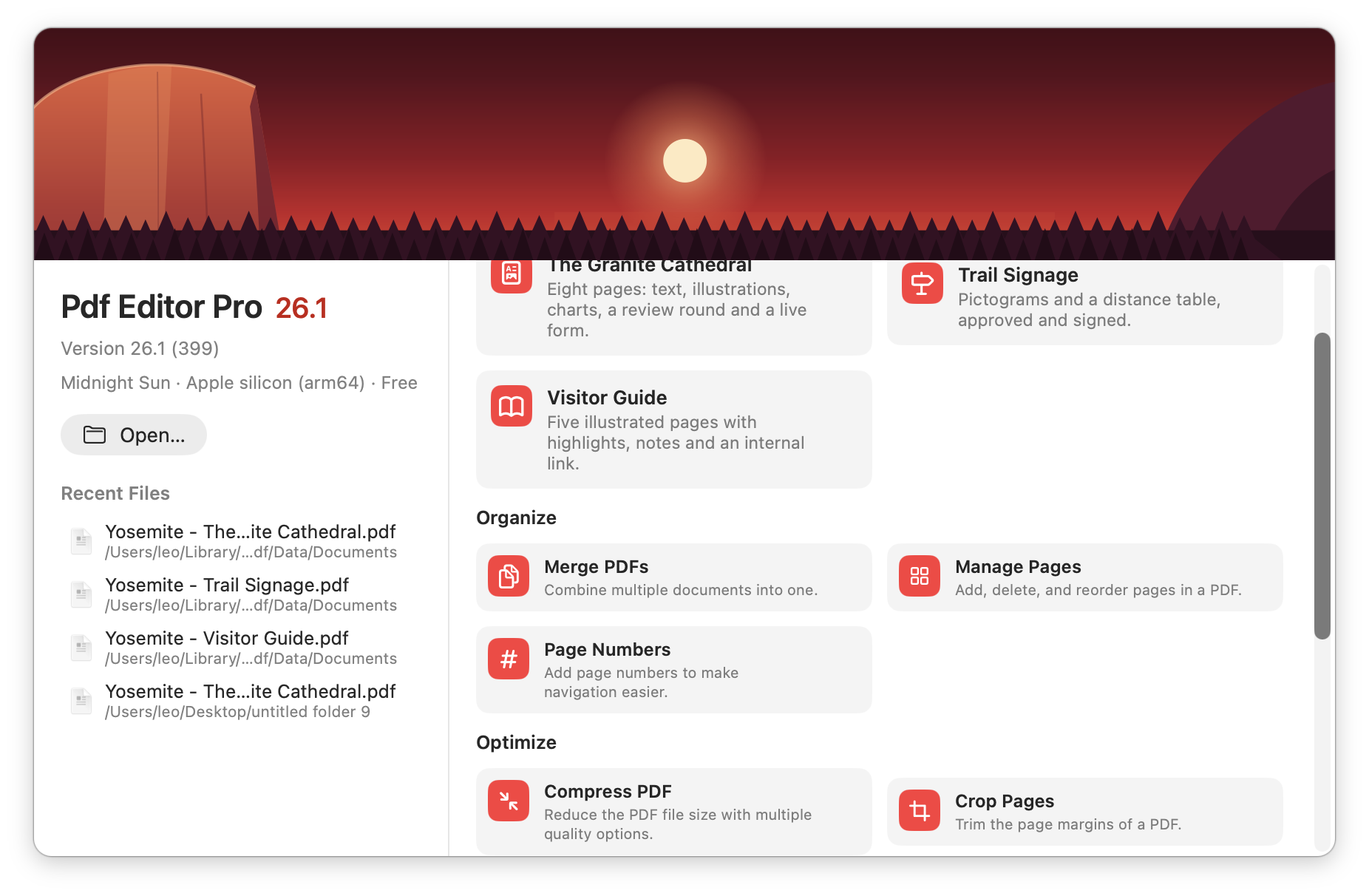
The welcome window
When you launch the app you get a welcome window. It is the first page of a short animated tour — seven more pages show off the app's big features, and you can flip through them with the dots underneath, the ← and → keys, or a two-finger swipe (the tour pauses while your pointer is over it). Page one is the working welcome, with:
- Open… and your six most Recent Files.
- Three sample documents to try everything on: The Granite Cathedral (an eight-page publication with text, illustrations, charts, a round of review comments and a live form), Trail Signage (pictograms, a distance table, approved and signed) and Visitor Guide (five illustrated pages with highlights, notes and an internal link). They are copied into your Documents folder, so anything you do to them is yours to keep. You can reopen them any time from Help ▸ Open Sample Document.
- A task grid of common jobs: Merge PDFs, Manage Pages, Page Numbers, Compress PDF, Crop Pages, Recognize Text, Fill Form, Redact PDF. The Set Password tile is greyed out because password protection is not available, and it means it. (The Sign PDF tile is greyed too, but signing itself is very much there — it lives in the Fill & Sign section and the Signatures palette, see §6.)
Files the app opens
- PDF — the format it edits and saves.
- Images — PNG, JPEG, TIFF, GIF, HEIC/HEIF, BMP, Photoshop (PSD).
- Drawings — SVG, Adobe Illustrator (AI), EPS and PostScript.
- Text documents — Word (DOCX), RTF, RTFD.
Anything that is not a PDF opens as a page you can view, annotate and export.
New document
File ▸ New creates an empty document: give it a name, pick a page-size preset or type width and height in your unit, choose portrait or landscape and whether it is a screen (RGB) or print (CMYK) document.
Drag and drop, copy and paste
- Drop a file from the Finder onto the page to place it there.
- Drop a signature file onto the Signatures palette to add it to your library.
- Drop a file, image or web link onto the 💬 button to attach it to a feedback message.
- Paste artwork from other apps (⌘V): pictures, PDF fragments and vector drawings are understood, and colours are converted so a Photoshop paste keeps its colour.
- Copy selected page text to the clipboard as plain text.