Price lists as tables.
Build a price list, a timetable or a results table inside a text frame, with header rows and table and cell styles that keep it consistent.
Set a table of figures
Rows and columns inside the text.
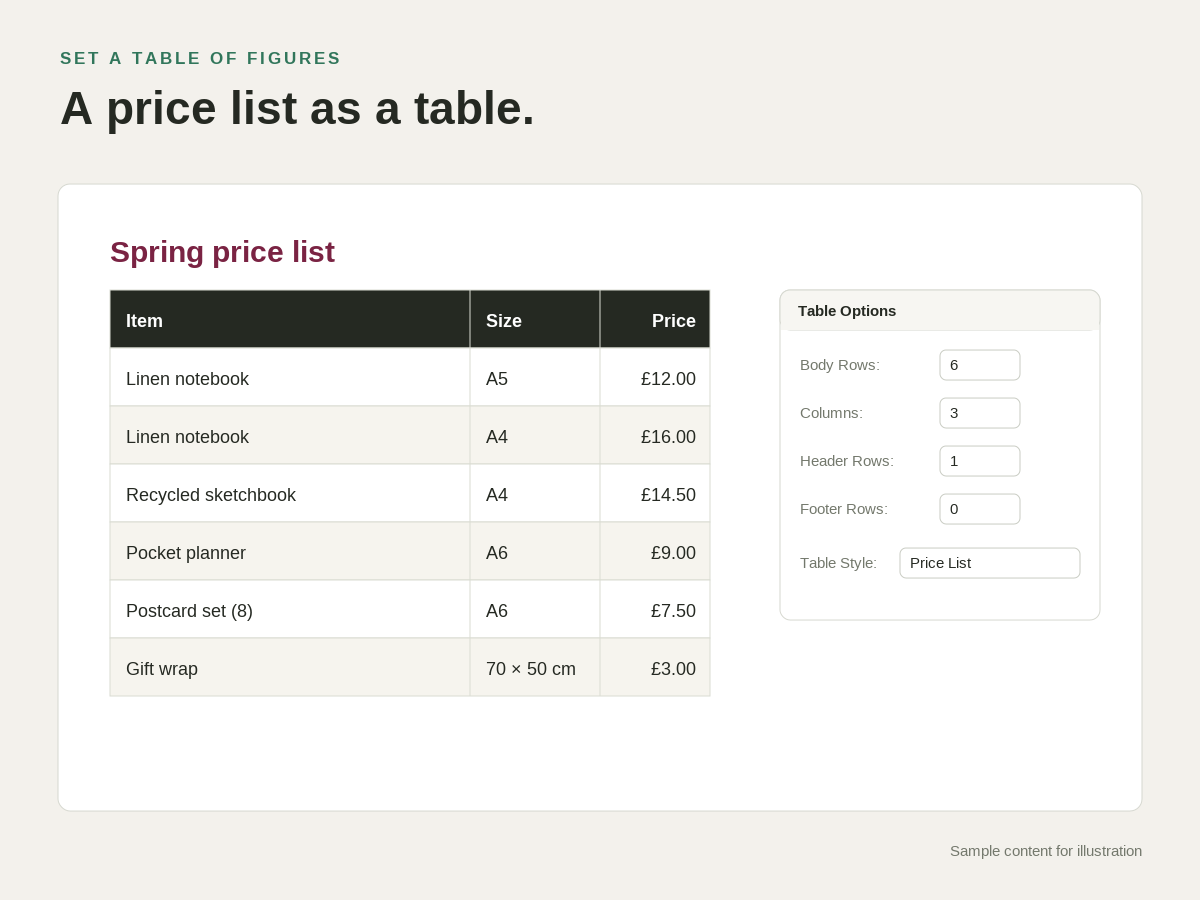
Table ▸ Create Table… asks for rows, columns and a table style. Convert Text to Table… turns tab-separated lines you pasted into a table, and Convert Table to Text… goes back.
Rows can be header, body or footer rows. Cells merge, unmerge and split, a cell can hold a graphic, and a table can run right to left.
Since MasterPage 26.0, September 2026.
Step by step
Try it with your own document.
- Create or convert
Put the caret in a text frame and choose Table ▸ Create Table…, or select tabbed text and choose Convert Text to Table…. - Shape it
Insert rows and columns, merge the title cells, drag a border to resize a column, Distribute Columns Evenly. - Style it
Table Styles and Cell Styles give every price list in the catalogue the same rules, fills and text.
What you get
Tables that stay part of the story: add a row and the text below moves down.