Selection and Direct Selection
Use Selection for whole objects, groups and transforms. Use Direct Selection for anchor-level editing, handle adjustment and node-level geometry control.
- V switches to Selection.
- A switches to Direct Selection.
The Toolbox mirrors the classic two-column vector editor pattern. Every tool is in the Toolbox, most have single-key shortcuts, and many have options for production drawing.
The core toolbox includes Selection, Direct Selection, Pen, Free Hand, Spray, Eraser, Line, Rectangle, Rounded Rectangle, Ellipse, Polygon, Star, Text, Text Pencil, Eyedropper, Scissors, Measure, Gradient, Rotate, Scale, Reflect, Shear, Hand and Zoom.
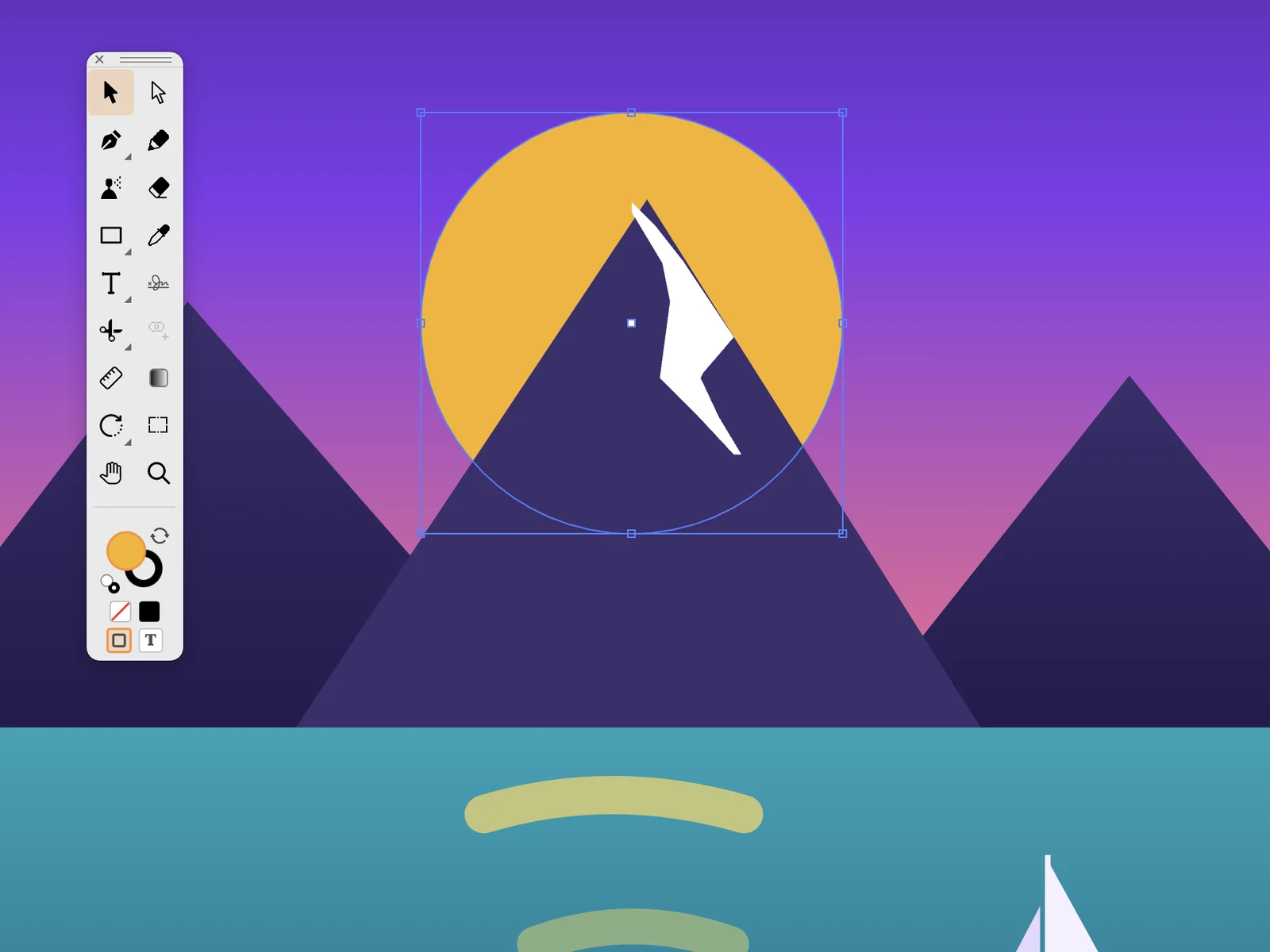
Use Selection for whole objects, groups and transforms. Use Direct Selection for anchor-level editing, handle adjustment and node-level geometry control.
The Pen creates precise Bezier paths. Add Anchor, Delete Anchor and Convert Anchor tools refine a path after it is drawn, making it possible to build clean logos and icons point by point.
Free Hand drawing turns loose sketches into vector paths. It is best for organic marks, rough lettering, quick shapes and hand-drawn texture that can still be edited afterwards.
The Spray tool scatters vector marks into an undoable group. Its options palette controls density, direction, falloff and randomness.
The Eraser subtracts real geometry from vector shapes. It removes path areas rather than hiding them with a mask, so the result remains editable vector artwork.
Line, Rectangle, Rounded Rectangle, Ellipse, Polygon and Star tools create editable shapes. They support the usual proportional and centered drawing workflows expected in a vector editor.
The Text tool creates point text, area type and type on a path. Text Pencil draws with a phrase along a freehand path for expressive typographic strokes.
Scissors cut paths at specific points, Measure checks distances, and Eyedropper samples styling from existing artwork for fast visual consistency.
Edit gradient direction and handles directly on the artwork. If the selected element has no gradient, dragging can create a default gradient axis for it.
Rotate, Scale, Reflect and Shear provide direct manipulation and numeric transform workflows for exact geometric changes.