Control Palette
A precision strip for position, size, scale, rotation, alignment, fill, stroke and opacity. It is the fastest way to make exact numeric edits without opening a dialog.
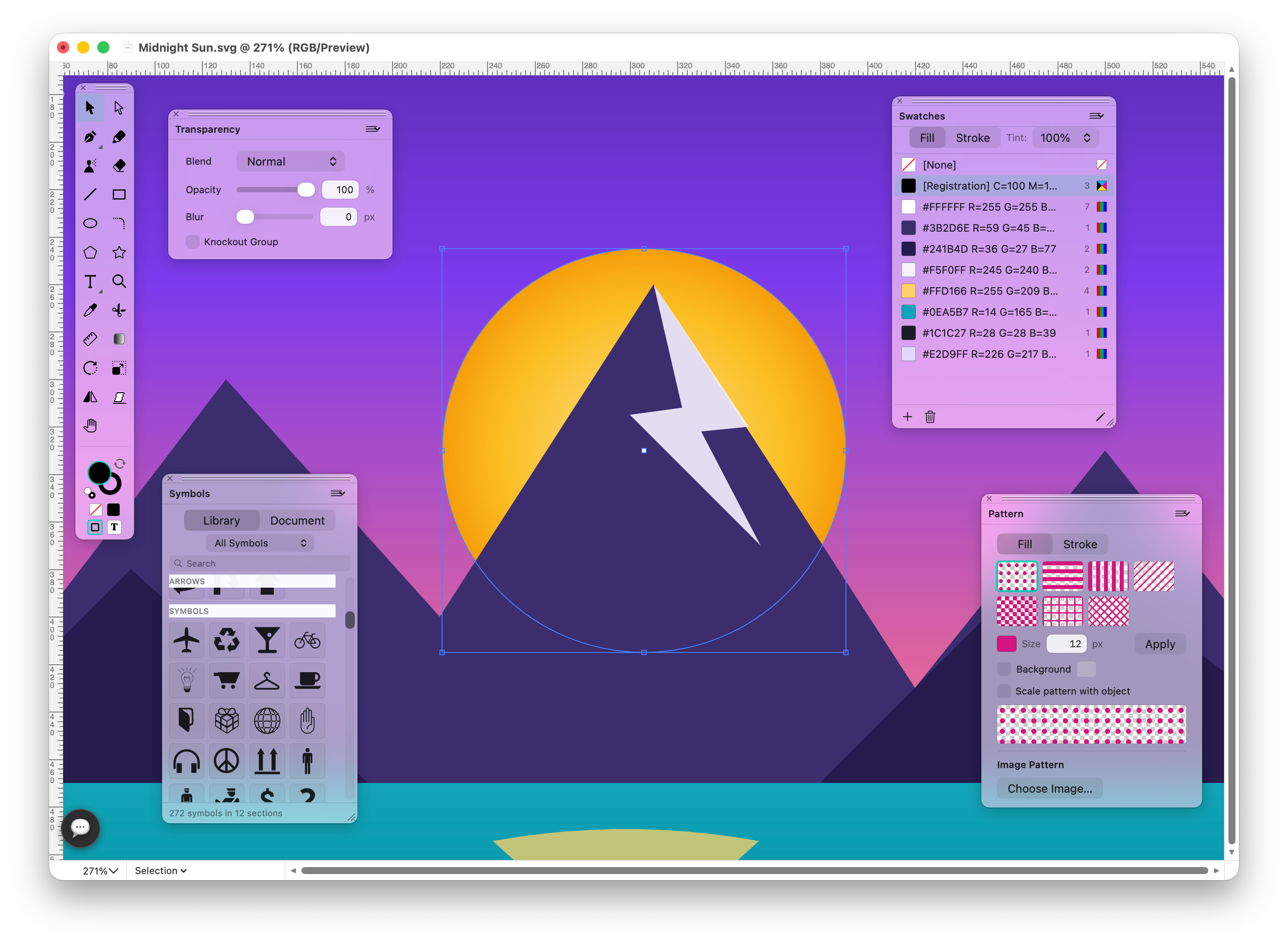
The interface is organized around small, movable panels. You can keep precision controls, color, layers, typography, links, brushes and automation visible while the canvas remains focused on the artwork.
The full workspace combines a central canvas with the Toolbox, Control Palette, Layers, Swatches, Gradient, Brushes, Symbols, Links, Scripts, AI Console and other panels. Hide all palettes with Tab or keep only the Toolbox with Shift + Tab.
A precision strip for position, size, scale, rotation, alignment, fill, stroke and opacity. It is the fastest way to make exact numeric edits without opening a dialog.
Every major palette is available from the Window menu: Toolbox, Control Palette, Swatches, Gradient, Pattern, Hatch, Brushes, Symbols, Stroke, Transparency, Character, Paragraph, Align, Info, Links, Layers, Navigator, Pathfinder, Spray, Scripts, AI Console and Feedback.
The Navigator palette shows a small overview of the document with a frame around the part on screen. It is useful when working on detailed posters, illustrations and large artboards.
Palettes can be rearranged for drawing, typography, print work, tracing or scripting. Reset Palettes restores a clean default layout when a workspace gets too busy.
 Control Palette
Exact X/Y, W/H, scale, rotation, alignment, stroke, fill and corner controls in one horizontal strip.
Control Palette
Exact X/Y, W/H, scale, rotation, alignment, stroke, fill and corner controls in one horizontal strip.
 Layers
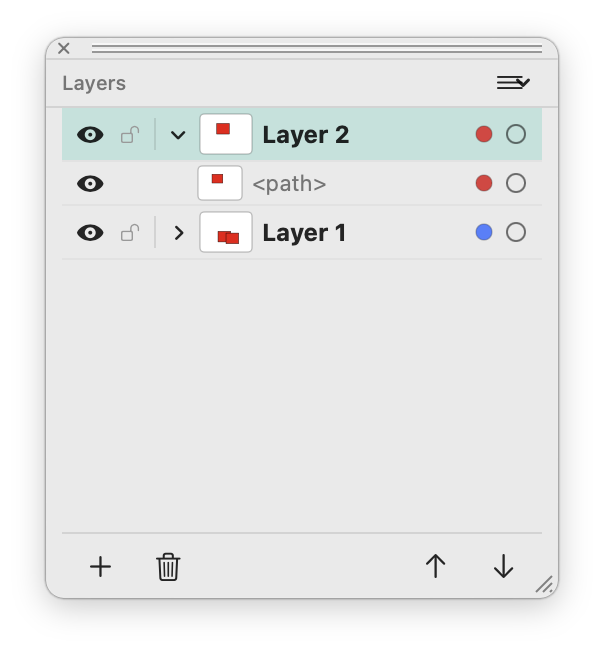
Layer visibility, locks, disclosure, object rows, layer colors and stacking controls.
Layers
Layer visibility, locks, disclosure, object rows, layer colors and stacking controls.
 Symbols
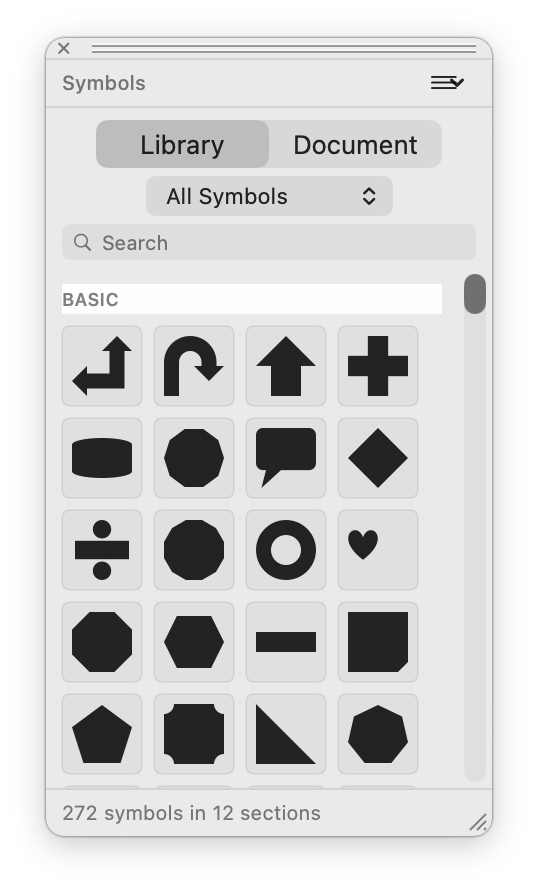
A searchable built-in symbol library with document symbols as a separate tab.
Symbols
A searchable built-in symbol library with document symbols as a separate tab.
 Palette style
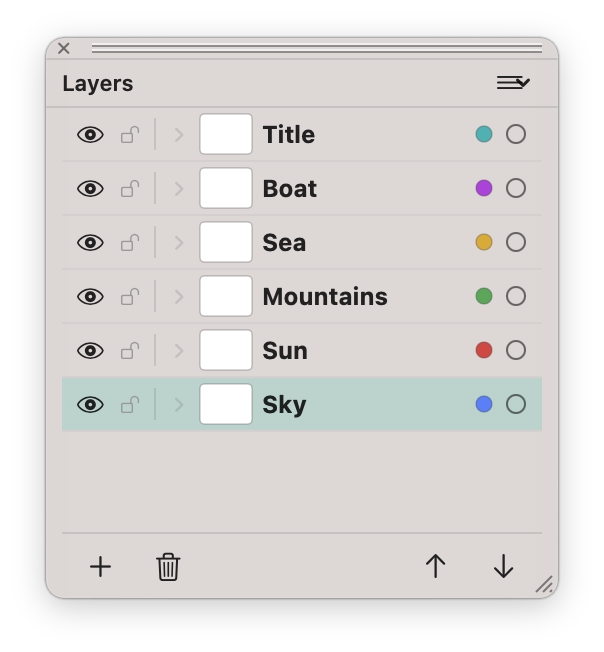
Compact floating panels keep the app close to the canvas instead of burying controls in inspectors.
Palette style
Compact floating panels keep the app close to the canvas instead of burying controls in inspectors.