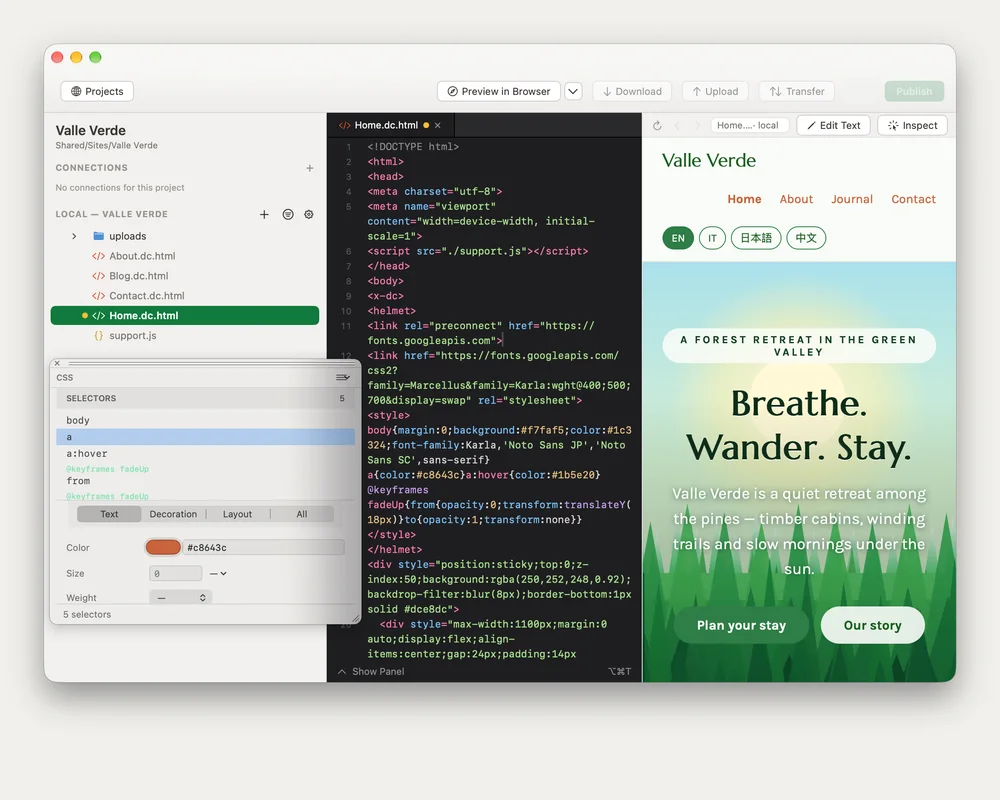
Valle Verde is the four-page sample site that opens from HTML Designer’s Welcome screen. Say its links should turn terracotta to match a new logo. You could find the a rule in the page’s style block and type the value, or you can set it from the CSS palette and watch the navigation change as you do.
The rules of the page, as a list
With the page or its stylesheet in the front tab, press ⌘6. The CSS palette lists the selectors of that stylesheet: body, a, a:hover and whatever else the file defines. Select one and the tabs below it show that rule’s properties.
Four tabs instead of a property list
Text sets colour, size, weight, line height and font family. Decoration sets background, border, radius and shadow. Layout sets display, size, margin, padding and gap. All lists every declaration of the rule, so you can add one the other tabs do not cover, or remove one you no longer need. Values come from colour wells and keyword menus, so a weight or a display value is picked rather than spelt.
Recolour the links
Select a, stay on Text, and set Color to #c8643c, typed or picked, opacity included. The source and the preview change together: the navigation turns orange as you confirm the value, and the page’s style block carries it. Each change is written into the source as ordinary CSS and can be undone, so trying three shades of orange costs nothing.
Where the palette works
The palette edits the file in the front tab: a .css file, or the <style> blocks of an HTML page. It does not follow a <link> to another stylesheet; to style a linked file, open the .css itself and its rules appear in the list.
Valle Verde arrived with HTML Designer 26.3, so the palette can be tried on real pages before you open your own site. The CSS palette itself has been in HTML Designer for Mac since 26.0, August 2026. To reach the source of something you see in the preview and read its box model and styles, see Find what controls a page.