Cut out a subject.
Put a product on white for a shop listing, or a person on a new background for a poster, without tracing the edge by hand.
What you do
Let the Mac find the subject.
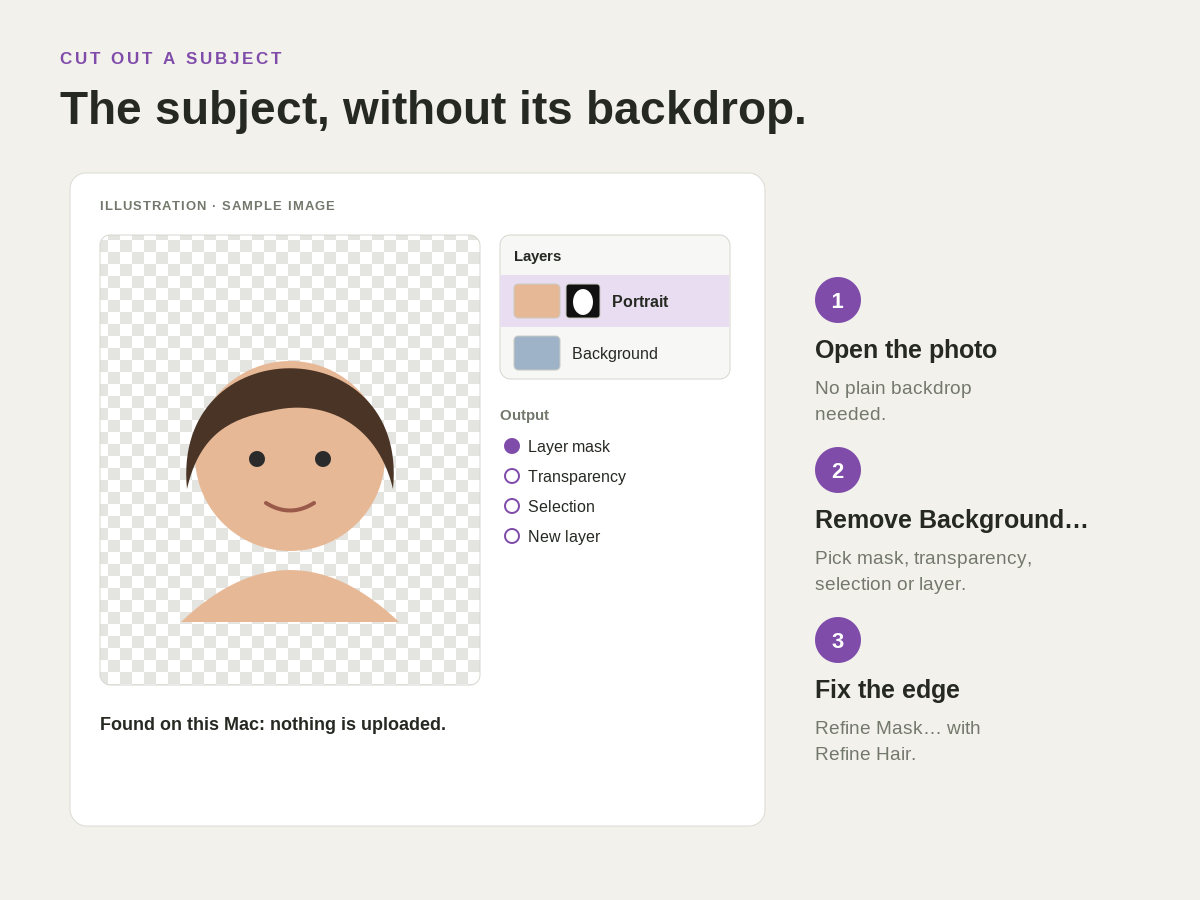
Filter ▸ Remove Background… finds the subject with Apple Vision, or with a model downloaded once, and refines the edge on this Mac: nothing is uploaded. It gives you a layer mask, transparency, a selection or a new layer.
Isolate Background… goes further: it can start from your own selection and puts the subject and the background on two layers. Select ▸ Subject gives you the subject as a selection to work on.
Step by step
Try it on your own photo.
- Open the photo
Any RGB photo; the subject does not need a plain backdrop. - Remove the background
Filter ▸ Remove Background…, choose the output, adjust Refine edges and Defringe while the canvas previews. - Fix the edge
Paint on the layer mask, or use Layer ▸ Layer Mask ▸ Refine Mask… with Refine Hair.
What you get
The subject on its own, with the background kept in the mask if you chose one, so you can bring part of it back.