Combine a photo, logo and text.
Build a poster, a menu cover or a product shot from a photo, a logo and a line of type, each on its own layer.
What you do
Every element on its own layer.
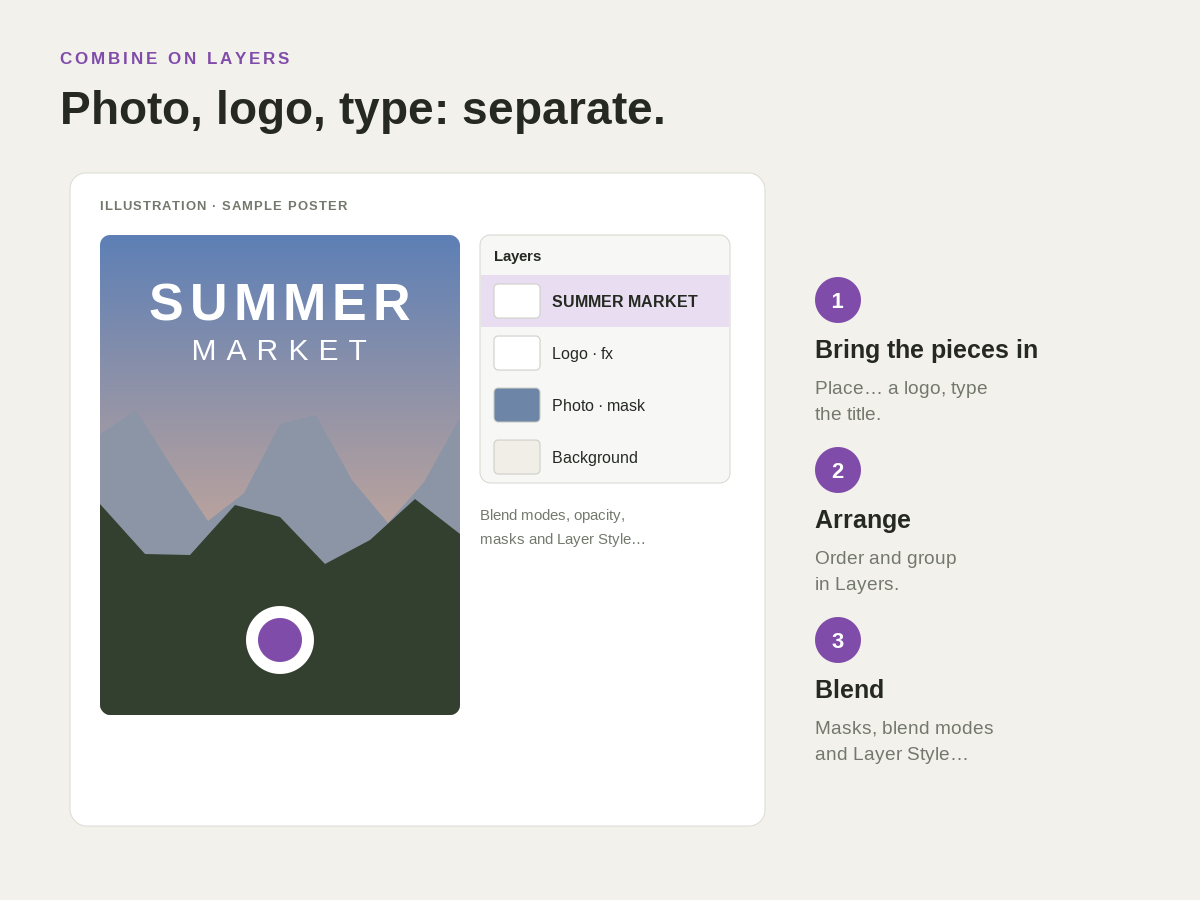
The Layers palette orders, groups and links layers; set each layer's opacity and blend mode, or clip one to the layer below with Create Clipping Mask.
A layer mask hides part of a layer without erasing it: paint black to hide, white to show. Layer Style… adds a drop shadow, glow or stroke that follows the layer. The Type tool sets editable lettering.
Step by step
Try it on your own photo.
- Bring the pieces in
File ▸ Place… for a logo, the Type tool for the title, a new layer for paint. - Arrange
Drag layers in the palette; group the ones that move together. - Blend
Masks, blend modes and Layer Style… make the pieces sit together.
What you get
A composition whose parts stay separate, saved as a layered TIFF or PSD.