Edit every match together.
Select every occurrence of a class name or a phrase in the page and type the new one once: each match changes at the same time.
Change every match at once
Several cursors, one edit.
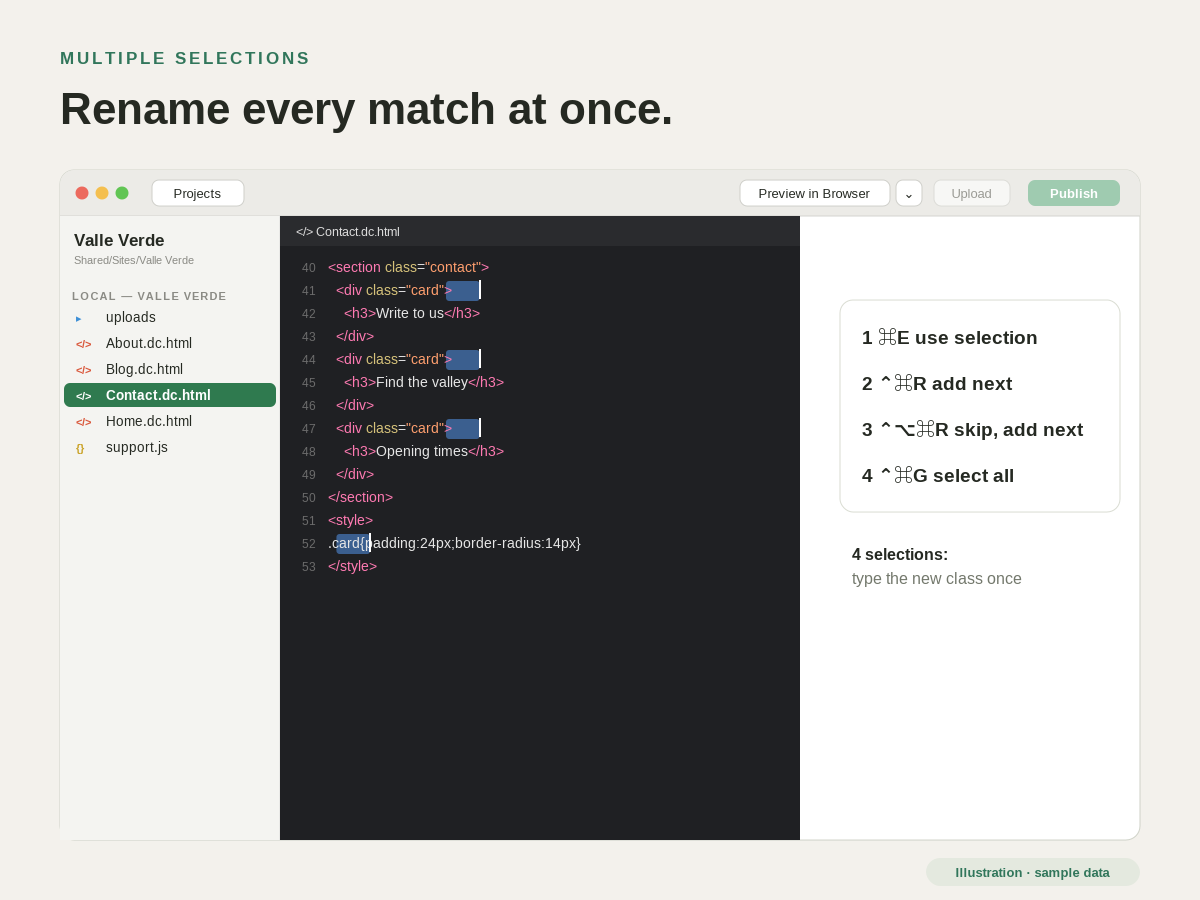
Find All and Select (⌃⌘G) puts a cursor on every match of the search. Add Next Match to Selection (⌃⌘R) adds them one at a time, and Skip and Add Next Match (⌃⌥⌘R) passes over the one you want to keep.
Step by step
Rename a class in one page.
- Select the word
Double-click the class name and press ⌘E (Use Selection for Find). - Add the matches
Press ⌃⌘R for each next occurrence, or ⌃⌘G to take them all. - Type once
The new name goes into every selection.
What you get
Search and replace, without the dialog.
For a classic search, Find in Current Document… (⌘F) and Replace in Current Document… (⌥⌘F) step through the matches with ⌘G and ⇧⌘G, and Replace All (⇧⌘R) changes them in one go.