Know what needs uploading.
See in the file tree which pages you changed locally and which changed on the server, and follow every upload and download.
See what is out of sync
Badges on every file.
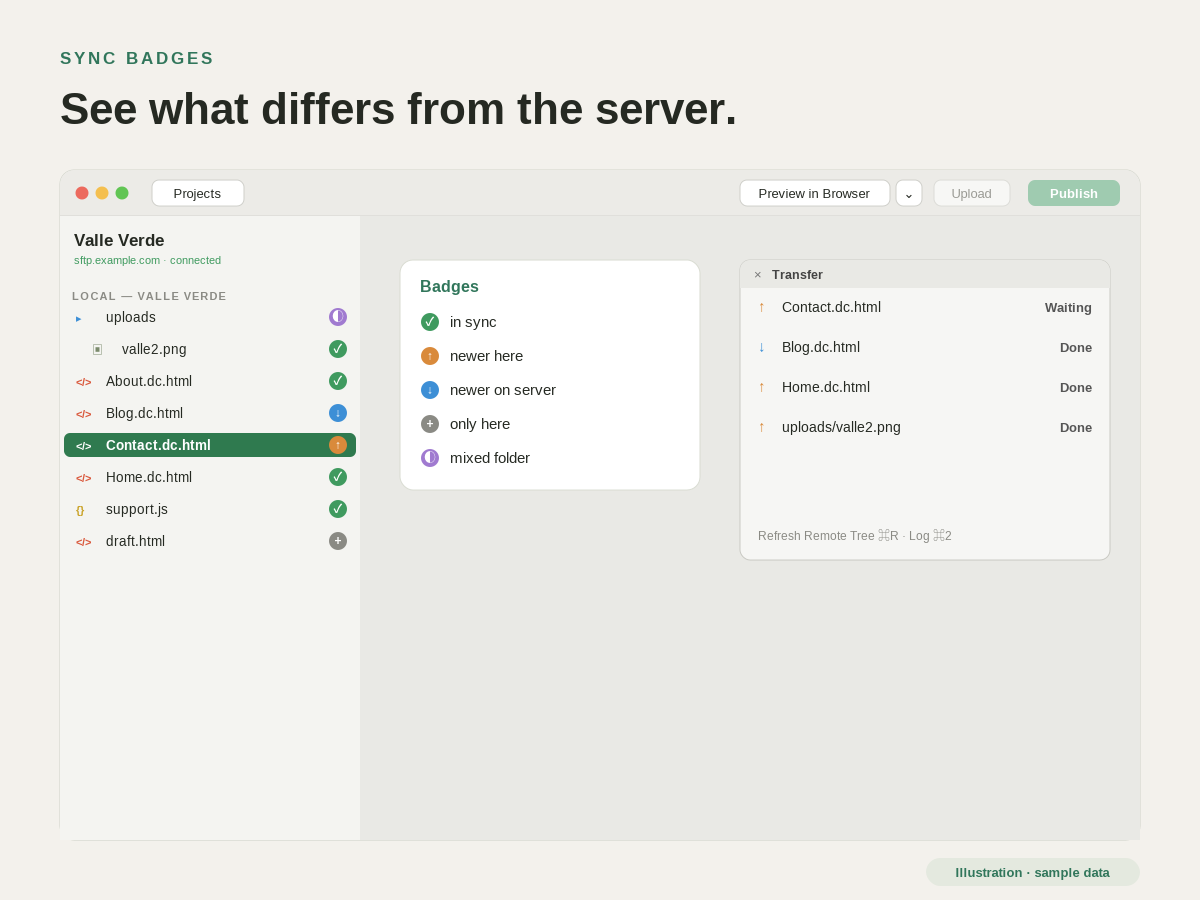
With a connection, each file and folder of the tree shows whether it is in sync, newer locally (↑), newer on the server, only local, only remote or mixed. The comparison uses size and date. A click on a download badge fetches the file.
Step by step
Catch up after a day’s work.
- Refresh
Refresh Remote Tree (⌘R) reads the server again. - Read the badges
Upload the files marked newer locally; click the badge of those newer on the server to fetch them. - Check the transfers
The Transfer palette (⌘9) lists each upload and download with its path, status and any error; the Log (⌘2) shows the connection’s activity.
What you get
No forgotten page.
The badges say which files differ before anything is overwritten.