Edit with an AI assistant.
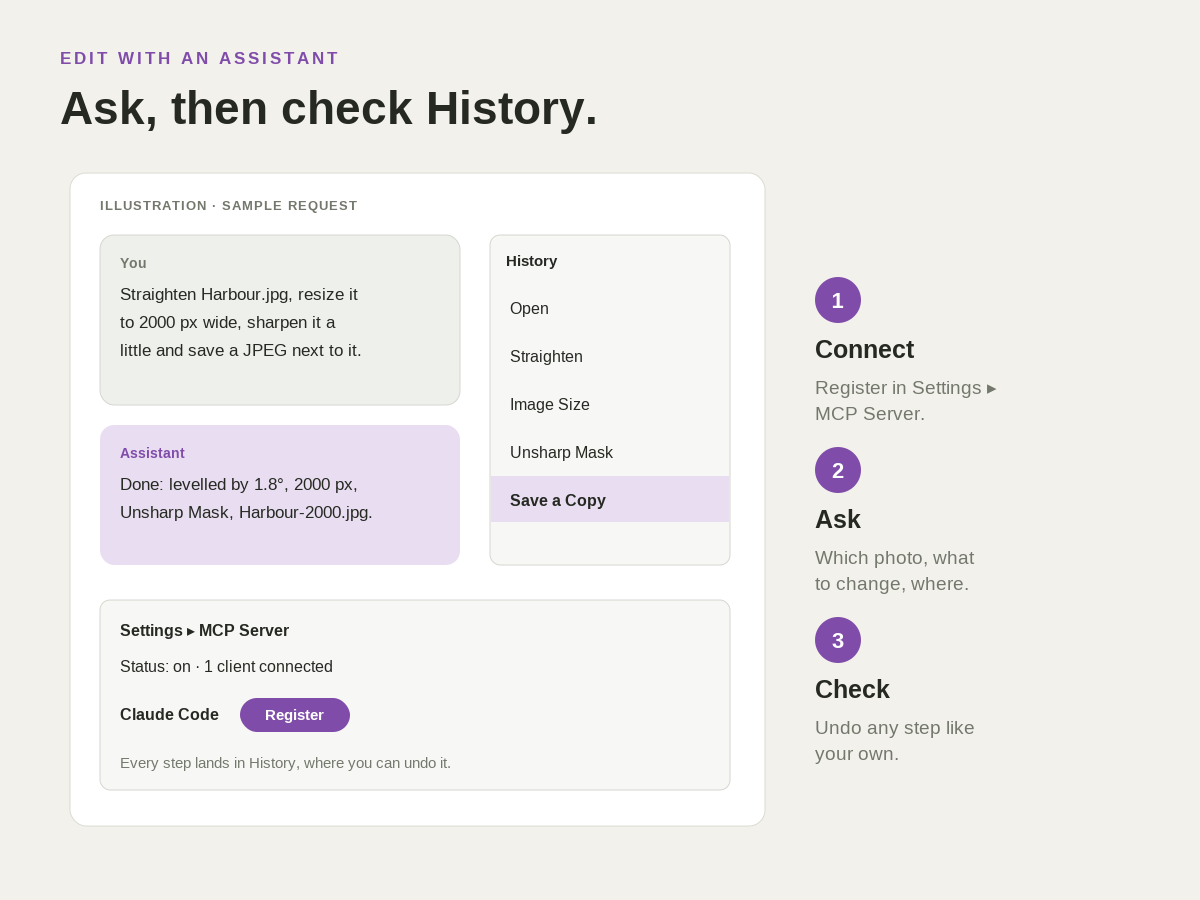
Ask an assistant to straighten, resize and export a set of photos, and watch each step land in the History of the open document.
What you do
Flare is an MCP server.
An assistant that speaks MCP can drive Flare: open and save files, manage layers, masks and adjustment layers, make selections, run adjustments and filters, change colour mode and profile, resize and crop, and step through History.
Settings ▸ MCP Server shows whether the server is on and which assistants are connected, and registers Flare in Claude Code with one button (the App Store copy gives you the command to paste in Terminal).
Step by step
Try it on your own photo.
- Connect
In Settings ▸ MCP Server, press Register in the Claude Code box, or add Flare to your assistant's MCP settings. - Ask
Describe the job: which photo, what to change, where to save. - Check
Every step is in History, where you can undo it like your own.
What you get
The edit done by the assistant, step by step, in the same document and History as your own work.