Straighten, crop and reshape.
Level a tilted sea, crop a photo to the size a site asks for and bend a label round a bottle.
What you do
Fix what the hand and the lens did.
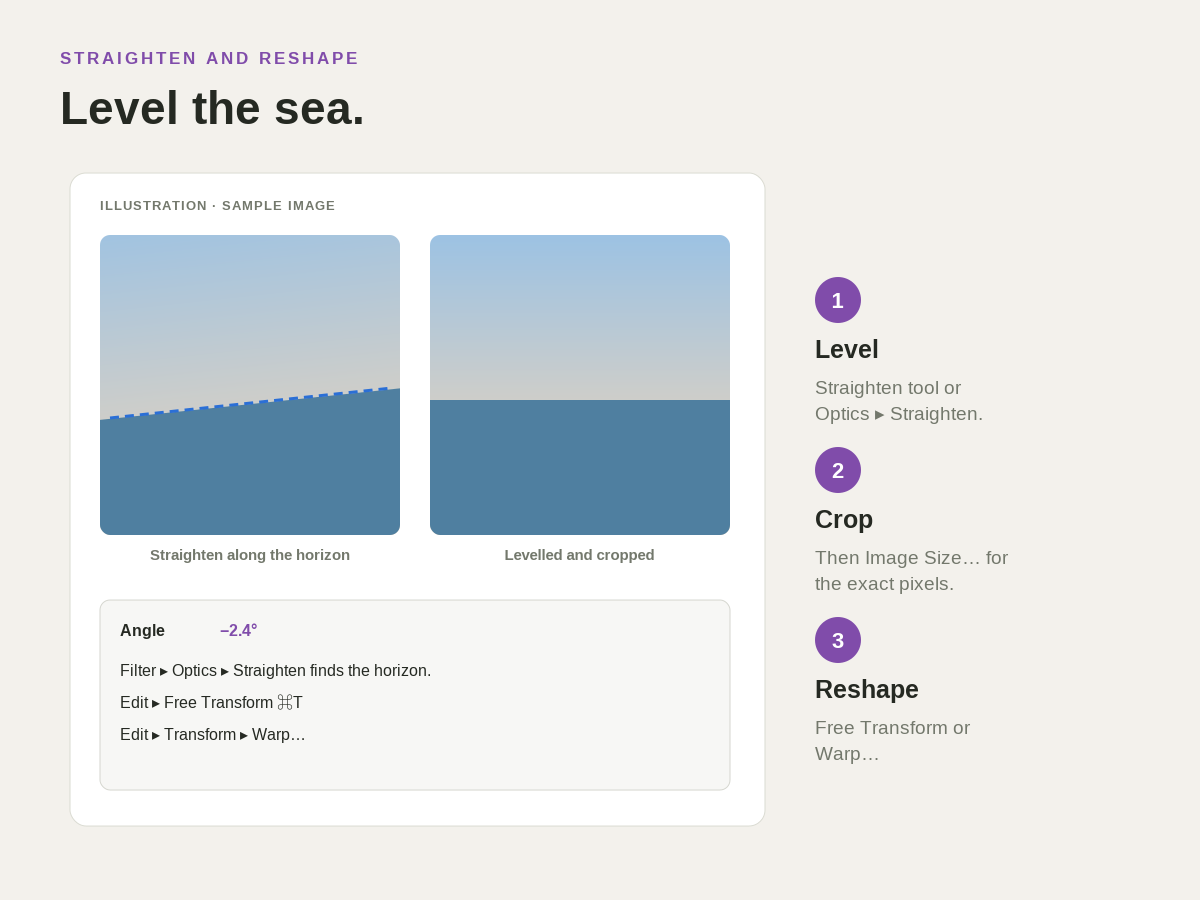
Drag the Straighten tool along the horizon, or choose Filter ▸ Optics ▸ Straighten to have the horizon found for you. The Crop tool trims the canvas; Image ▸ Image Size… and Canvas Size… set exact dimensions.
Edit ▸ Free Transform (⌘T) scales, rotates and skews a layer or a selection; Edit ▸ Transform ▸ Warp… bends it with a Bend control and a live preview.
Step by step
Try it on your own photo.
- Level
Straighten tool along the horizon, or Filter ▸ Optics ▸ Straighten. - Crop
Crop tool, then Image ▸ Image Size… for the pixel size the site asks for. - Reshape
⌘T for Free Transform, Edit ▸ Transform ▸ Warp… to bend.
What you get
A level, correctly sized photo; Edit ▸ Transform ▸ Again repeats the last transform on the next layer.