Place a logo on a photo.
Put a client's logo on a product shot and keep it sharp at any size, even after they send a new version.
What you do
The logo stays artwork.
File ▸ Place… brings SVG, PDF or .ai artwork in as a smart object: scale it, rotate it, and it is redrawn sharp each time instead of being stretched.
Layer ▸ Smart Objects ▸ Edit Contents opens an SVG in SVG Editor; save it there and the photo updates. Replace Contents… swaps in the new file the client sent.
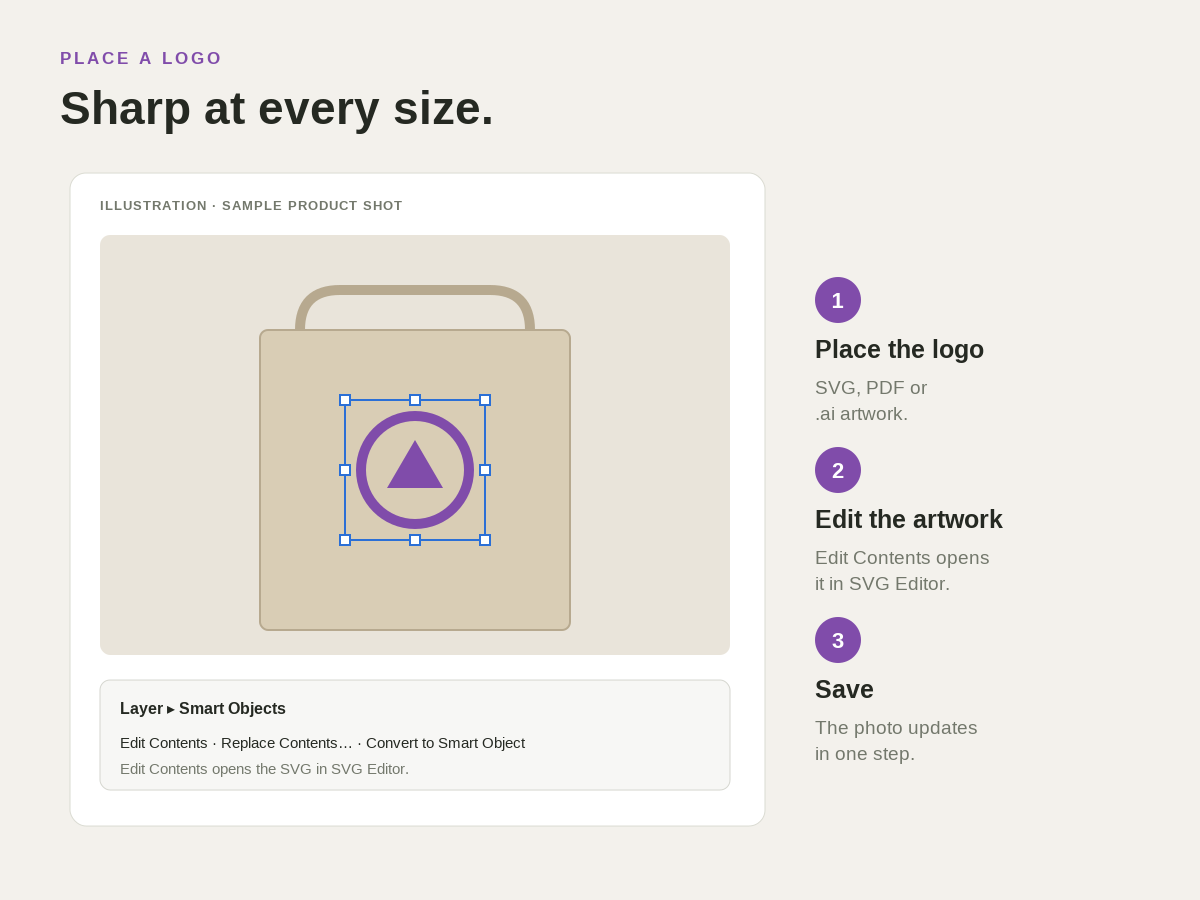
Step by step
Try it on your own photo.
- Place the logo
File ▸ Place…, then drag the handles; Return commits. - Edit the artwork
Layer ▸ Smart Objects ▸ Edit Contents, change it in SVG Editor and save. - Update
The smart object reads the saved file back as one History step.
Convert to Smart Object
Layer ▸ Smart Objects ▸ Convert to Smart Object turns a pixel layer into a smart object in place: from then on scaling and filters no longer change its pixels for good, and each filter stays editable on the layer.
What you get
A product photo with a logo that stays editable; filters on a smart object stay editable too.