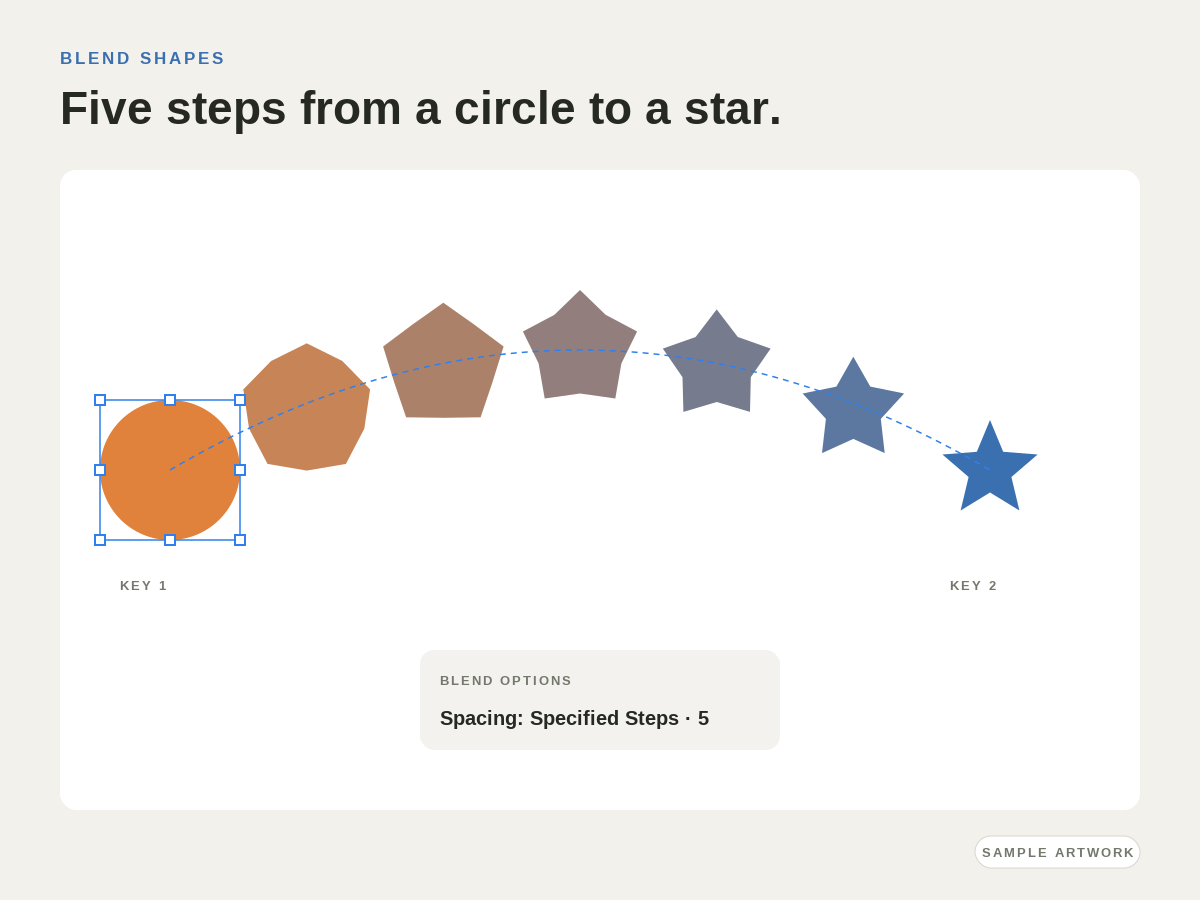
Blend a circle into a star.
Generate the in-between shapes and colours from two objects, then move either key and watch the steps follow.
Blend
Two keys, any number of steps.
Click two or more objects with the Blend tool (W), or choose Object ▸ Blend ▸ Make. Blend Options sets the spacing: Smooth Color, Specified Steps or Specified Distance. Moving, reshaping, recolouring or reordering a key rebuilds the steps in the same undo step; moving the whole blend leaves them as they are.
Step by step
Blend a circle into a star, in 3 steps.
- Pick the keys
Draw the first and last shapes in their own colours and click each one with the Blend tool. - Set the spacing
Double-click the tool or open Blend Options to choose the number of steps or a distance. - Freeze it
Object ▸ Expand turns the blend into a plain group of paths when you want to edit a single step.
What you get
A ramp that keeps up with your edits.
Recolour the last key and the whole ramp follows, so trying another colour costs one click.