Learn on a finished site.
Open Valle Verde, a four-page sample website, from the Welcome screen and try the editor, the preview and the palettes on real pages before you open your own.
Start from the sample site
A site to take apart.
The Welcome screen opens a local folder, sets up a new connection or opens the sample site, and lists your recent projects. Since 26.3 it also gathers the app’s tools in four groups, Project, Current Document, Panels and App, so you can see where each one lives.
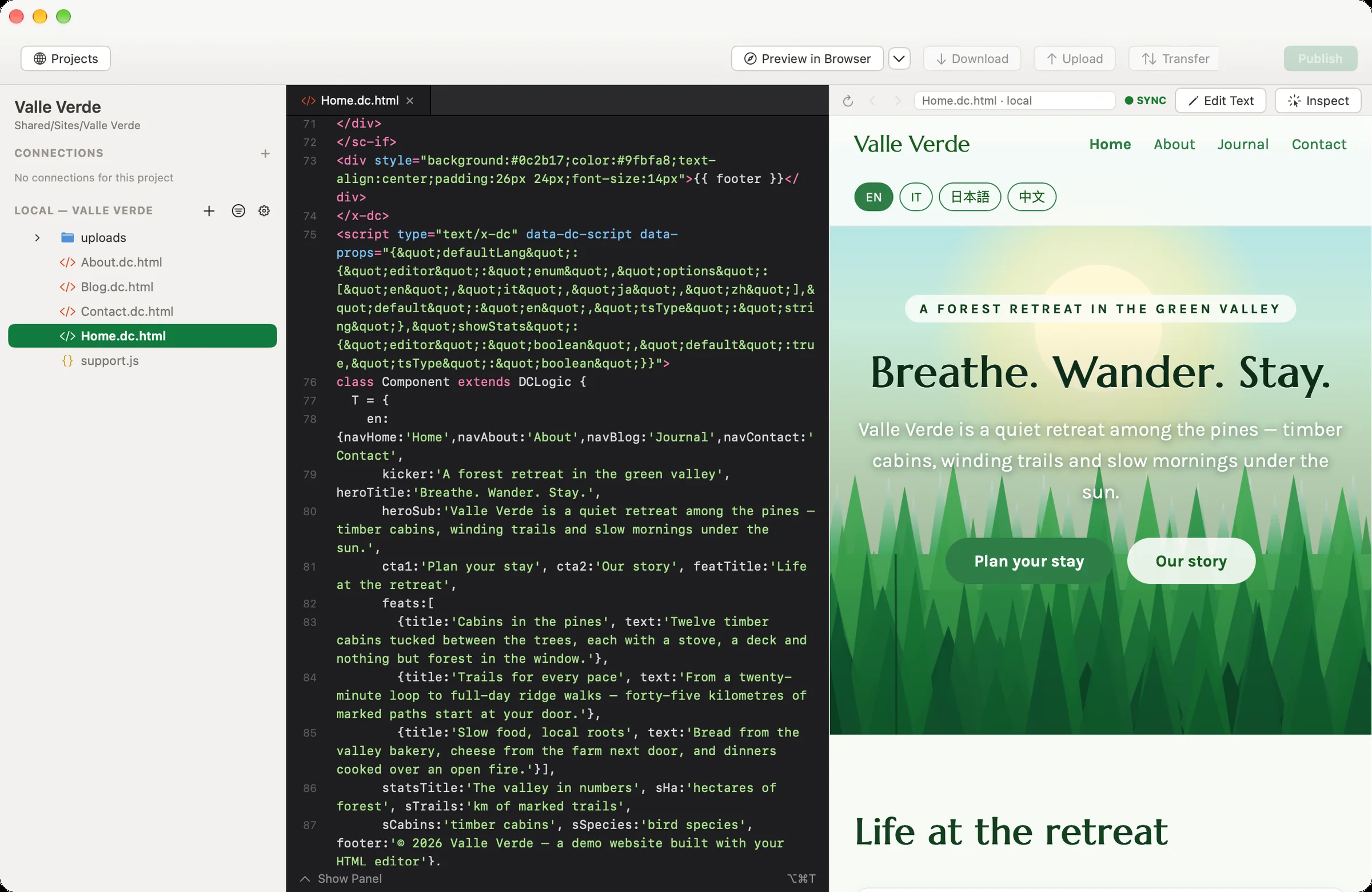
Step by step
Open Valle Verde.
- Choose Open Sample Site
On the Welcome screen, click Open Sample Site. The app copies Valle Verde into its own folder and opens Home.dc.html. - Look at the pages
Home, About, Blog and Contact share a sticky navigation and a language switcher in English, Italian, Japanese and Chinese. - Change something
Edit the headline, restyle a link with the CSS palette or run the validator: the copy is yours to change. - Open your own site next
Use Open Local Folder… (⌘O) on the Welcome screen or drop a folder on the app.
What you get
A sandbox that stays yours.
The sample is copied once and never overwritten, so your changes to it survive the next launch. The originals stay inside the app.