Make your signature once.
Keep the signature you use on contracts and forms in a library, made the way that suits you, and place it in the ink the recipient asks for.
What you do
Four ways into the library.
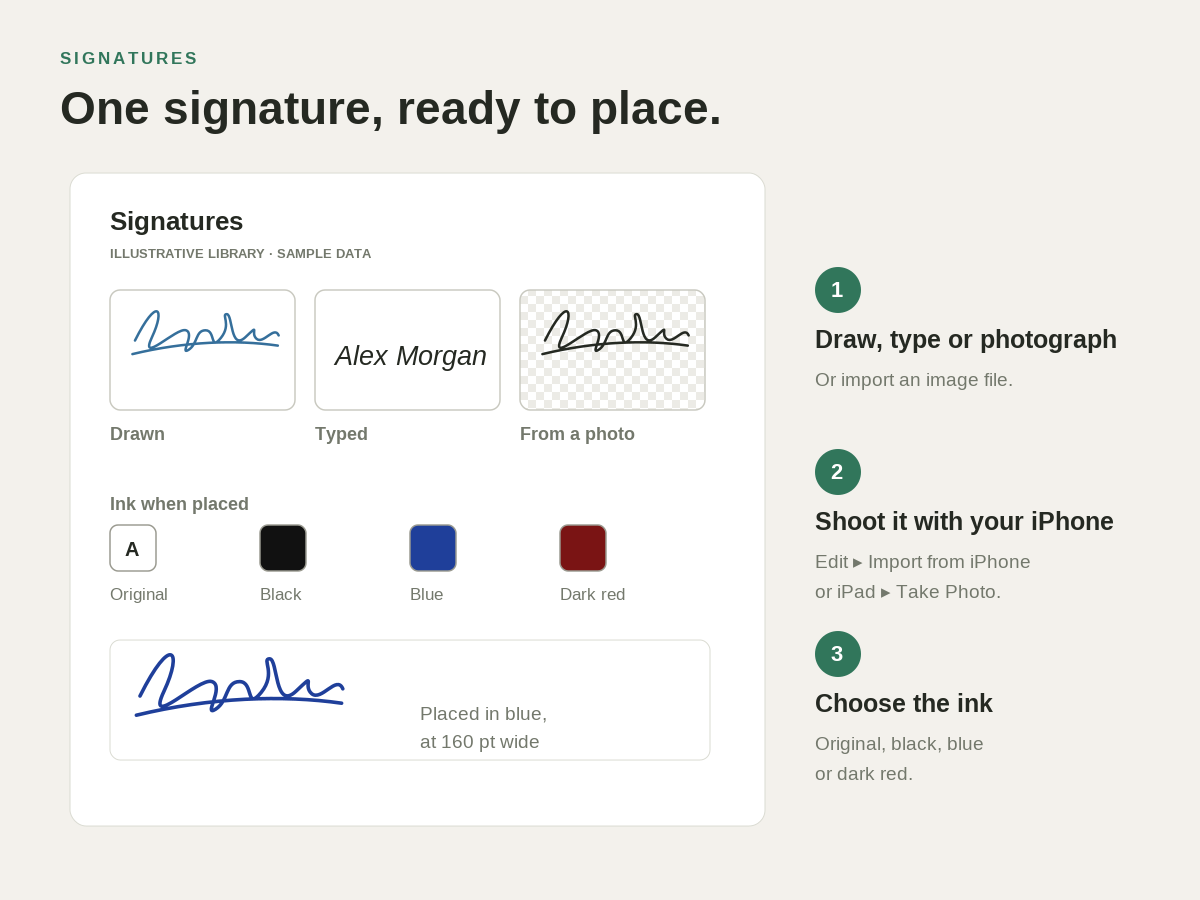
Draw Signature… smooths what you sign with the mouse or trackpad on a baseline. Type Signature… sets your name in one of the handwriting faces that come with macOS.
From Photo… turns a picture of your signature on paper into ink on a transparent background, with an ink-pickup slider. Edit ▸ Import from iPhone or iPad ▸ Take Photo sends a shot from your phone straight into that cleanup, without saving a file.
Step by step
Try it on your own PDF.
- Add a signature
Open the Signatures palette and choose Draw, Type, From Photo or Import Signature… (or drop an image file on the palette). - Name it and set its width
Each item can be renamed and given a default width; the library is kept between launches. - Choose the ink and place it
Place it in its original ink, black, blue or dark red. A bank can tell a blue original from a photocopy.
What you get
A signature that drops in at the size you last fitted it, so the fourth box matches the first three.