Redraw a curve.
Place anchors with the Pen or the Curvature tool, bend a segment with the white arrow, and join, cut or erase stretches of a path.
Path editing
Fewer anchors, smoother curves.
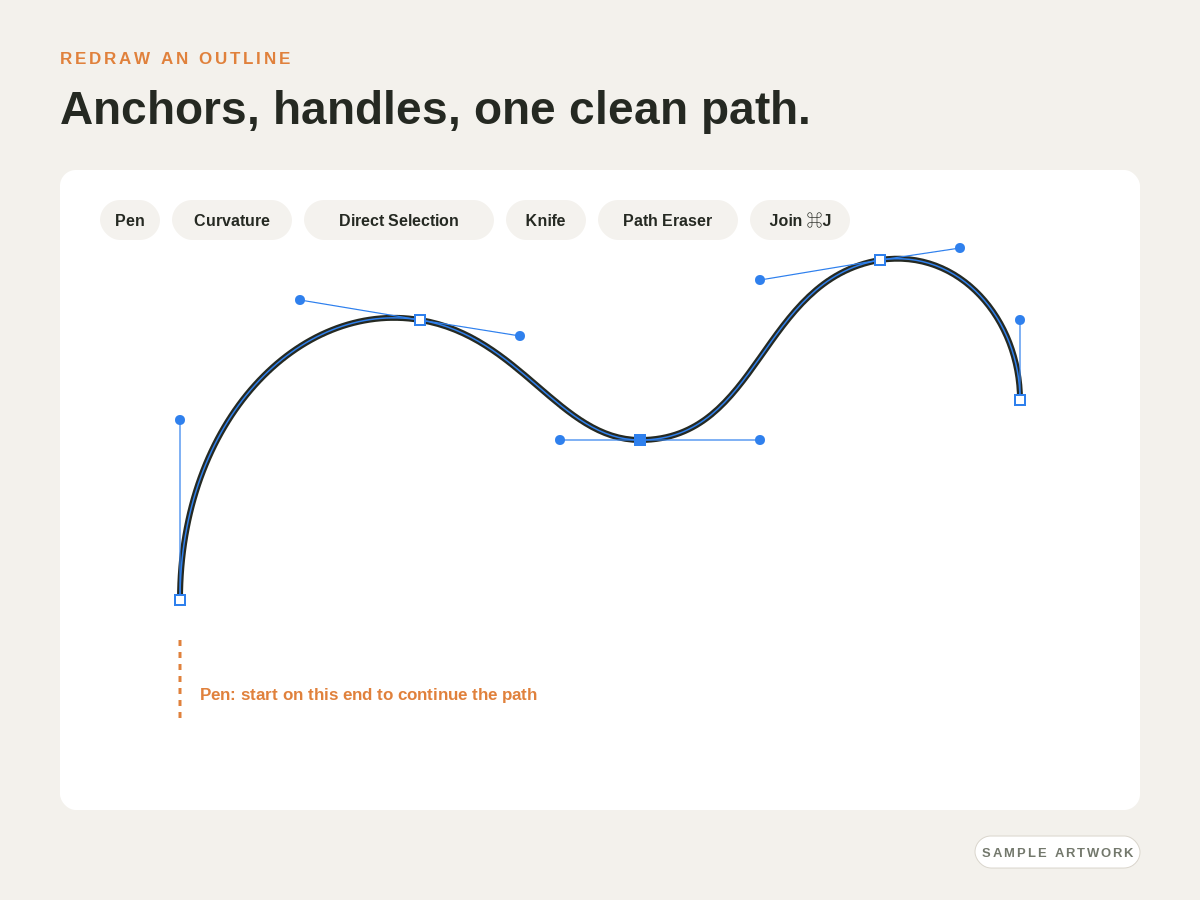
The Curvature tool (⇧~) fits a smooth curve through the points you click; a double-click turns a point into a corner. With the Pen, start on the end of an open path to carry on drawing it, or finish on another path’s end to join the two into one.
Step by step
Redraw a curve, in 3 steps.
- Draw the outline
Click for corners and drag for curves with the Pen, or click through the shape with the Curvature tool. - Bend and move
With the white arrow, drag a straight segment to bend it into a curve through the pointer; a dragged anchor snaps onto other anchors. - Join, cut or erase
Object ▸ Path ▸ Join (⌘J) joins two picked ends or closes a path; the Knife cuts what its line crosses; the Path Eraser (⇧E) removes a stretch and keeps the style of the pieces.
What you get
One path where there were three.
Joined ends become a single path with one fill, ready for Offset Path, Outline Stroke or the Pathfinder. ⌘Z right after closing a path takes back the last click and lets you keep drawing.